How I Safely Simulated a Conditional Access Lockout in Microsoft Entra ID
The Goal of This Lab
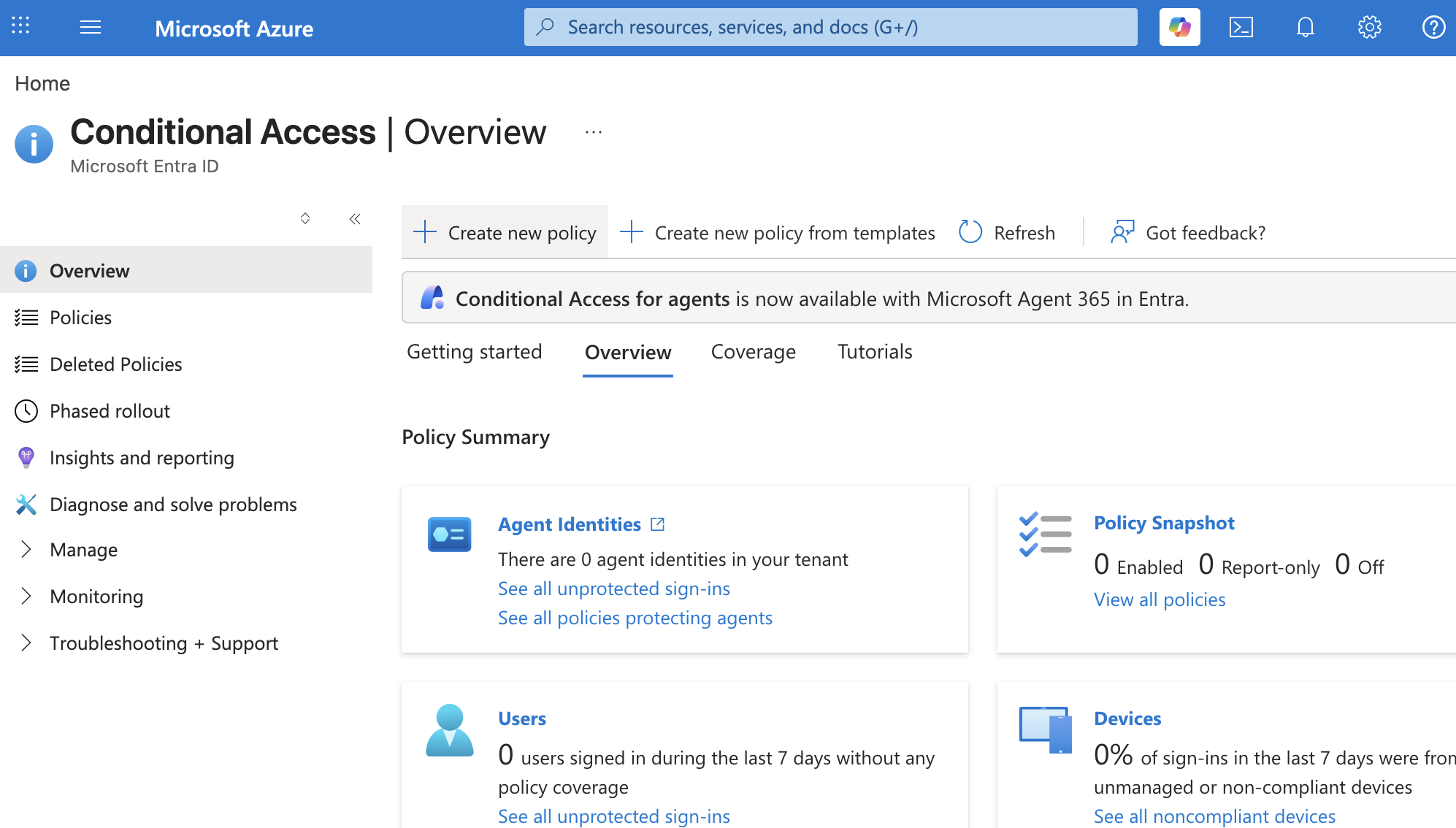
Conditional Access is one of the most powerful access-control features in Microsoft Entra ID.
It can require MFA, block risky sign-ins, protect Azure management, enforce device-based access rules, and apply organization-wide identity security policies.
However, Conditional Access also has a dangerous side:
A badly scoped Conditional Access policy can lock users or administrators out of the tenant.
That is why this lab was not designed as a reckless “turn it on and see what happens” test.
The goal was to safely simulate a Conditional Access lockout using:
- A normal test user
- A break-glass emergency administrator
- Live enforcement
- Sign-in log verification
- A rollback plan
This was a portal-only lab. No PowerShell, Azure CLI, Graph API, or Terraform was used.
Why This Lab Matters
Before doing this lab, I understood Conditional Access as a security feature.
After doing this lab, I understood it more as an identity control plane.
A Conditional Access policy can decide whether a user receives a token or gets blocked. That means a bad policy is not just a configuration mistake.
It can become an operational incident.
Examples of dangerous mistakes include:
All users
All resources
Block access
Policy state: On
**No break-glass exclusion**
That type of mistake can block administrators from the same portal they need to use for recovery.
This lab was built to avoid that outcome.
Lab Safety Model
The safety model used three separate identities:
| Account | Purpose |
|---|---|
lab-owner-admin |
Main administrator account used to configure the lab |
lab-breakglass-admin |
Emergency recovery administrator |
lab-reader-user |
Standard user used for the lockout simulation |
The core rule was:
Never test a block policy directly against the main administrator account.
Only the test user should be blocked.
The administrator and break-glass accounts must remain usable (Exclude User Select Them).
Opening the Users Blade
I started from the Azure / Entra portal and opened the Users blade.
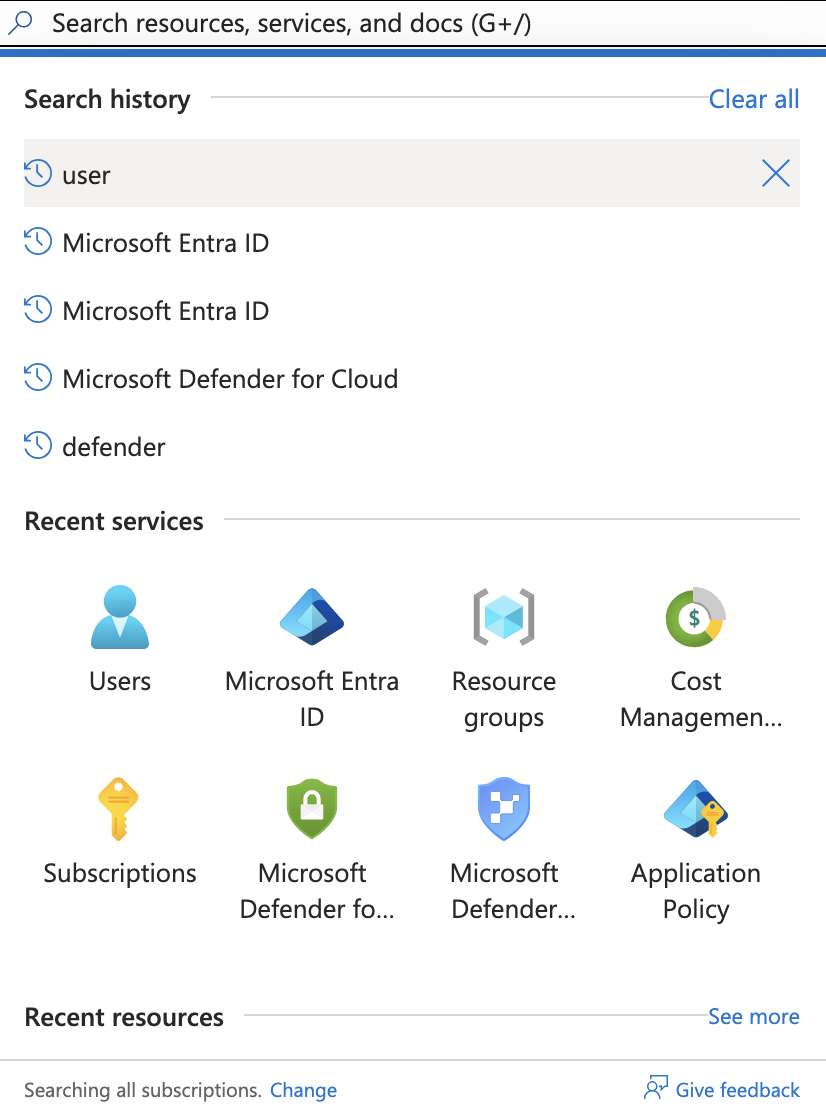
From there, I selected:
New user
→ Create new user
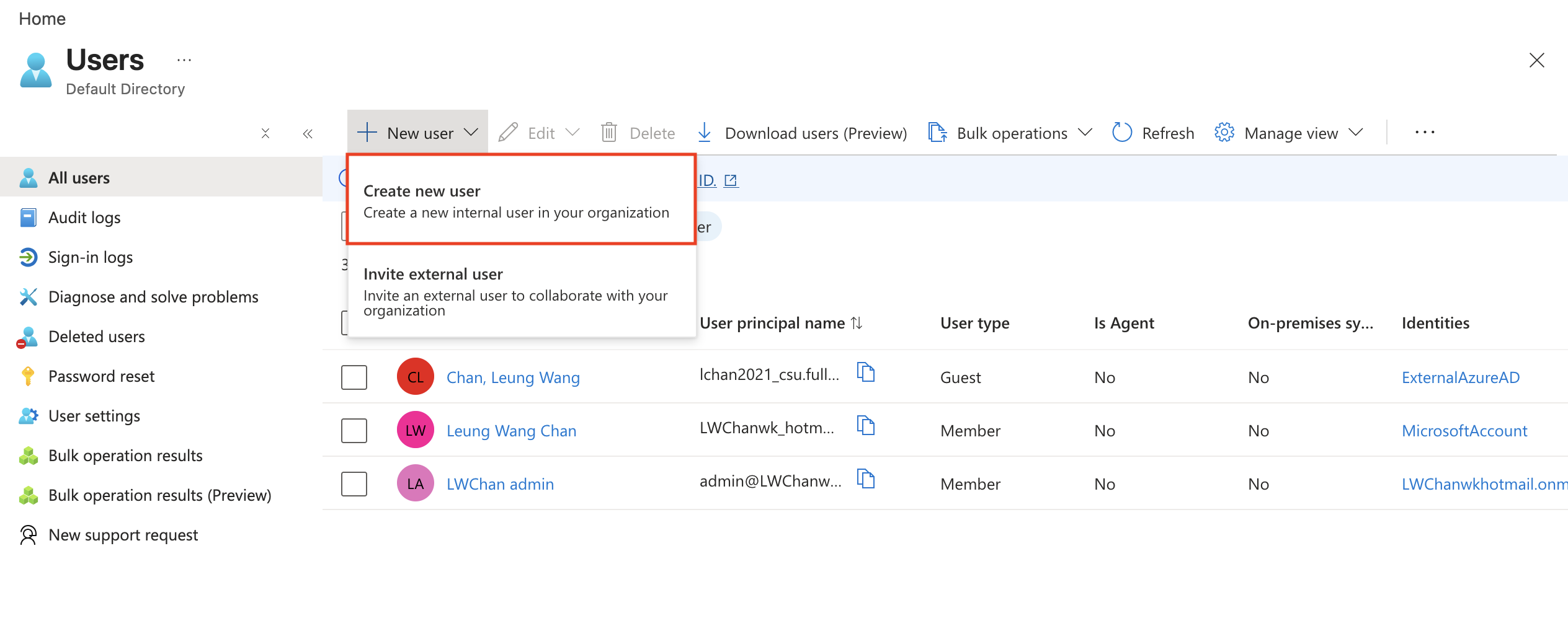
This started the identity setup phase of the lab.
Creating the Break-glass Administrator
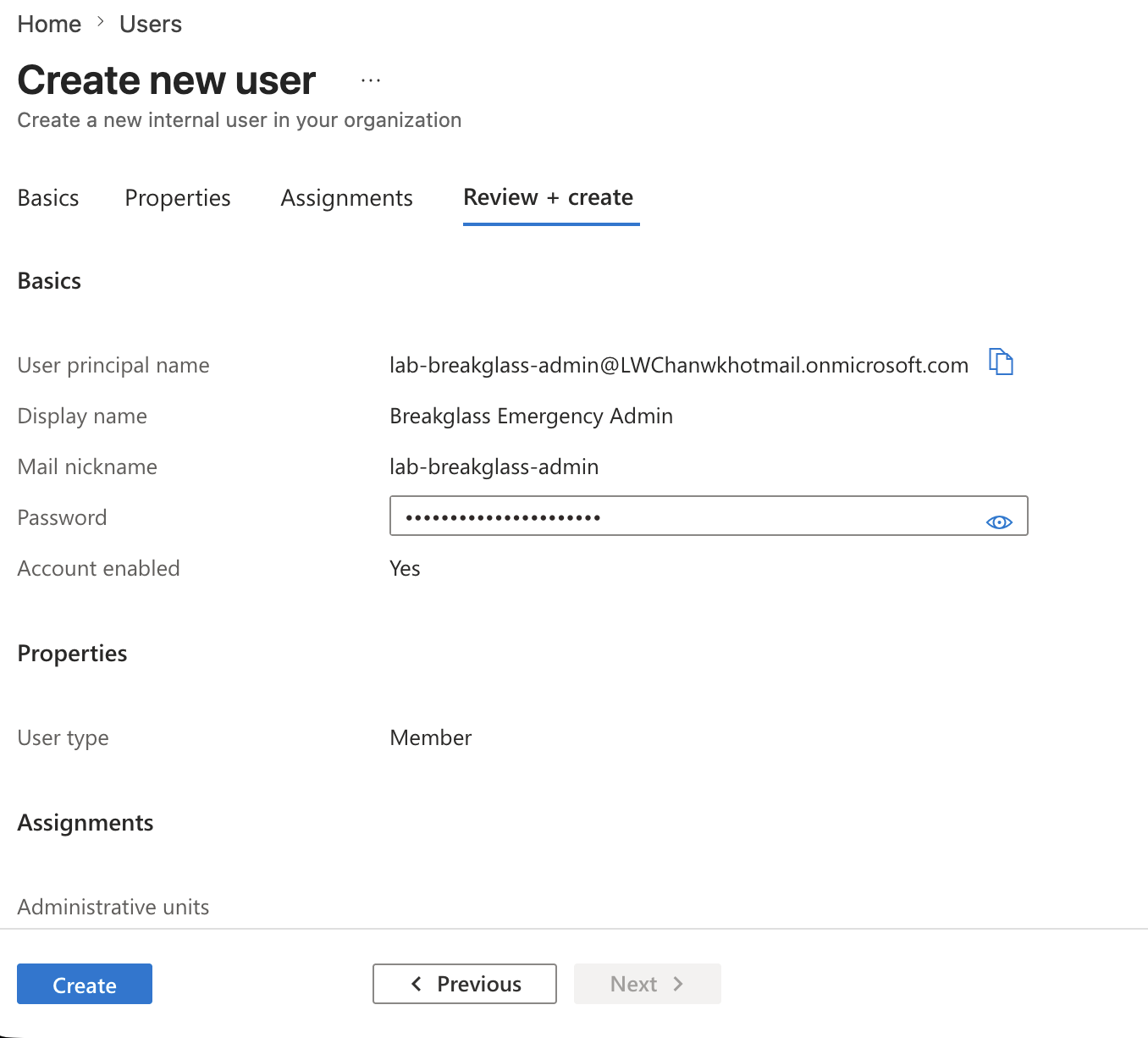
The first important account was the break-glass administrator:
lab-breakglass-admin
This account exists for emergency recovery only.
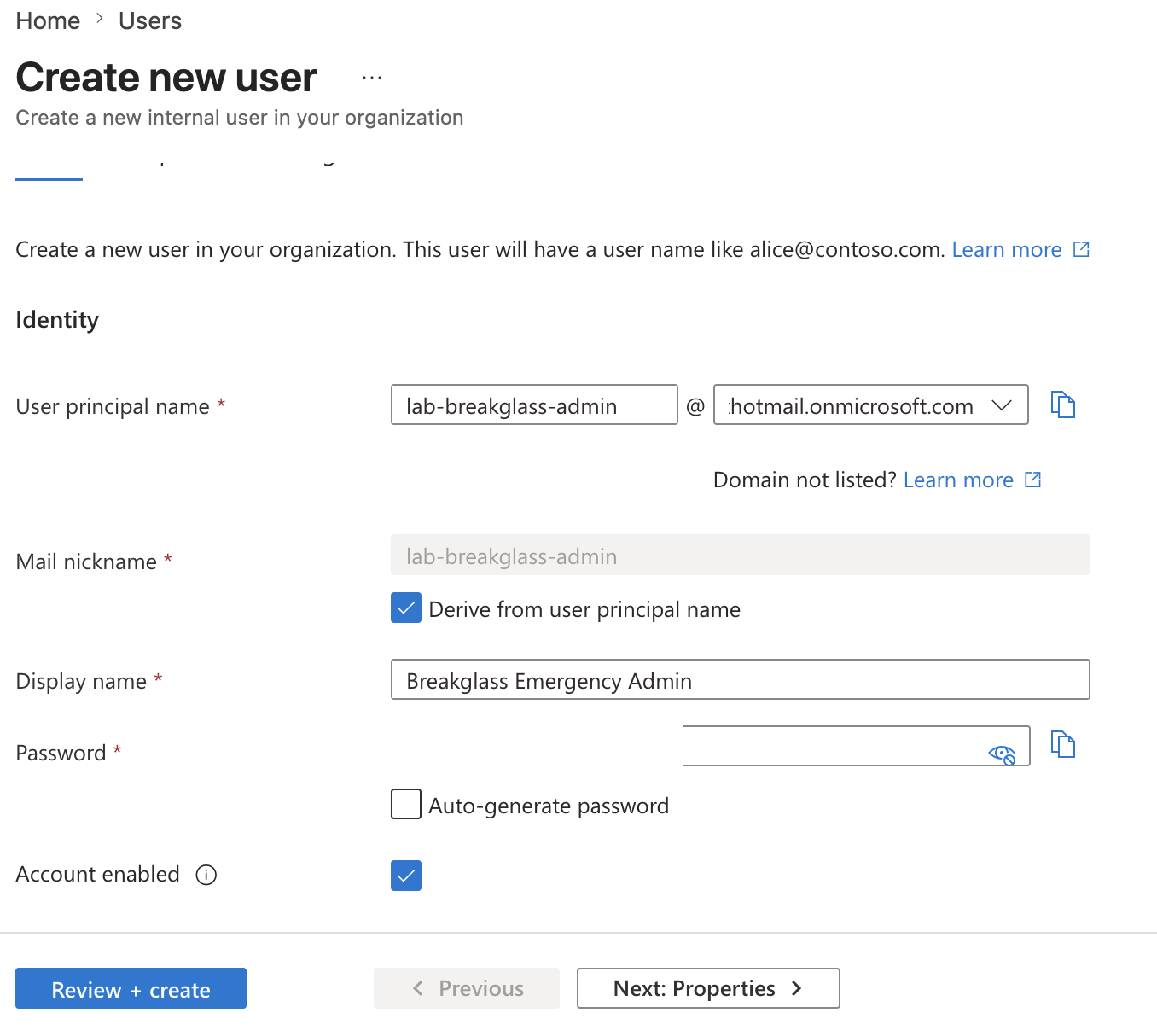
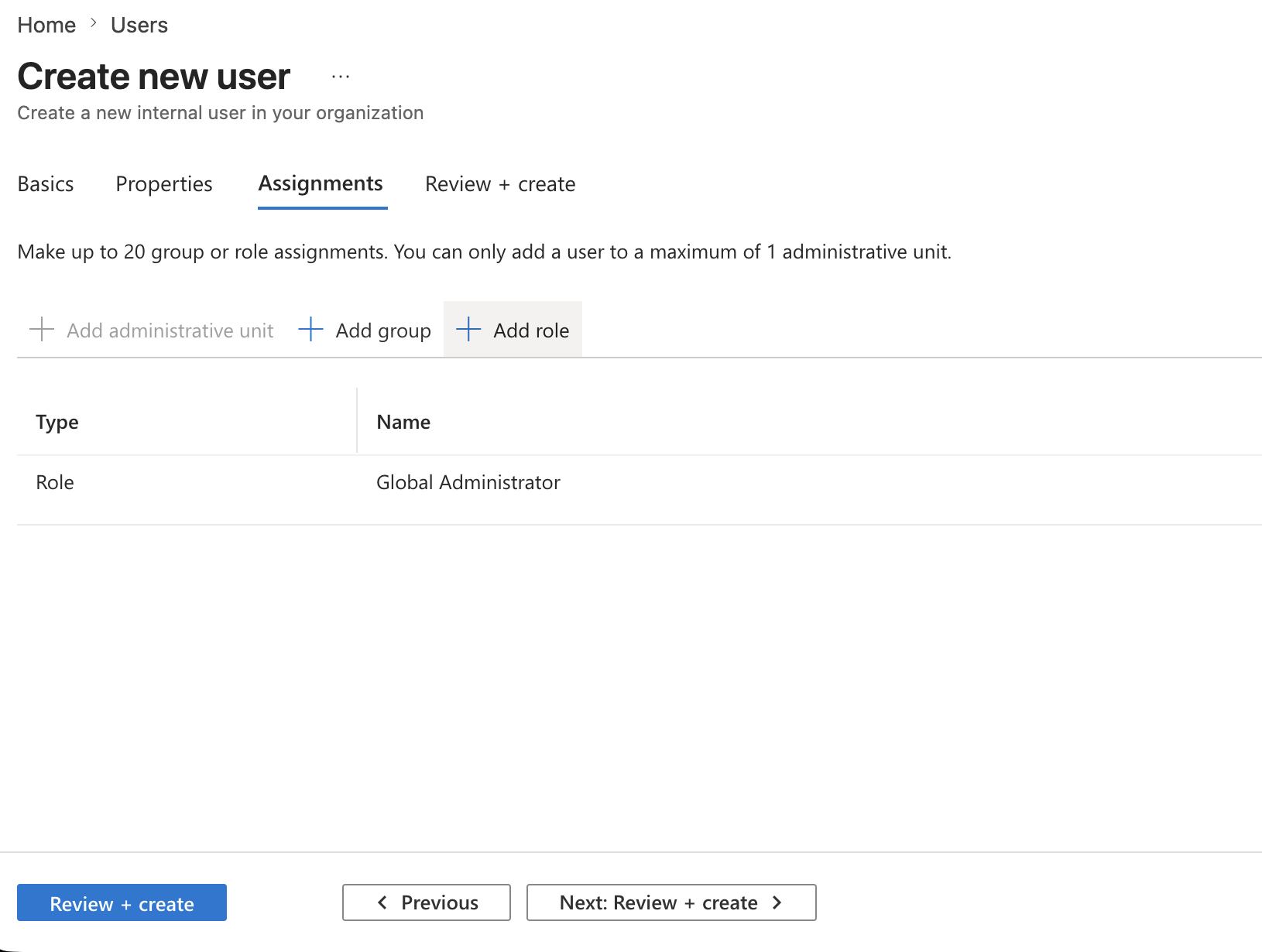
The account was created as an internal member user.
It was then assigned the Global Administrator role.
Before creating the account, I reviewed the final configuration.
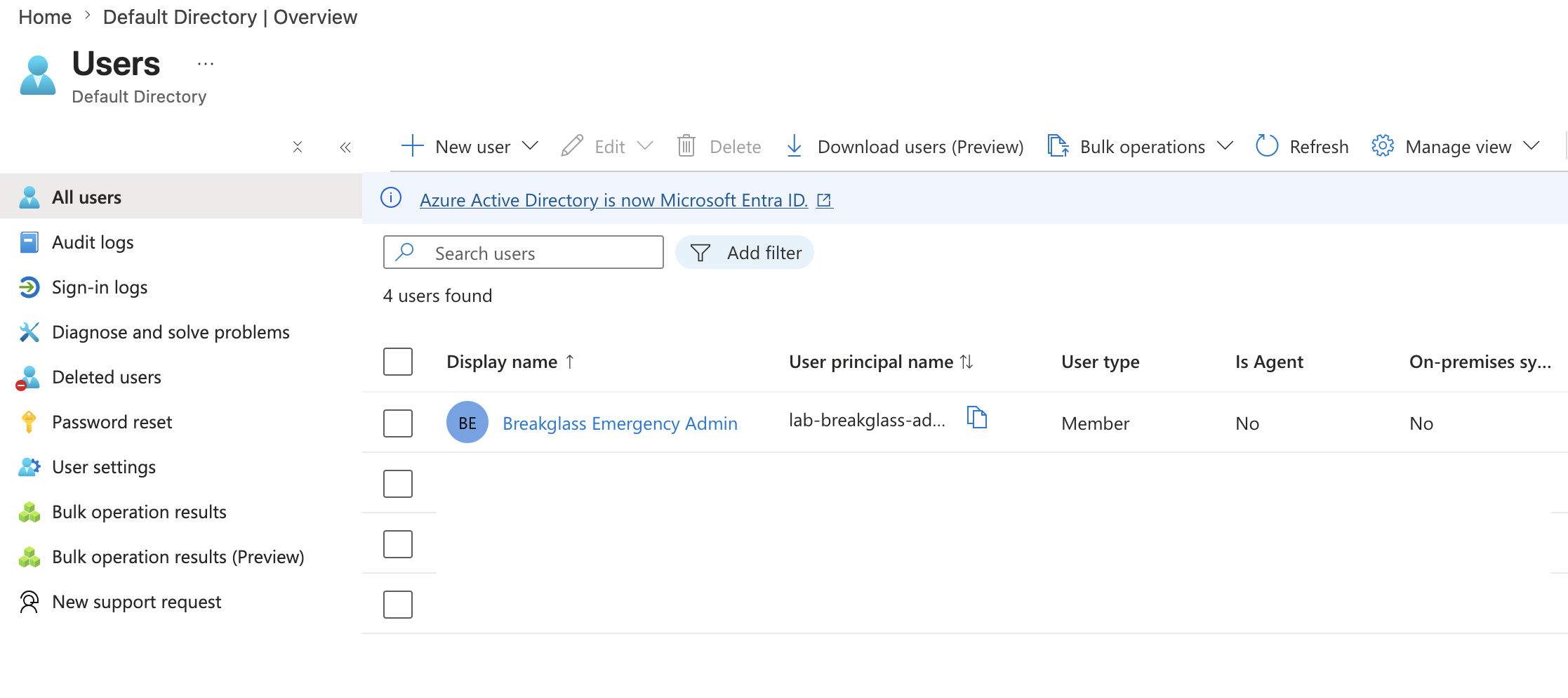
After creation, the break-glass account appeared in the users list.
Why the Break-glass Account Matters
The break-glass account is not a normal daily-use administrator.
Its purpose is recovery.
If a Conditional Access policy blocks normal administrative access, the break-glass account should still be able to sign in and disable or modify the bad policy.
For this reason, a break-glass account should normally follow these rules:
- Use a strong password
- Store credentials securely offline
- Do not use it for daily administration
- Exclude it from Conditional Access lockout policies
- Monitor sign-ins from this account
- Keep the account available for emergency recovery
In a production environment, an organization would normally have more formal break-glass procedures, monitoring, and approval processes.
For this lab, the purpose was to demonstrate the recovery concept safely.
Creating the Test User
Next, I created the standard test user:
lab-reader-user
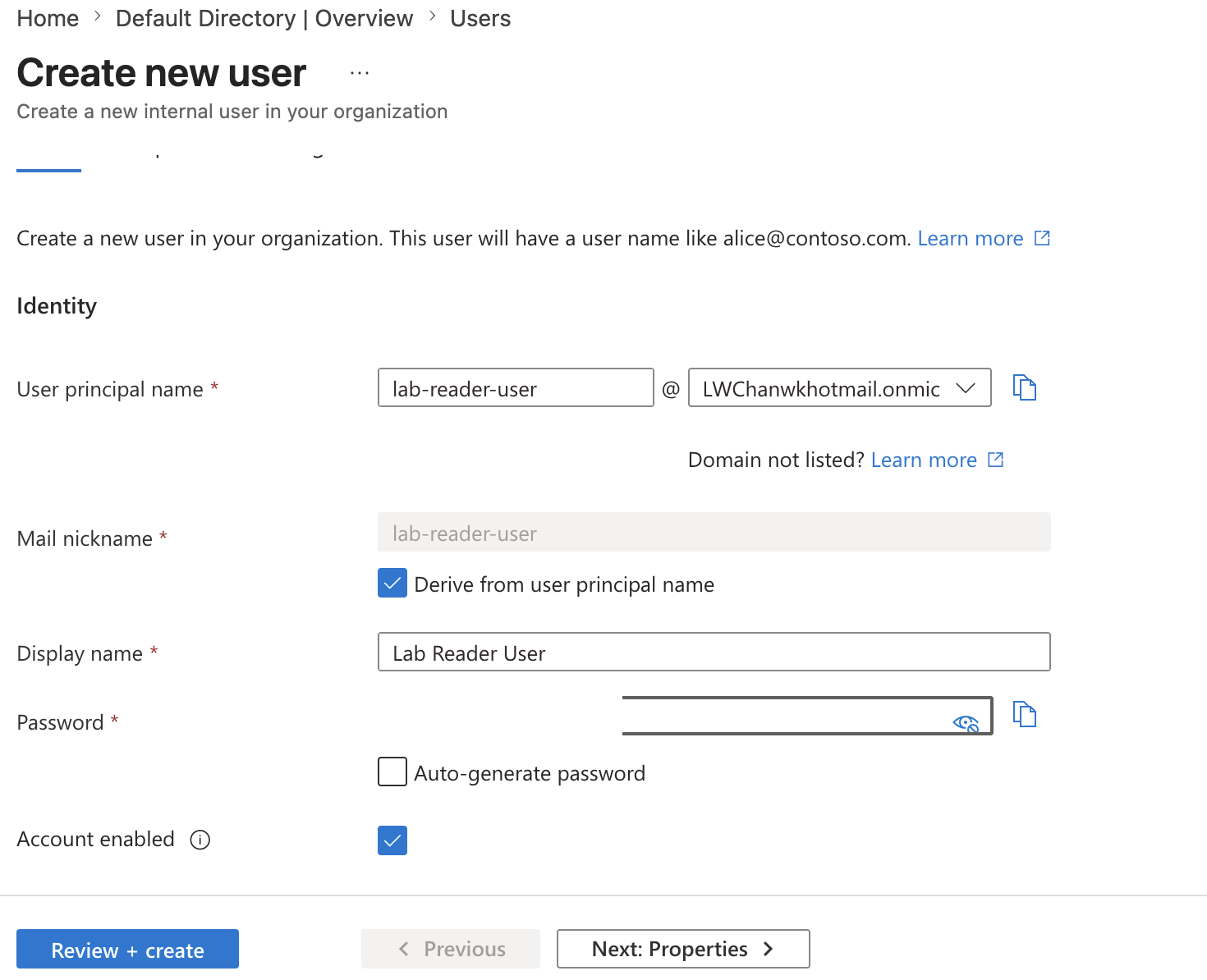
This user was intentionally not assigned an administrator role.
The test user represented a normal low-privilege identity.
This account was used to test:
- Conditional Access targeting
- Report-only behavior
- MFA interaction
- Access blocking
- Sign-in log results
If anything went wrong, only this test user would be impacted.
That kept the blast radius small.
Starting the Conditional Access Policy
Next, I opened:
Microsoft Entra admin center
→ Entra ID
→ Conditional Access
→ Policies
→ Create new policy
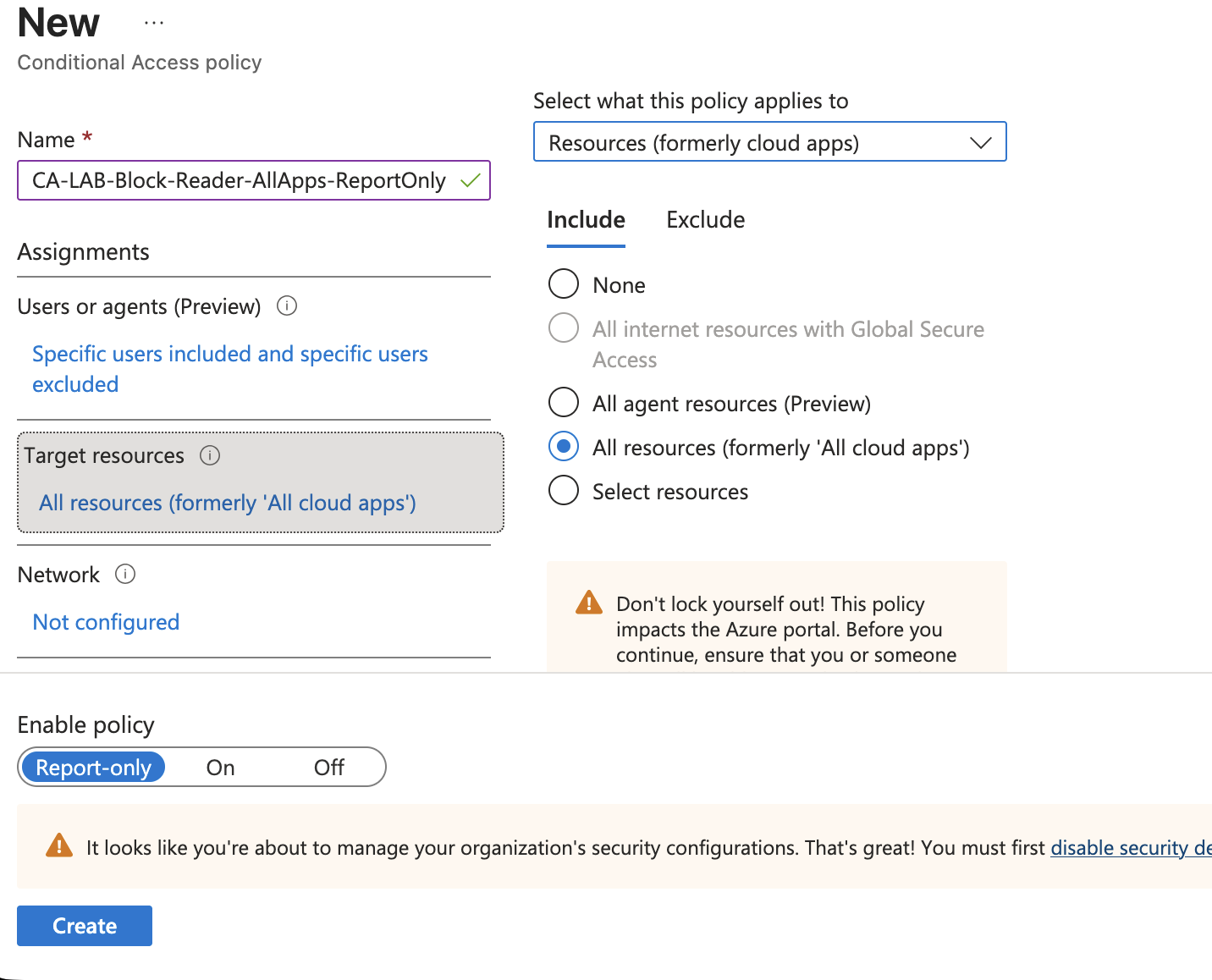
I created the policy with the name:
CA-LAB-Block-Reader-AllApps-ReportOnly
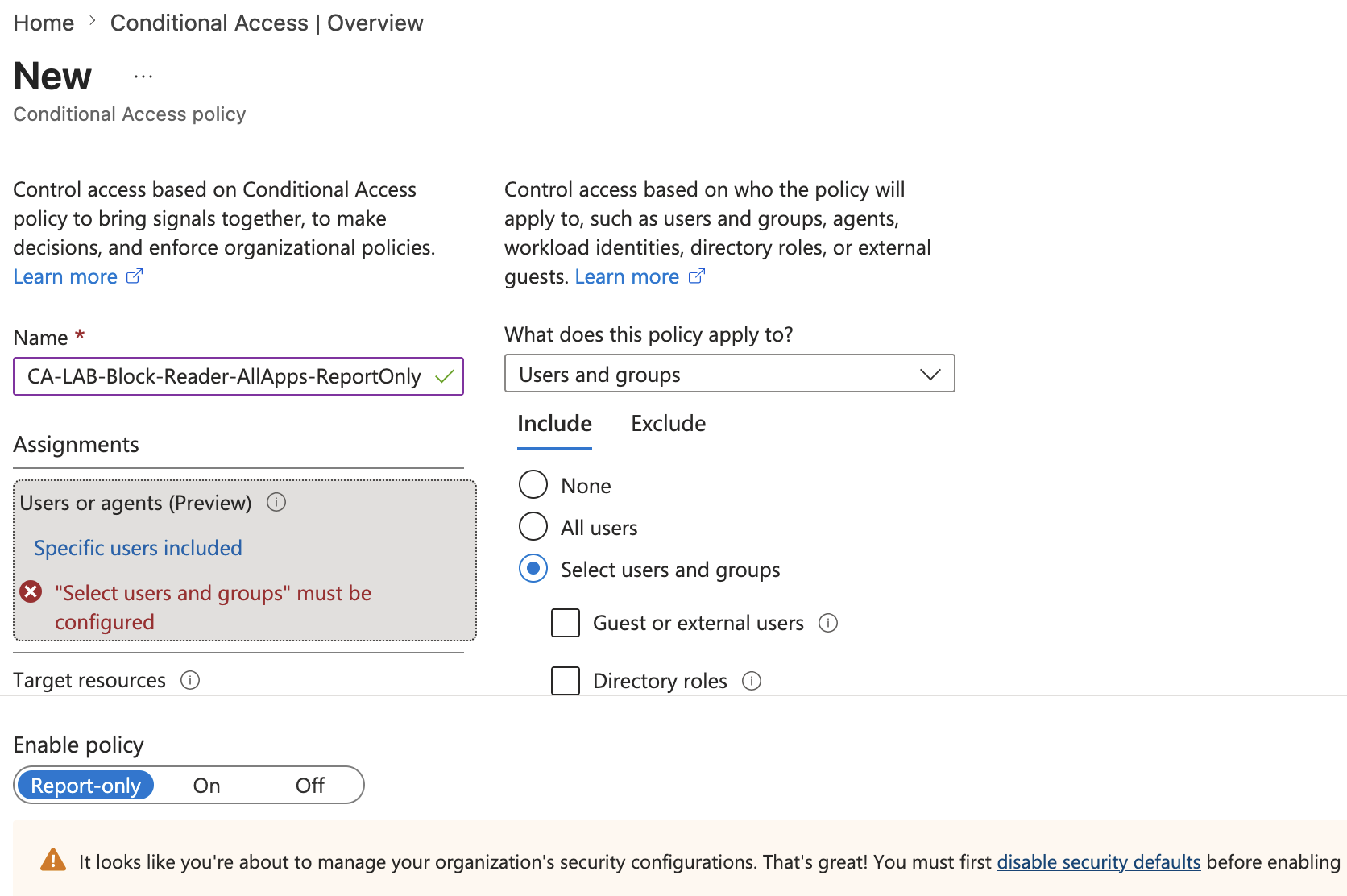
The name was intentionally descriptive.
| Name Part | Meaning |
|---|---|
CA |
Conditional Access |
LAB |
Lab-only policy |
Block |
The grant control blocks access |
Reader |
Targets the lab reader user |
AllApps |
Applies to all cloud resources |
ReportOnly |
Starts in report-only mode |
A clear policy name makes troubleshooting much easier later.
Configuring User Assignment
The policy was configured to apply to selected users and groups.
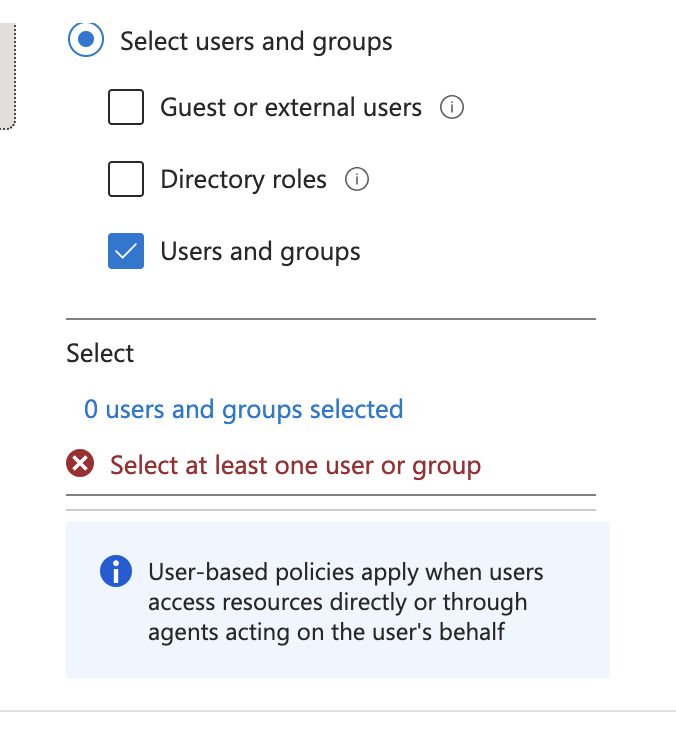
I selected:
Users and groups
and added:
lab-reader-user
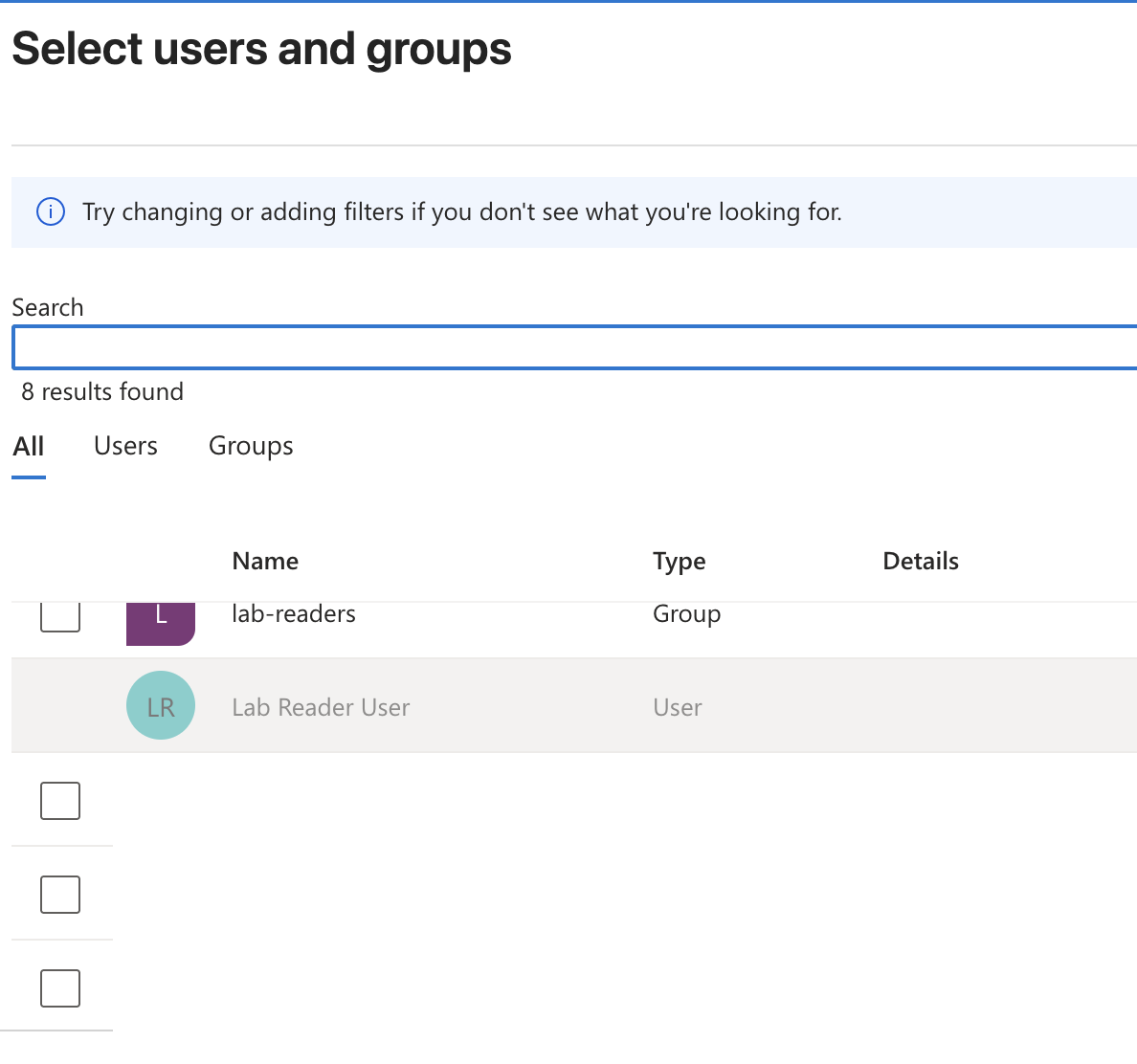
This meant the policy applied only to the test user.
This was the first major safety control.
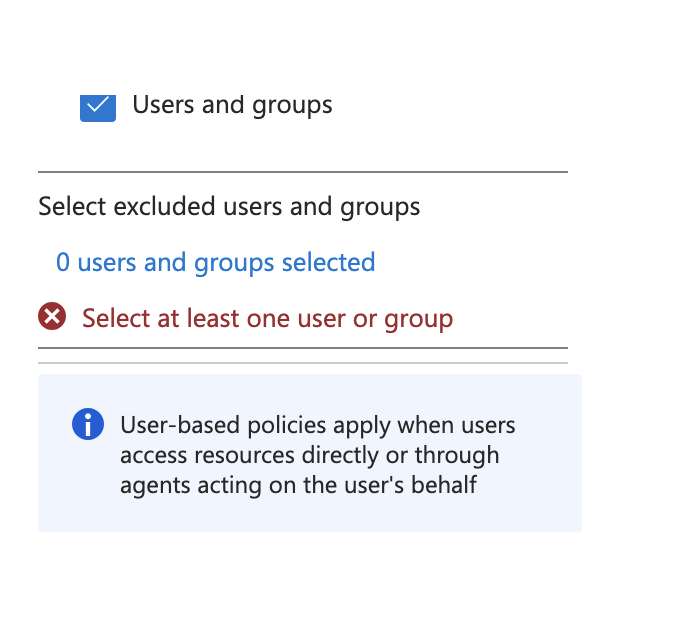
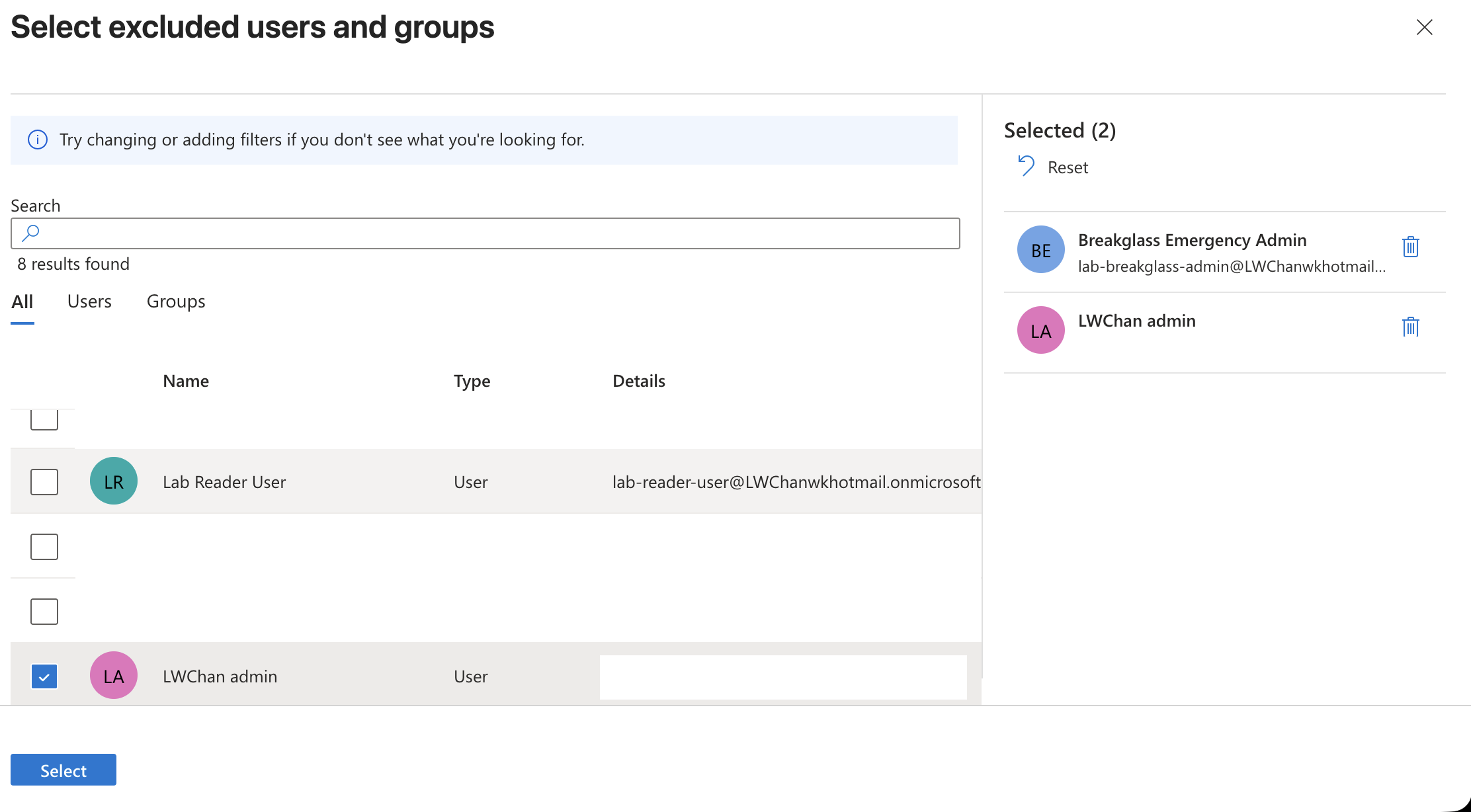
Configuring Exclusions
Then I configured exclusions.
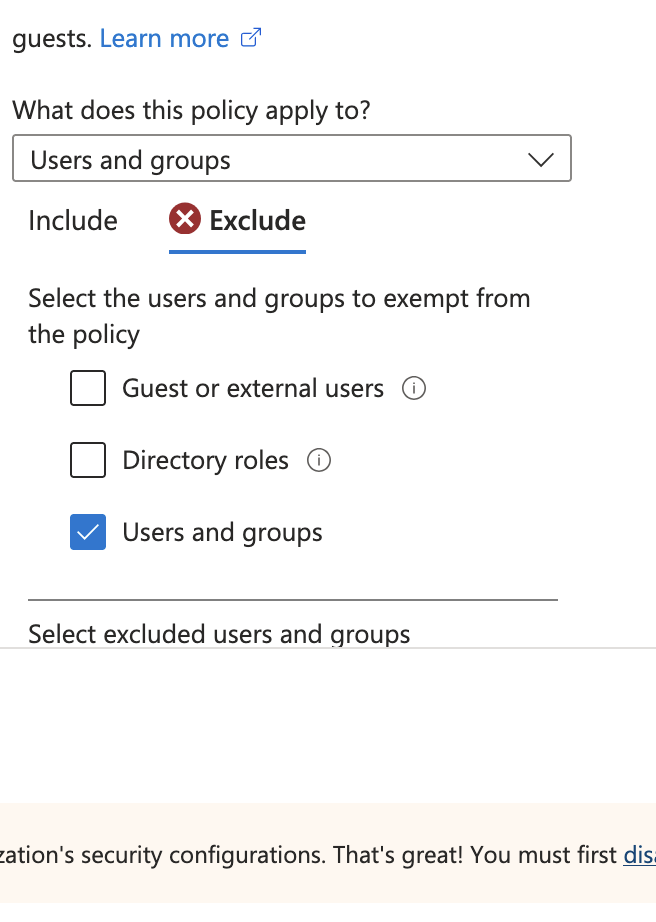
I excluded:
lab-breakglass-admin
lab-owner-admin
This was the most important safety step in the lab.
The test user could be blocked, but the administrator and break-glass recovery account should remain able to access the tenant.
Without this exclusion, the lab would be unsafe.
Selecting Target Resources
For target resources, I selected:
Resources (formerly cloud apps)
→ All resources (formerly 'All cloud apps')
This means the policy applies when the targeted user accesses Microsoft cloud resources.
That includes Azure Portal and Azure Resource Manager.
This setting can be dangerous if combined with All users and Block access.
In this lab, it was safe because the policy only targeted:
lab-reader-user
The blast radius was controlled by the user assignment.
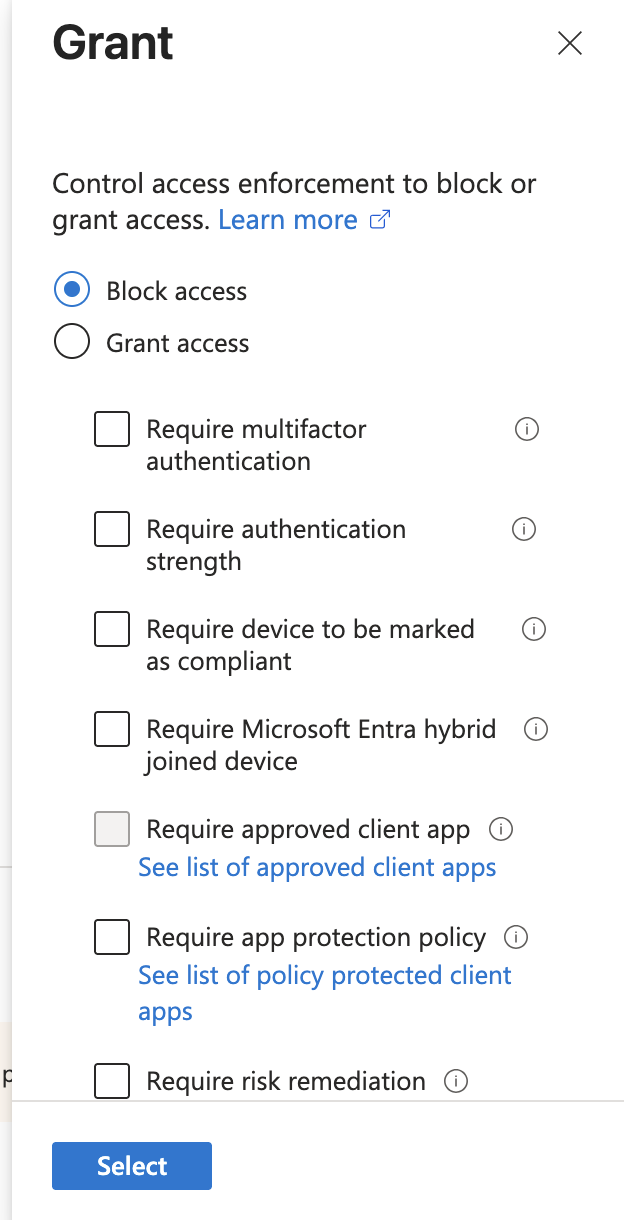
Configuring the Grant Control
The grant control was:
Block access
This is the strictest type of grant control.
It does not ask for MFA.
It does not require device compliance.
It simply prevents access.
For a lockout simulation, this is useful because it clearly shows what happens when Conditional Access denies access.
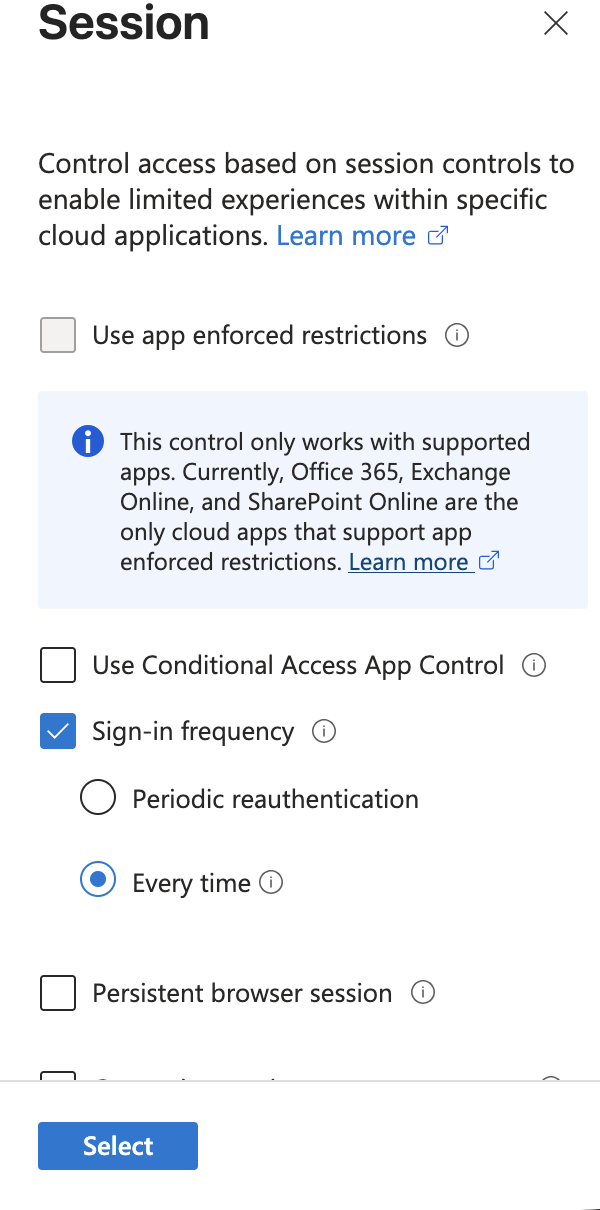
Configuring Session Control
The session control used was:
Sign-in frequency
→ Every time
This made the test behavior easier to observe because the user was forced to re-evaluate sign-in more aggressively.
For production, session controls should be designed carefully.
For this lab, it helped make the lockout behavior visible.
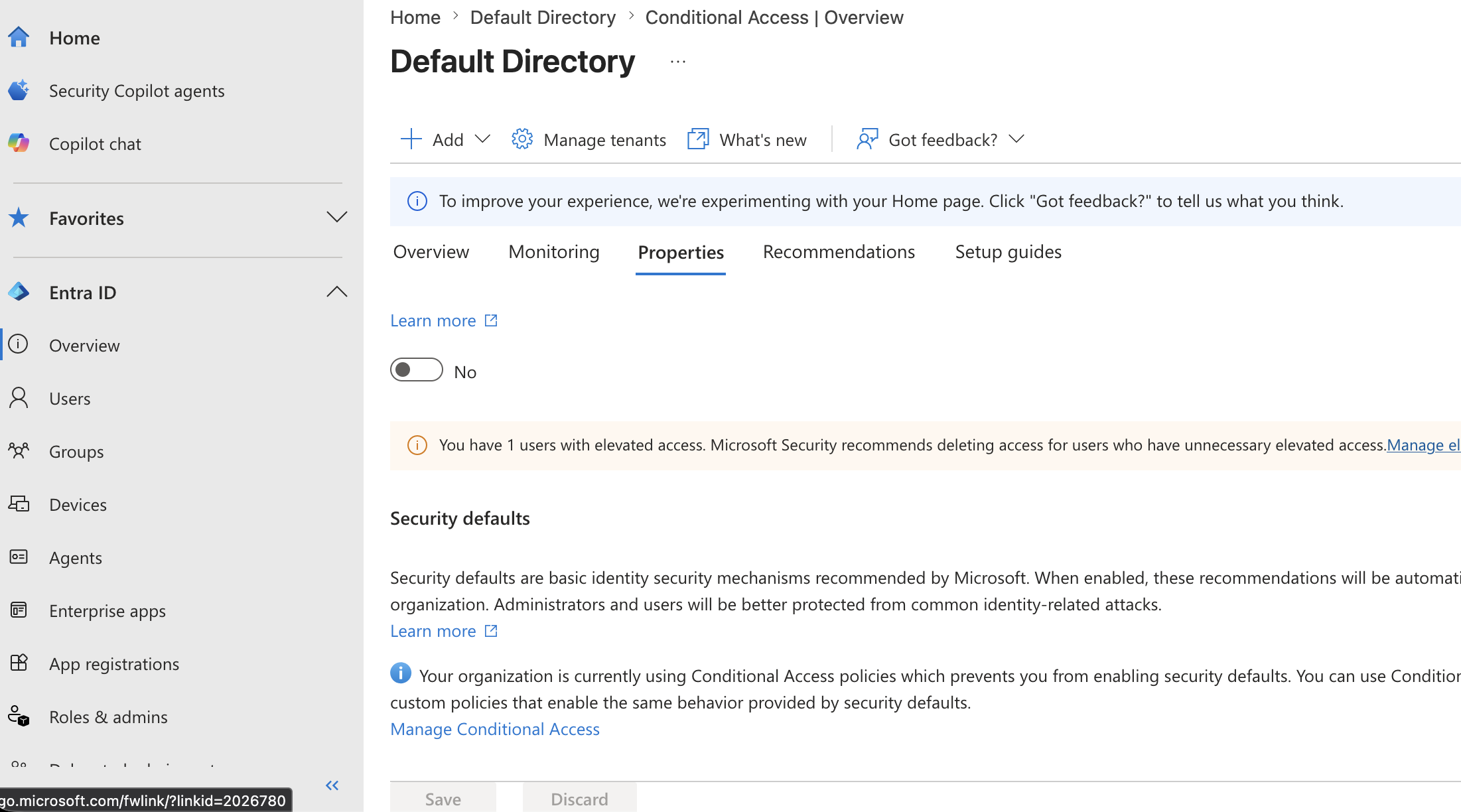
Security Defaults Warning
When creating the policy, Microsoft Entra showed a warning:
You must first disable security defaults before enabling a Conditional Access policy.
This was an important lesson.
Security Defaults is Microsoft’s basic identity security baseline.
It provides simplified protection, such as MFA-related requirements and blocking legacy authentication.
However, Security Defaults and custom Conditional Access are not the same control model.
For this lab, I disabled Security Defaults only after confirming:
- Break-glass admin existed
- Break-glass credentials were stored
- The policy targeted only the test user
- The policy started in Report-only mode
- Administrator access was still available
After that, Microsoft Entra showed that the tenant was using Conditional Access policies instead of Security Defaults.
Creating the Policy in Report-only Mode
The policy was first created in:
Report-only

Report-only is the safest way to test a Conditional Access policy.
It allows Entra ID to evaluate the policy without enforcing it.
In plain English:
Report-only = tell me what would happen, but do not block the user yet.
This is the difference between safe validation and reckless enforcement.
Confirming the Policy Exists
 After creation, the policy list showed:
Microsoft-managed policies: 4
User created policies: 1
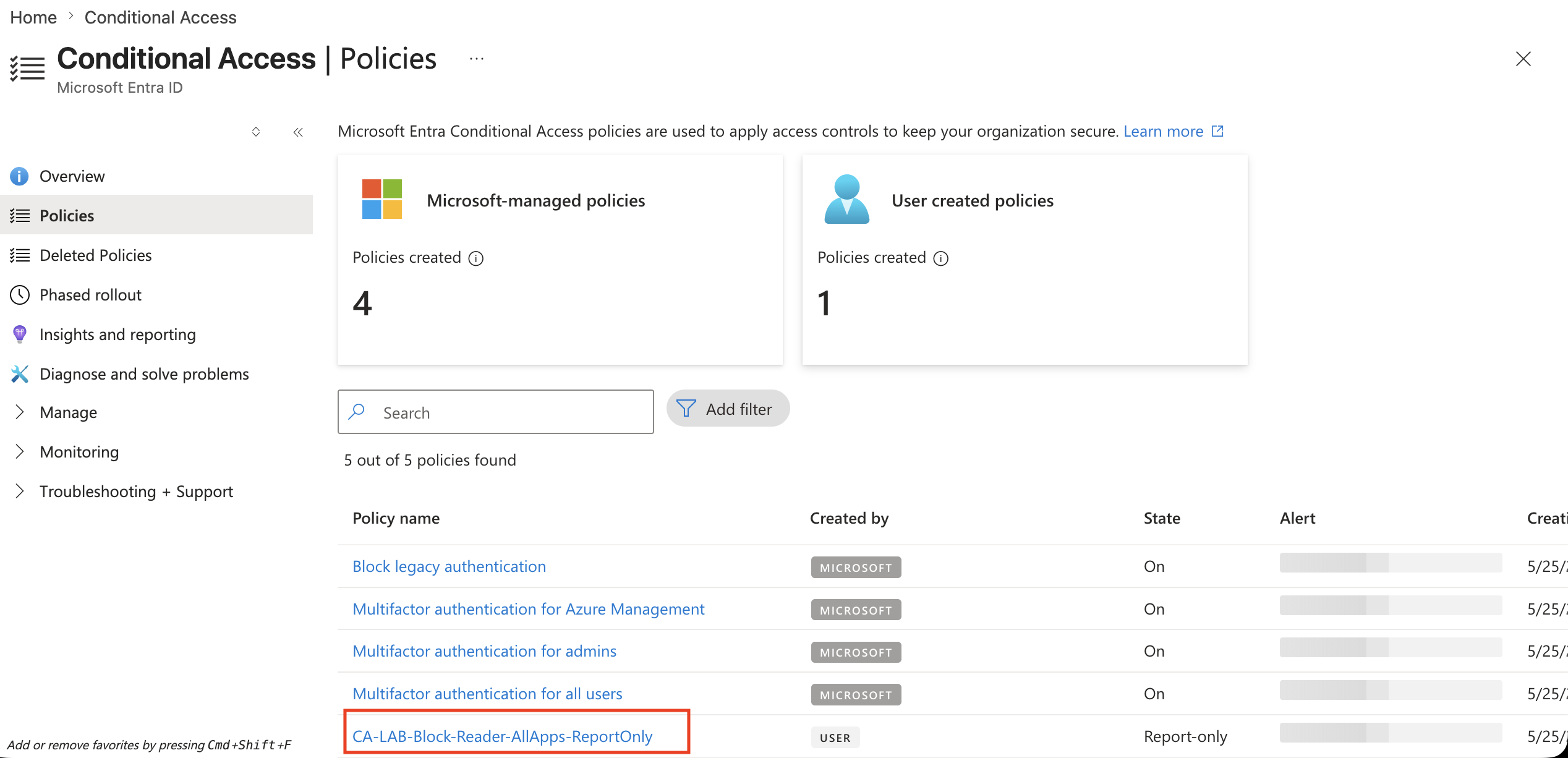
The lab policy appeared in the list:
CA-LAB-Block-Reader-AllApps-ReportOnly
At this stage, the policy was still in Report-only mode.
That was expected.
Validating Report-only Behavior
Before turning the policy on, I tested the sign-in behavior using the test user.
I opened a private browser session and signed in as:
lab-reader-user
Then I checked the sign-in logs.
The sign-in logs are located under:
Entra ID
→ Monitoring & health
→ Sign-in logs
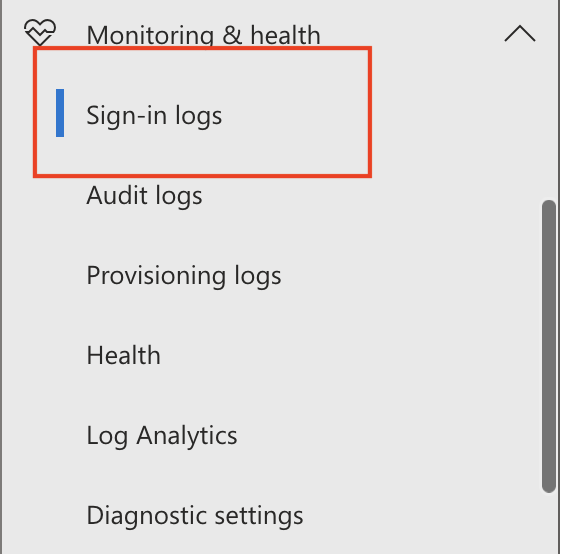
In Report-only mode, the user may still successfully sign in.
That does not mean the policy failed.
It means the policy was evaluated but not enforced yet.
The key evidence is inside the sign-in event details, especially the Conditional Access and Report-only sections.
In my case, the Report-only result showed that the test user would not meet the policy requirements if the policy were enabled.
This confirmed the policy was ready for a controlled enforcement test.
Enabling the Policy
After validating Report-only behavior, I changed the policy state from:
Report-only
to:
On
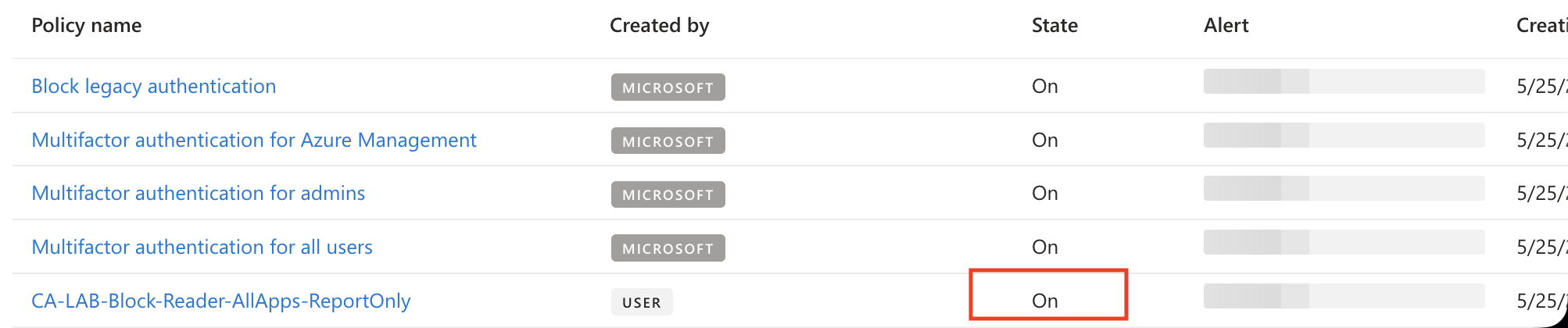
This changed the lab from simulation to real enforcement.
The policy list then showed the lab policy as:
On
At this point, I still kept an administrator session open.
I also confirmed that the break-glass account was excluded.
Testing the Blocked User Experience
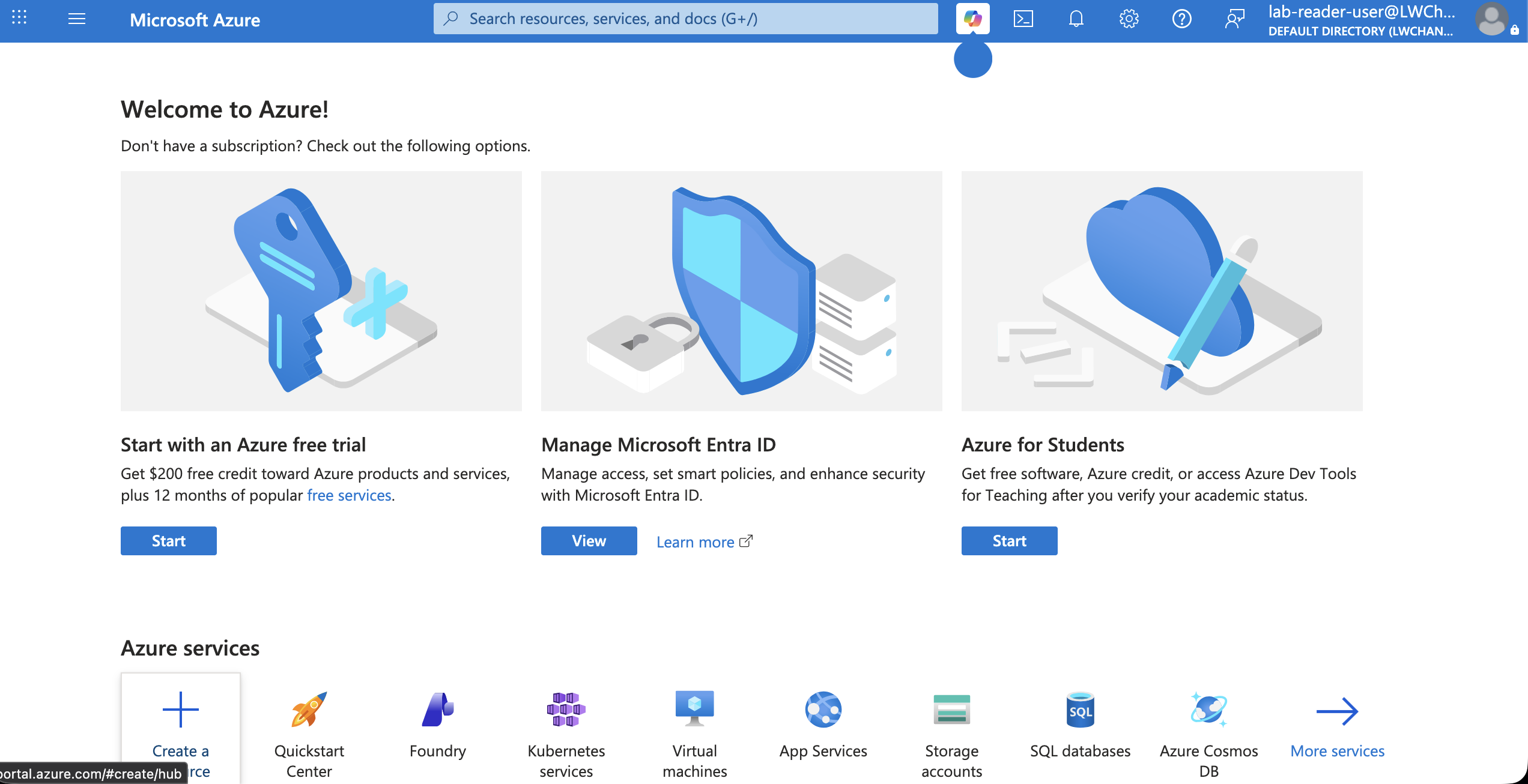
Then I attempted to access Azure Portal as:
lab-reader-user
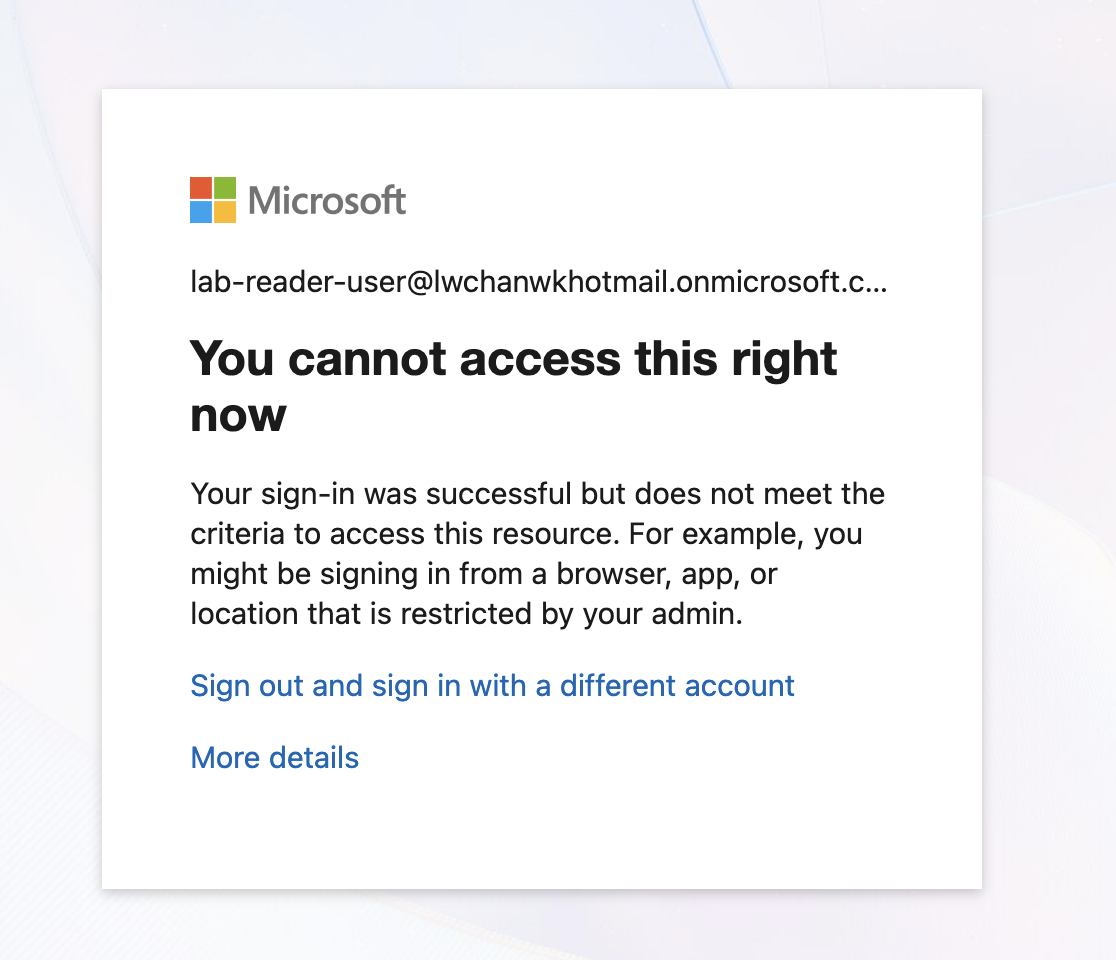
The user received the expected block message:
You cannot access this right now.
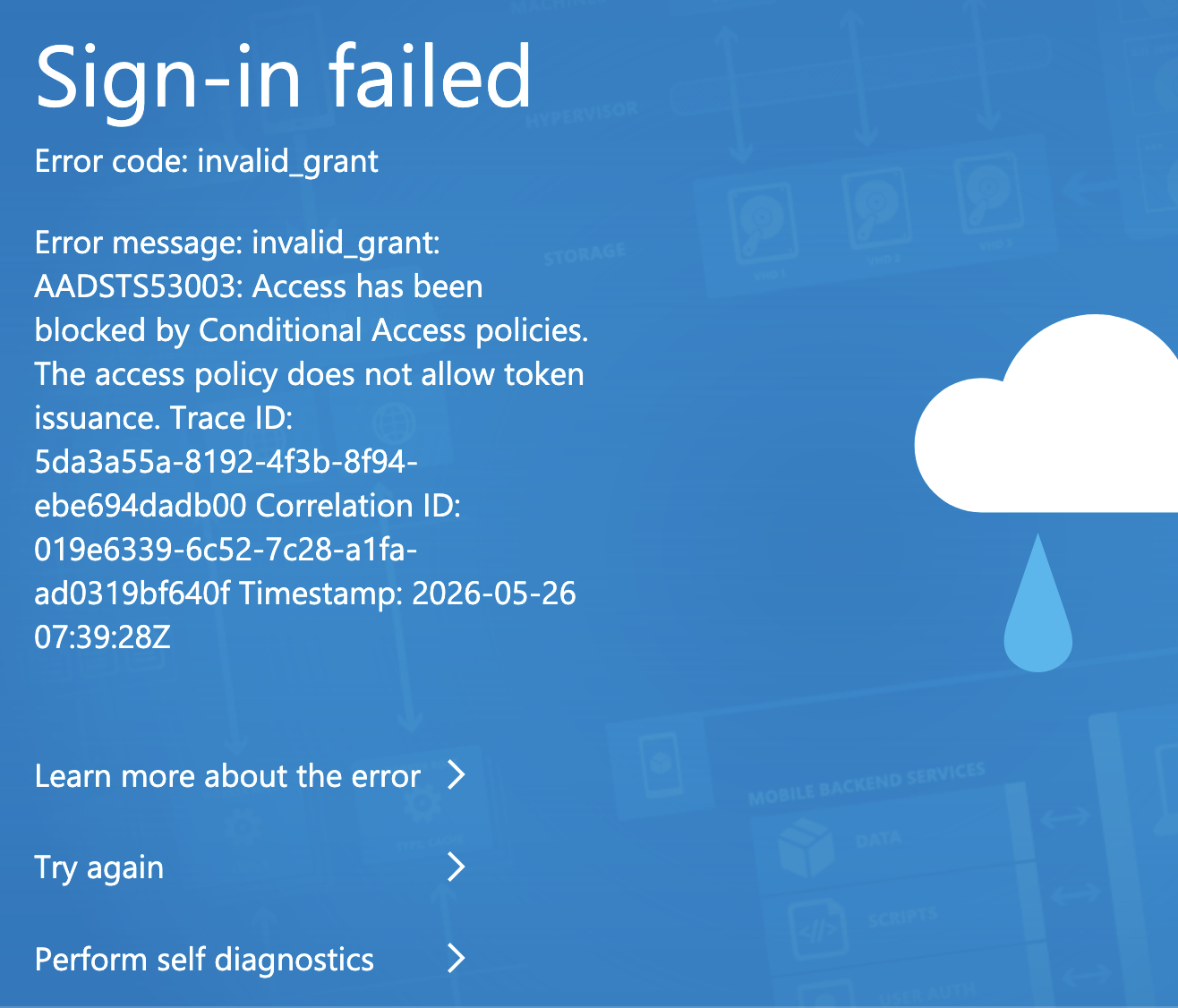
This proved that the policy was actively blocking the test user.
The message explained that the sign-in was successful, but the user did not meet the criteria to access the resource.
That is an important distinction.
The user could authenticate, but Conditional Access blocked token issuance for the resource.
Testing Break-glass Recovery
Next, I tested the recovery path.
I signed in as:
lab-breakglass-admin
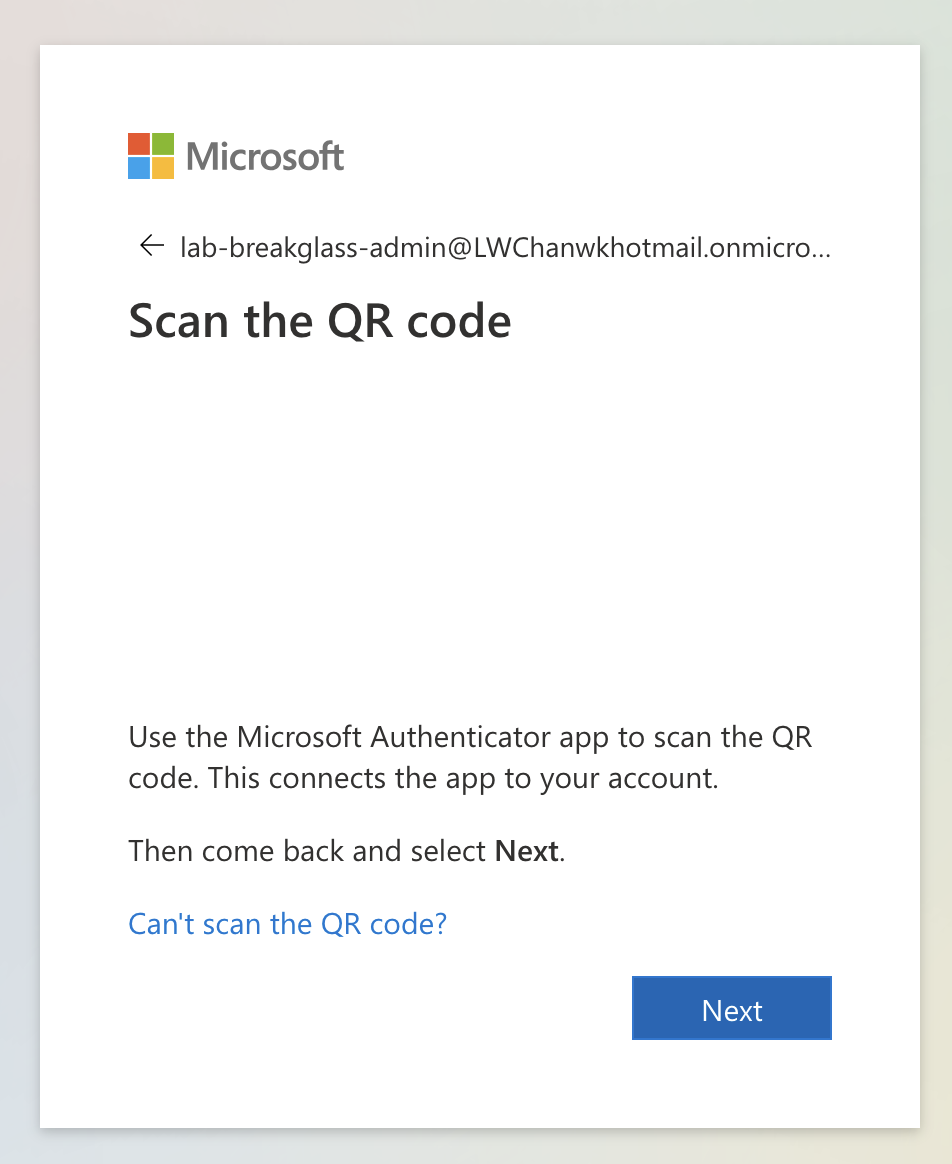 Because the break-glass account was new, Microsoft required Authenticator setup.
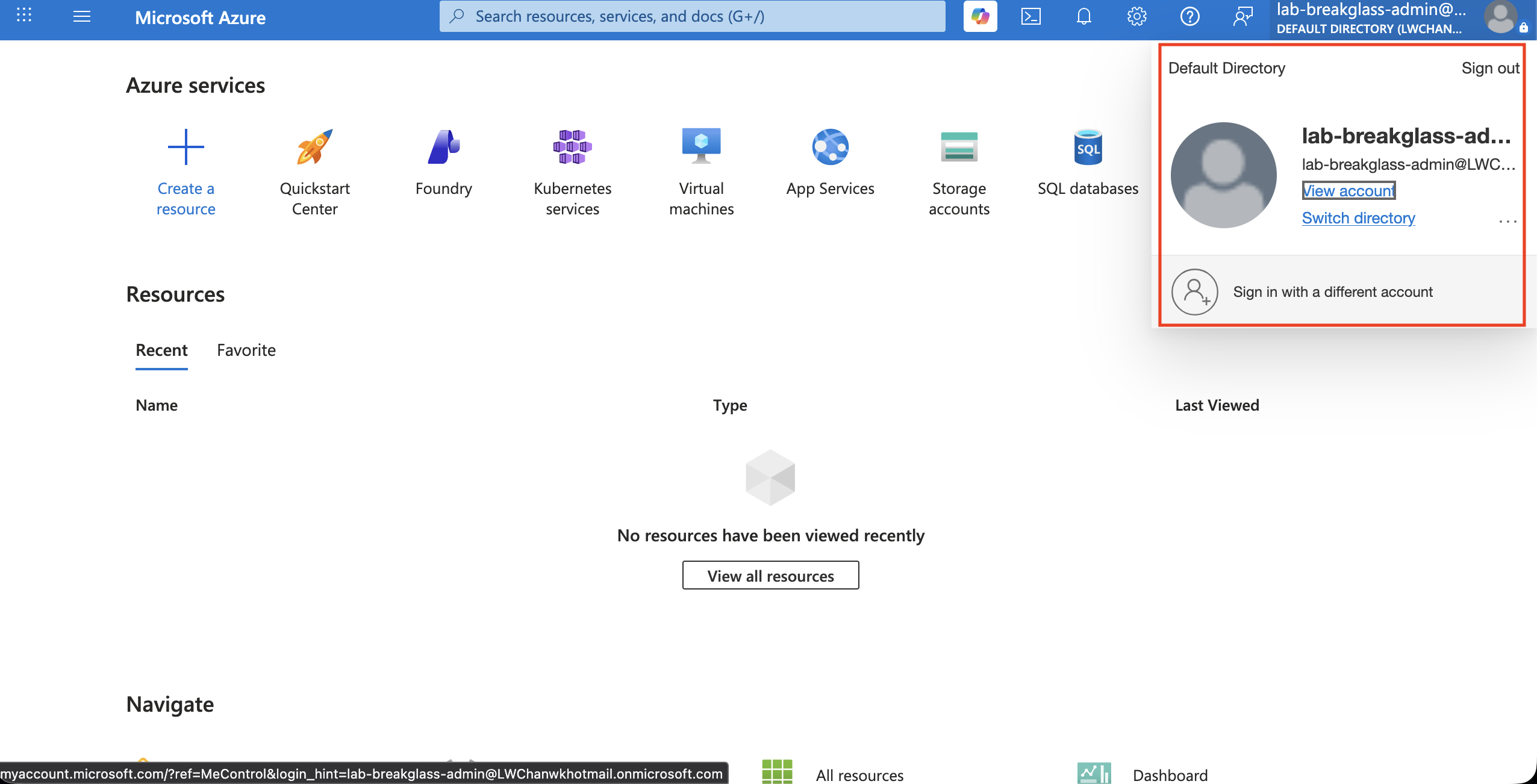
After completing the required sign-in steps, the break-glass admin successfully accessed Azure Portal.
This was critical evidence.
It proved that the tenant was not locked out.
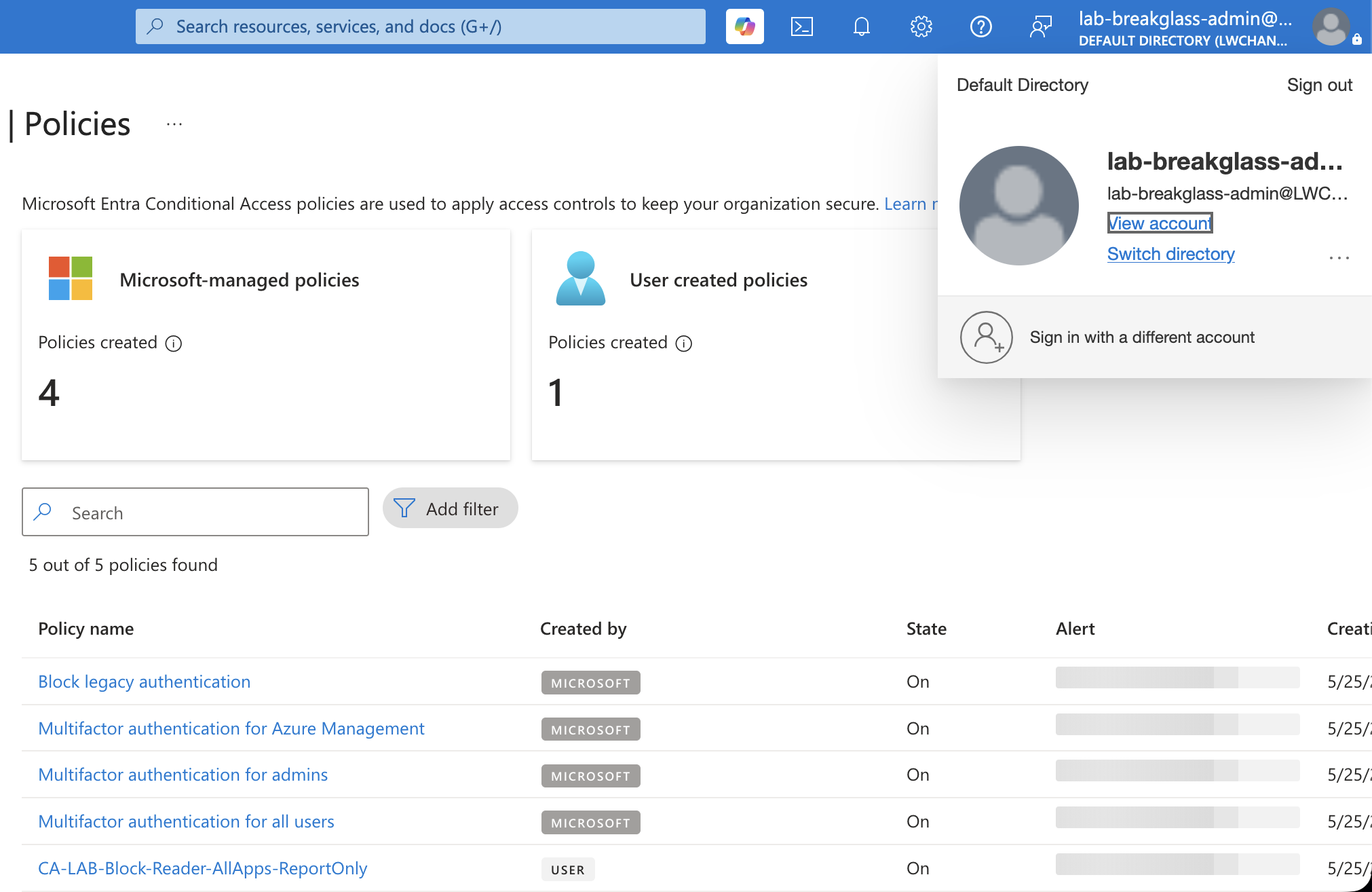
The break-glass account could still reach the portal and Conditional Access policy page.
Confirming Break-glass Access to Conditional Access
After signing in as the break-glass admin, I opened the Conditional Access policies page.
The page still showed:
- Microsoft-managed policies
- The user-created lab policy
- The lab policy in On state
This confirmed the recovery account had enough access to manage the policy.
Rolling Back the Policy
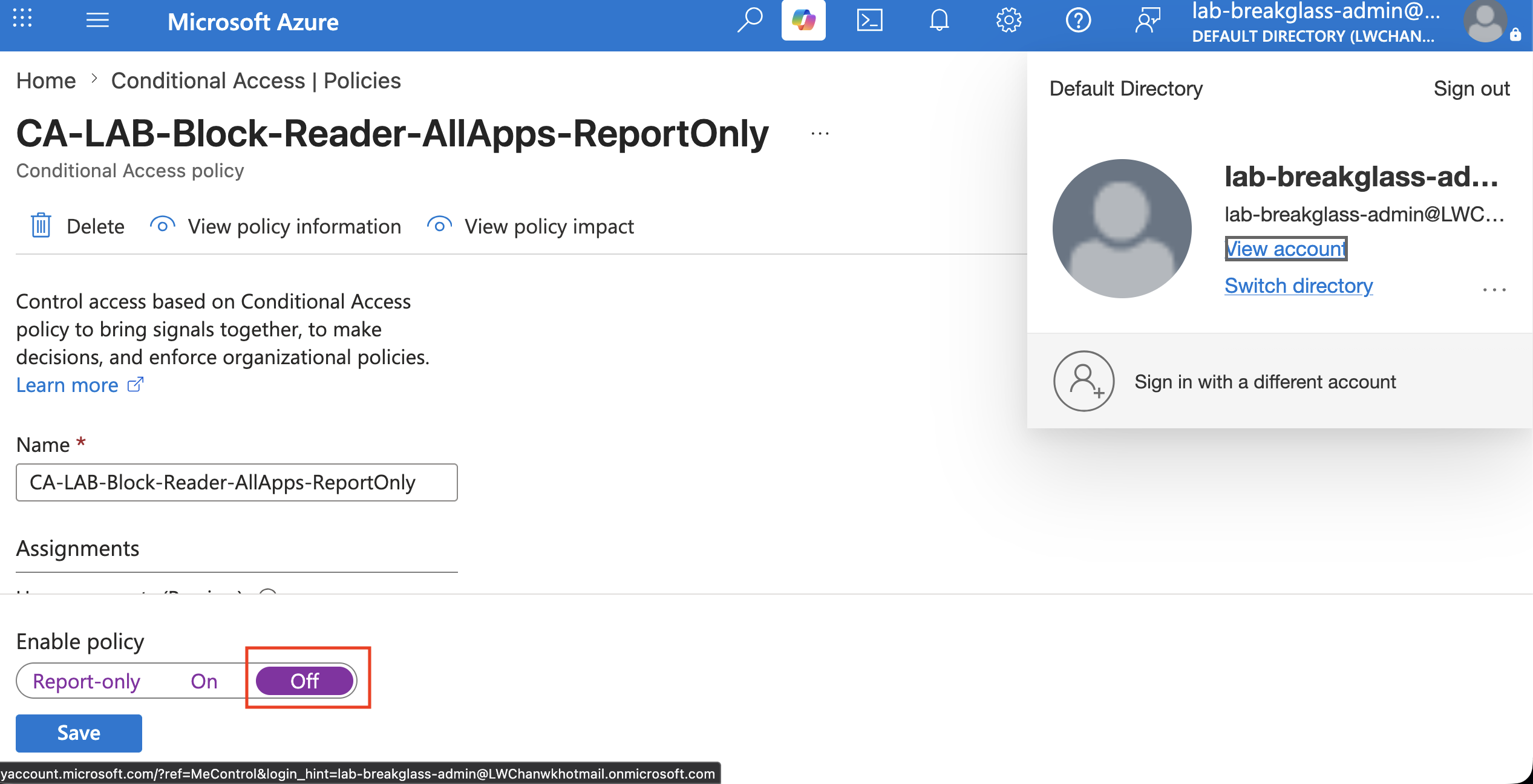
After proving the block worked, I rolled back the policy.
I opened the policy and changed the state from:
On
to:
Off
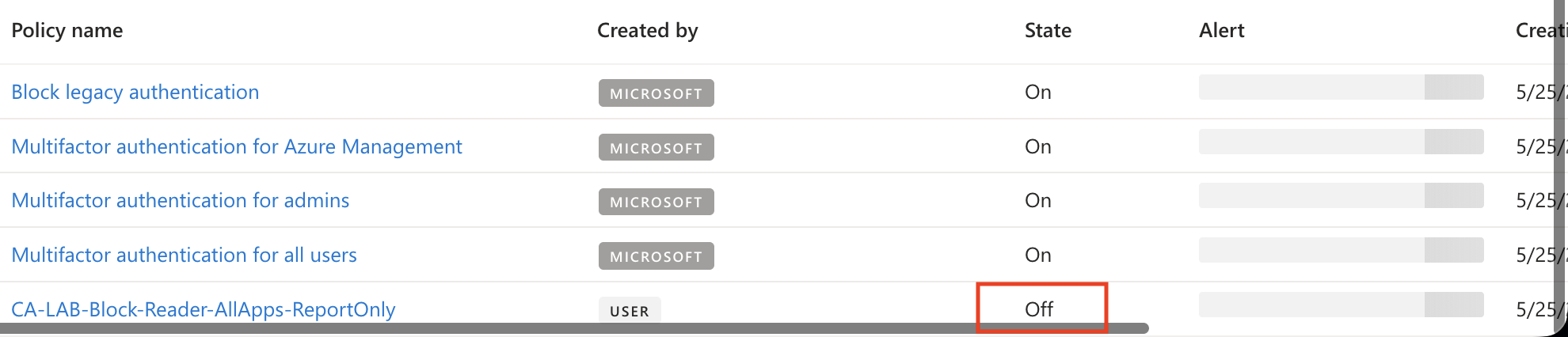
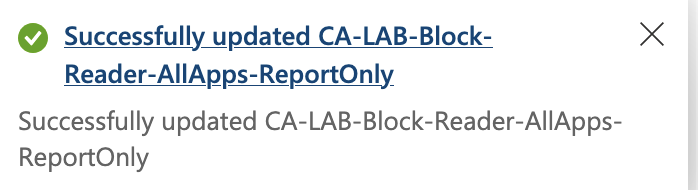
Microsoft Entra confirmed the policy update.
Then the policies list showed the lab policy as:
Off
This completed the recovery procedure.
The test user was no longer intentionally blocked by the custom lab policy.
Confirming the Block in Sign-in Error Details
During enforcement, the blocked sign-in produced a detailed error:
AADSTS53003:
Access has been blocked by Conditional Access policies.
The access policy does not allow token issuance.
This is the strongest proof that Conditional Access blocked the sign-in.
The key phrase is:
The access policy does not allow token issuance.
This means the user authenticated, but the policy stopped the user from receiving the token needed to access the resource.
Confirming the Conditional Access Result in Sign-in Logs
The sign-in activity details showed the policy result.
The custom policy appeared with:
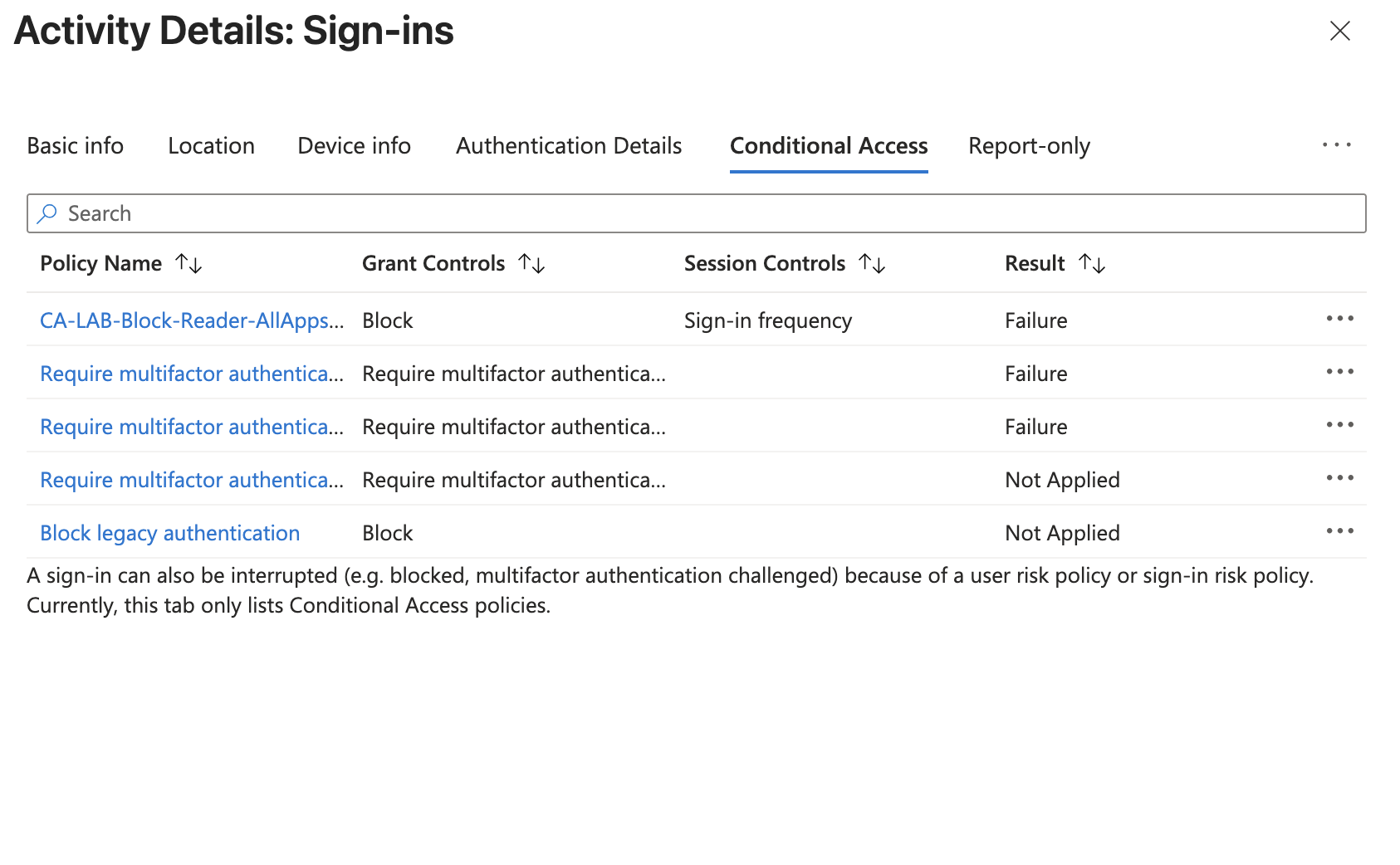
Grant Controls: Block
Result: Failure
This confirmed that the lab policy was the reason the sign-in was blocked.
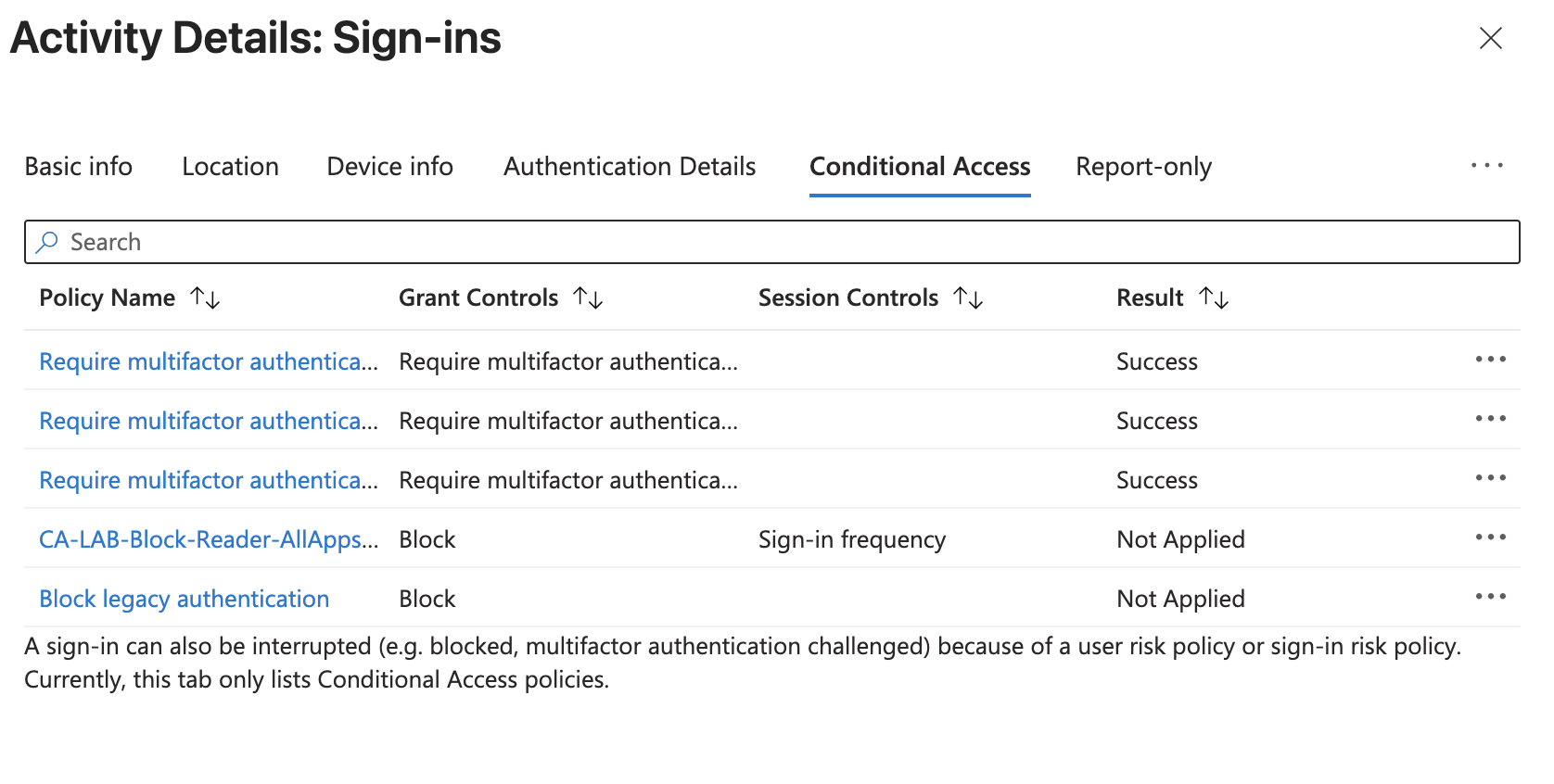
The Microsoft-managed MFA policies also appeared, but the custom block policy was the key policy for this lab.
Understanding Report-only vs On
This lab made the difference between Report-only and On very clear.
| Policy State | What Happens |
|---|---|
| Report-only | Policy is evaluated, but not enforced |
| On | Policy is evaluated and enforced |
| Off | Policy is not enforced |
In Report-only mode, the logs can show that a policy would block a user, but the user may still access the resource.
In On mode, the same policy actually blocks access.
That is why Report-only is so important.
It gives administrators a safe way to validate impact before enforcement.
What Went Wrong During Troubleshooting
One confusing part of this lab was the sign-in log view.
At first, some sign-ins appeared as:
Conditional Access: Not applied
That was confusing because the policy existed.
The important lesson is that the summary column does not always tell the full story, especially when Report-only behavior is involved.
The correct place to inspect policy behavior is:
Sign-in logs
→ Select the sign-in event
→ Conditional Access tab
→ Report-only tab
That is where the actual policy evaluation details appear.
Final Lab Flow
The complete lab flow was:
Create break-glass admin
→ Assign Global Administrator
→ Create lab-reader-user
→ Open Conditional Access
→ Create lab block policy
→ Include only lab-reader-user
→ Exclude lab-breakglass-admin and lab-owner-admin
→ Target all cloud resources
→ Set Grant = Block access
→ Set Session = Sign-in frequency every time
→ Start in Report-only
→ Disable Security Defaults when ready
→ Validate sign-in logs
→ Change policy to On
→ Confirm lab-reader-user is blocked
→ Sign in with break-glass admin
→ Turn policy Off
→ Confirm recovery
What This Lab Proved
This lab proved several important identity security concepts.
1. Conditional Access Is Powerful
A single policy can block access to Microsoft cloud resources.
That power must be handled carefully.
2. Targeting Matters
The policy was safe because it targeted only:
lab-reader-user
It did not target all users.
3. Exclusions Matter
The break-glass admin was excluded.
That made recovery possible.
4. Report-only Matters
Report-only mode allowed the policy impact to be validated before enforcement.
5. Sign-in Logs Matter
The sign-in logs proved exactly which policy blocked the user.
6. Rollback Matters
A policy is not safe unless there is a tested way to recover.
Enterprise Lessons Learned
Conditional Access is not only a security feature.
It is an operational control.
A good Conditional Access deployment requires:
- Safe test users
- Break-glass accounts
- Report-only validation
- Clear naming
- Narrow targeting
- Exclusion planning
- Monitoring
- Rollback procedures
In real environments, identity changes should be treated like production security changes.
A bad Conditional Access policy can become an outage.
Interview Talking Points
This lab can be explained in an interview like this:
I built a Microsoft Entra ID Conditional Access lab to safely simulate a user lockout. I created a test user, configured a break-glass administrator, built a report-only block policy, validated the result in sign-in logs, enabled the policy, confirmed the block, then recovered using the break-glass account and rolled the policy back.
This demonstrates:
- Microsoft Entra ID administration
- Conditional Access policy design
- Identity and access management fundamentals
- Break-glass account planning
- Report-only testing
- Sign-in log investigation
- Safe policy enforcement
- Recovery and rollback thinking
- Zero Trust access control concepts
Final Takeaway
The real skill in Conditional Access is not just creating a policy.
The real skill is creating a policy that can be:
Safely tested
Correctly scoped
Clearly monitored
Temporarily enforced
Quickly recovered
Security controls are only useful if they are also operationally safe.
In identity security, the best policy is not just secure.
It is recoverable.