Enterprise Azure Terraform Lab Phase 2C Part 1: Scoped Administration and Authentication Baseline
📁 GitHub Repository: lwc-wk/enterprise-azure-lab1
Enterprise Azure Terraform Lab Phase 2C Part 1: Scoped Administration and Authentication Baseline
🧩 Background
After completing the application identity foundation, I moved into the full SC-300 identity governance layer.
This part focuses on a practical administration question:
Can Microsoft Entra administration be scoped, delegated, protected,
and monitored without making unnecessary tenant-wide changes?
This phase is not about turning on every identity feature.
The goal is to understand the control plane:
- Administrative Units
- Scoped Microsoft Entra role assignments
- Custom Security Attributes
- Device identity states
- Authentication Methods policy
- Scoped passkey / FIDO2 pilot
- Self-service password reset
- Password protection
- Conditional Access session controls
I used the Microsoft Entra admin center first because these identity governance controls are easier to understand visually before deciding what should later become Terraform-managed.
The practical rule for this part is:
Use the Portal to understand the identity governance workflow.
Only automate controls after the security impact is clear.
🧭 Control Plane Design
The design for this part is:
Microsoft Entra tenant
 ↓
Administrative Unit
 ↓
Scoped role assignment
 ↓
Authentication method controls
 ↓
Password reset and password protection
 ↓
Conditional Access review
The key idea:
Identity governance is not only about access.
It is also about who can administer identity objects,
how users authenticate, and how risky configuration changes are controlled.
This matters for SC-300 because many features look similar in the portal but operate at different layers.
🧱 Administrative Unit
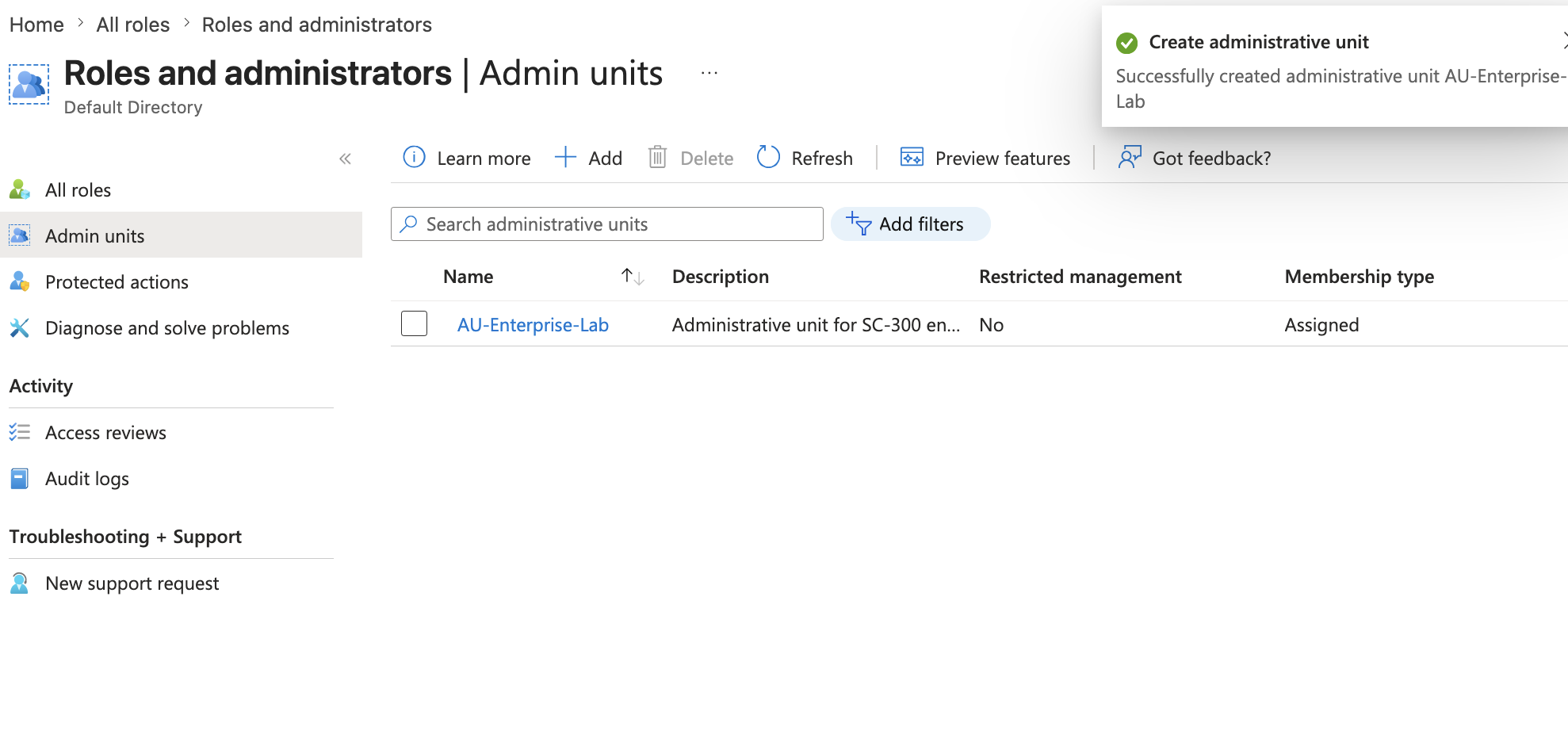
I created an Administrative Unit for the lab:
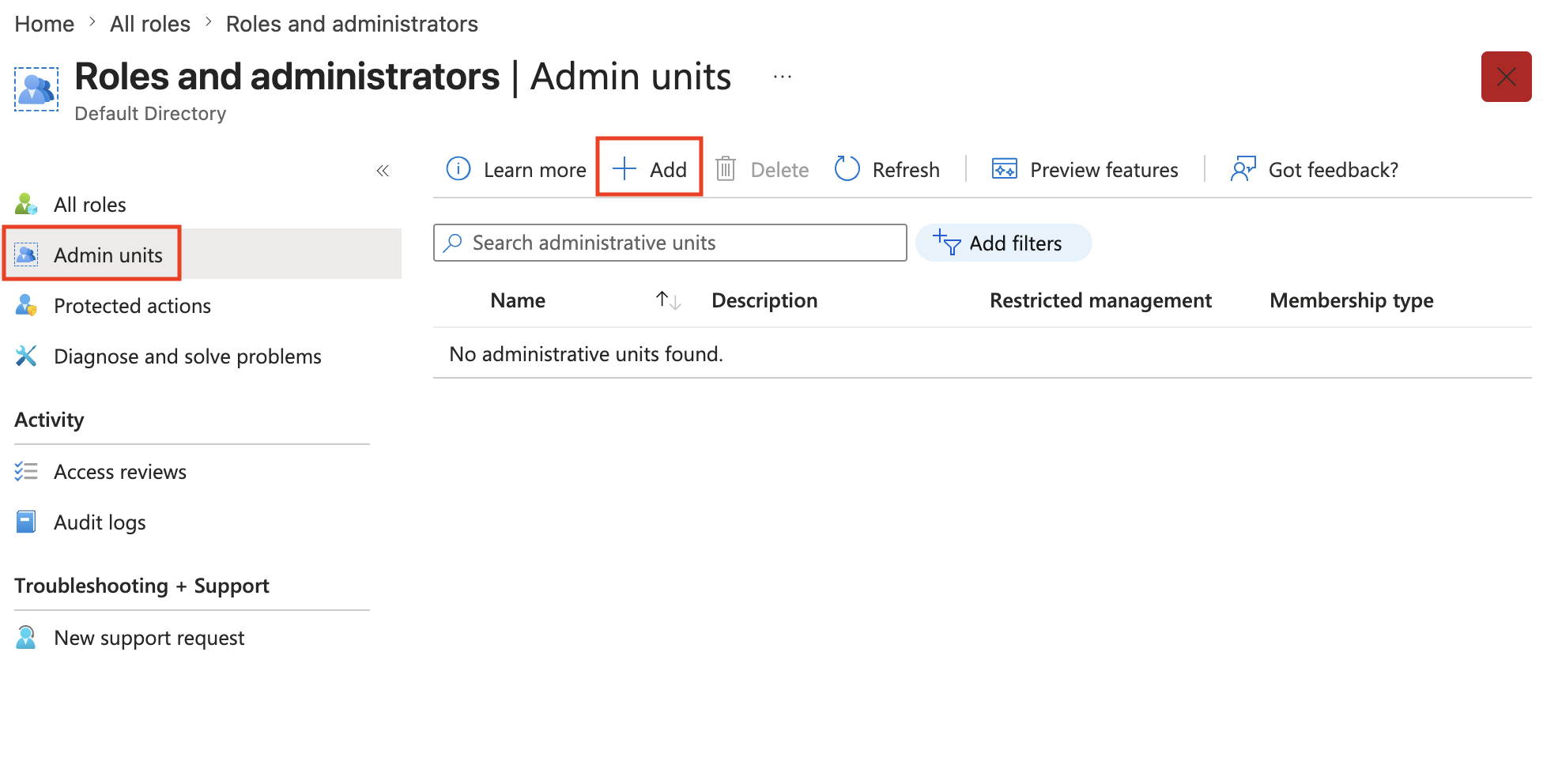
Microsoft Entra admin center
→ Search 'Roles & admins'
→ Click 'Admin units'
→ Click 'Add'
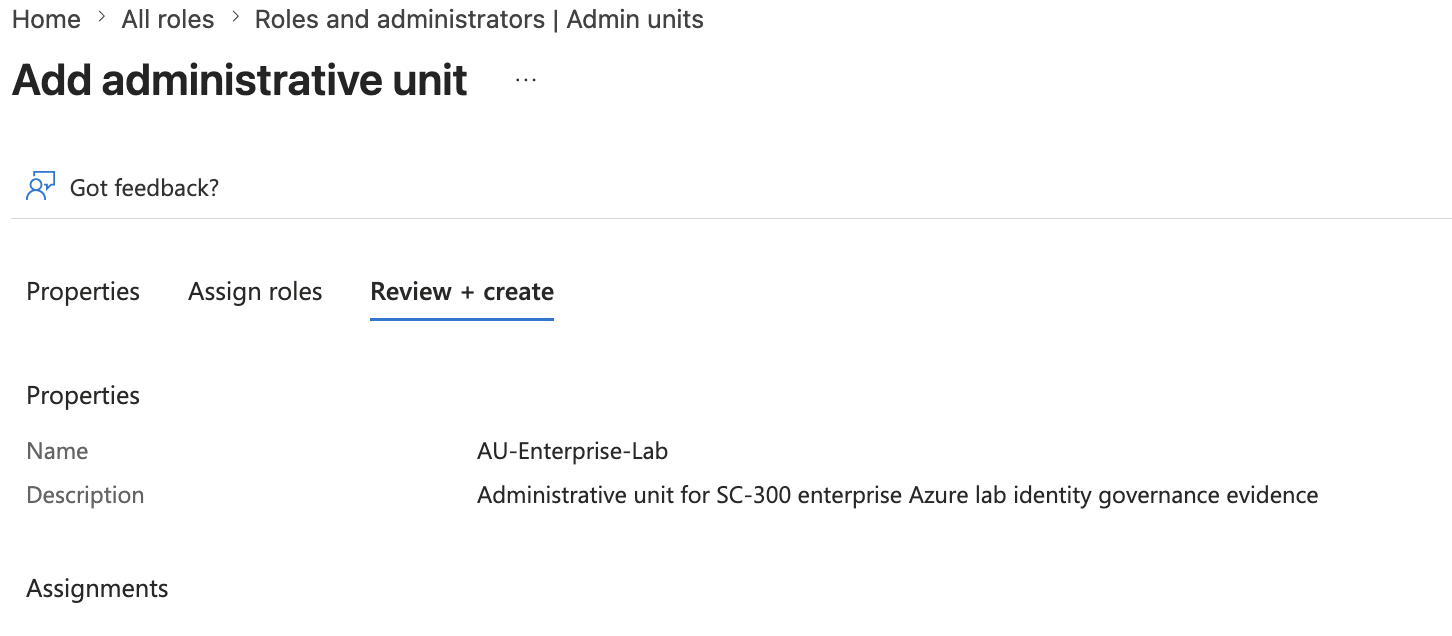
Name: AU-Enterprise-Lab
Description: Administrative unit for SC-300 enterprise Azure lab identity governance evidence
Restricted management: No
Membership type: Assigned
An Administrative Unit is a way to scope Microsoft Entra identity administration.
It is not Azure RBAC.
It does not control Azure resource permissions.
It creates a boundary for delegated identity administration.
The shortest mental model:
Administrative Unit = identity administration scope
Azure RBAC          = Azure resource management scope
For this lab, I used a normal Administrative Unit instead of a restricted management administrative unit.
Restricted management is stronger and better suited for sensitive production objects. For this lab, a standard AU is enough to demonstrate delegated administration without increasing complexity.
👤 Scoped Microsoft Entra Role Assignment
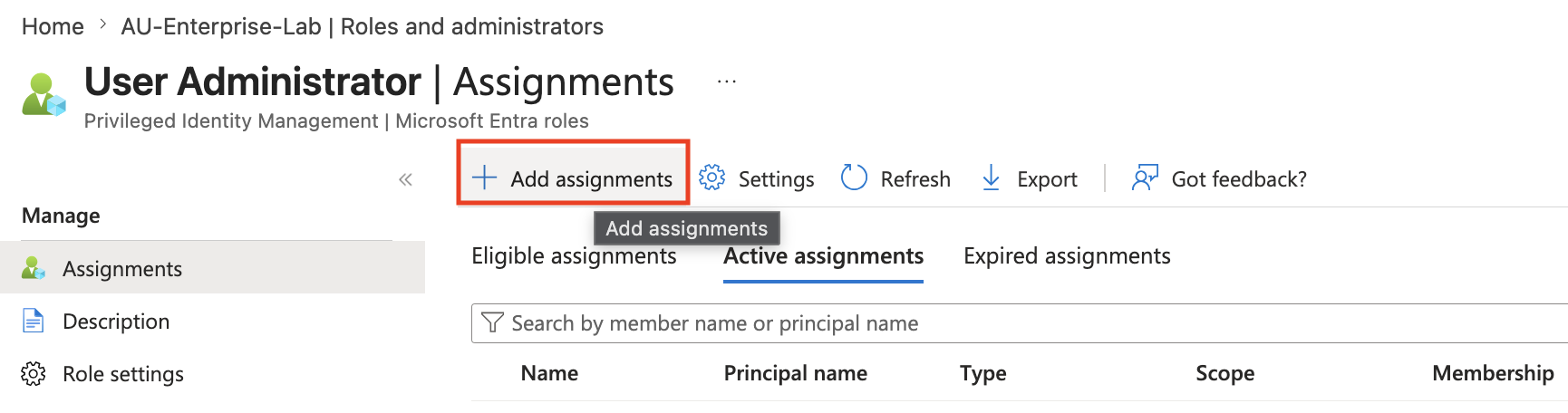
After creating the Administrative Unit, I assigned a scoped Microsoft Entra role.
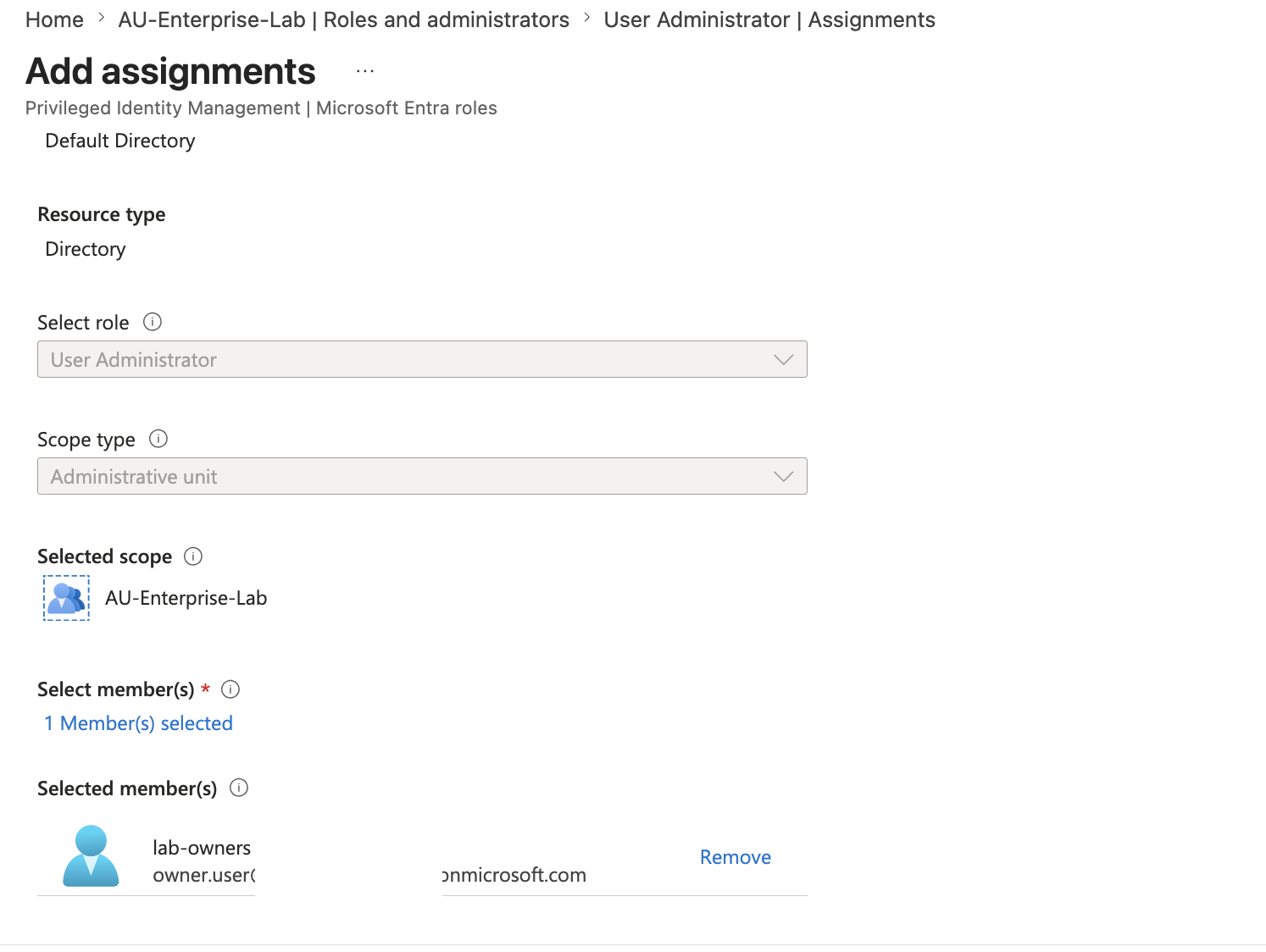
Configuration:
Scope: AU-Enterprise-Lab
Role: User Administrator
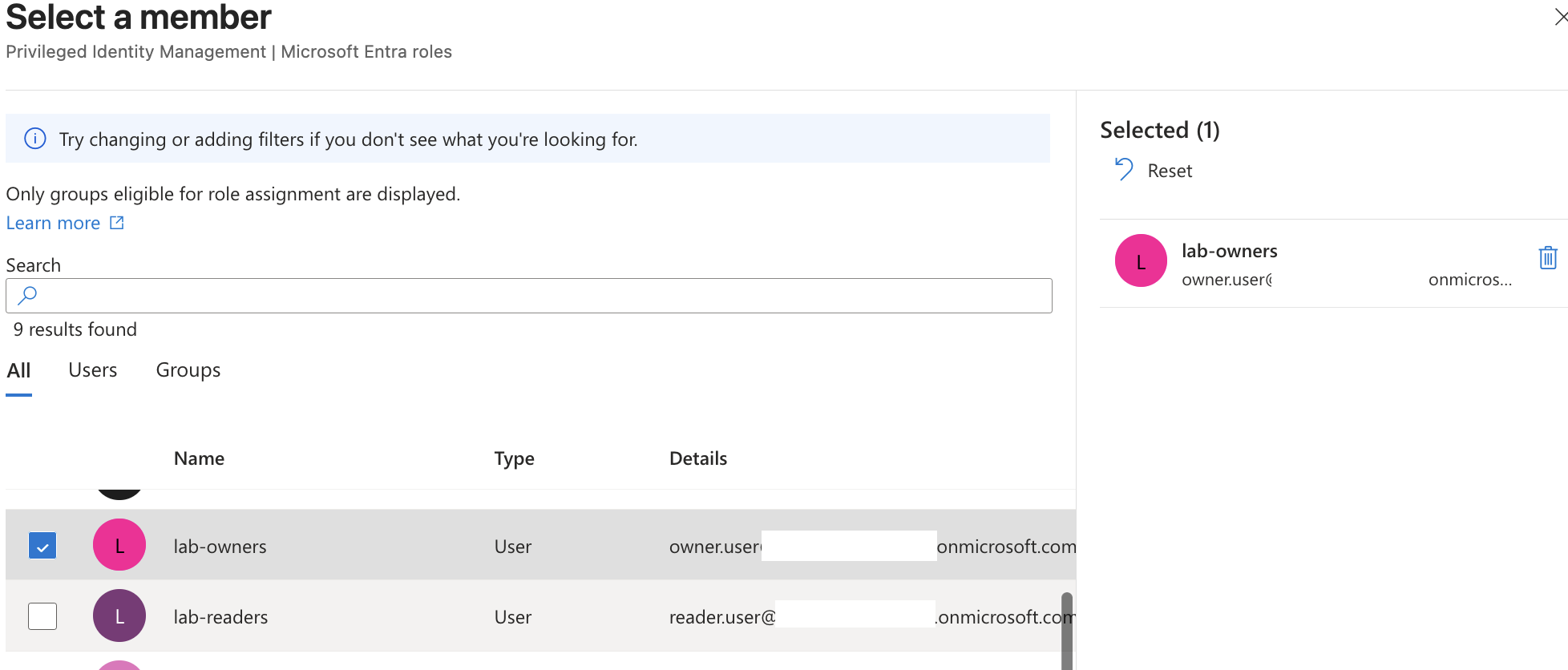
Member: lab-owners / owner test account
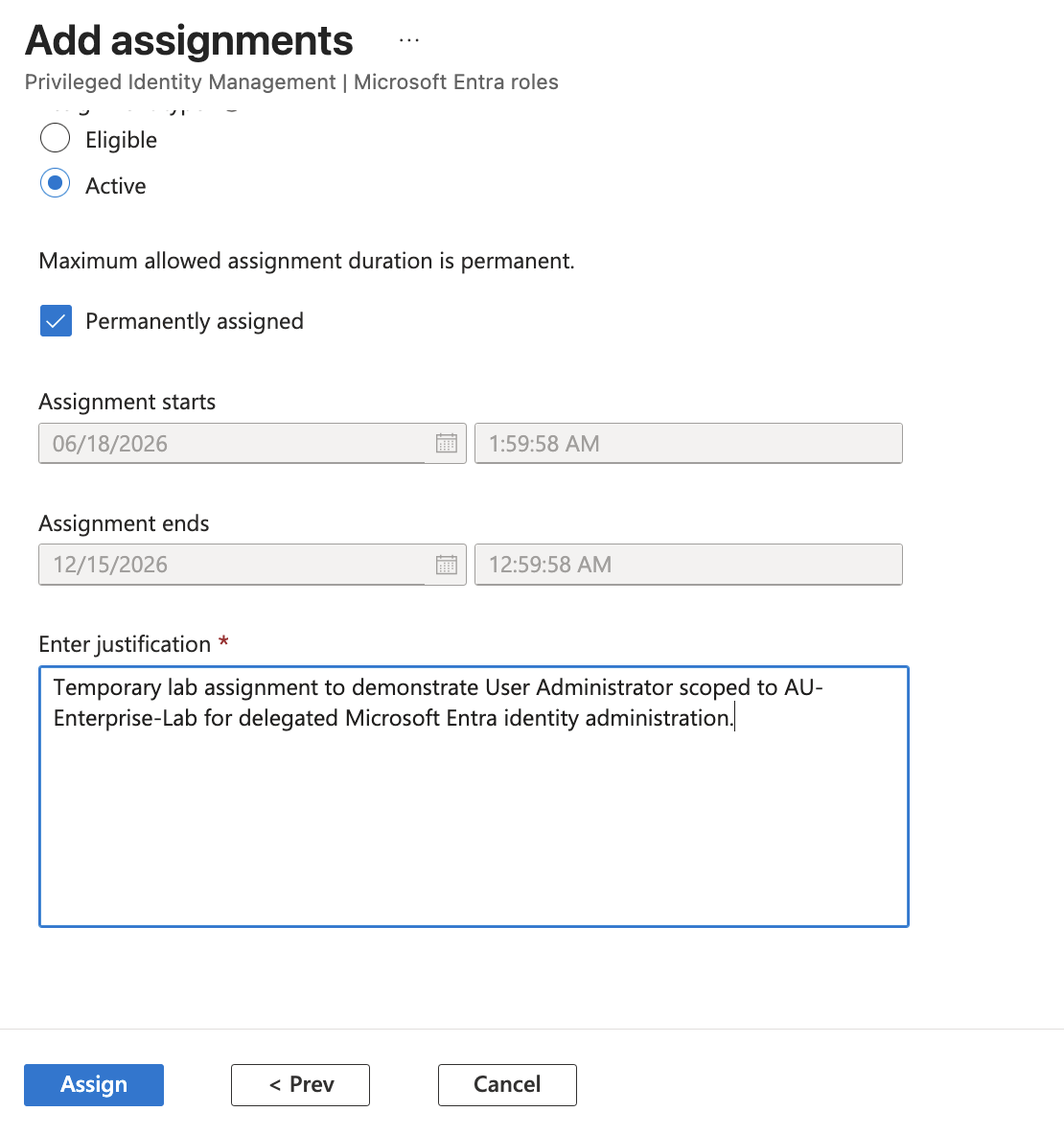
Assignment type: Active
Justification: Temporary lab assignment to demonstrate User Administrator scoped to AU-Enterprise-Lab for delegated Microsoft Entra identity administration.
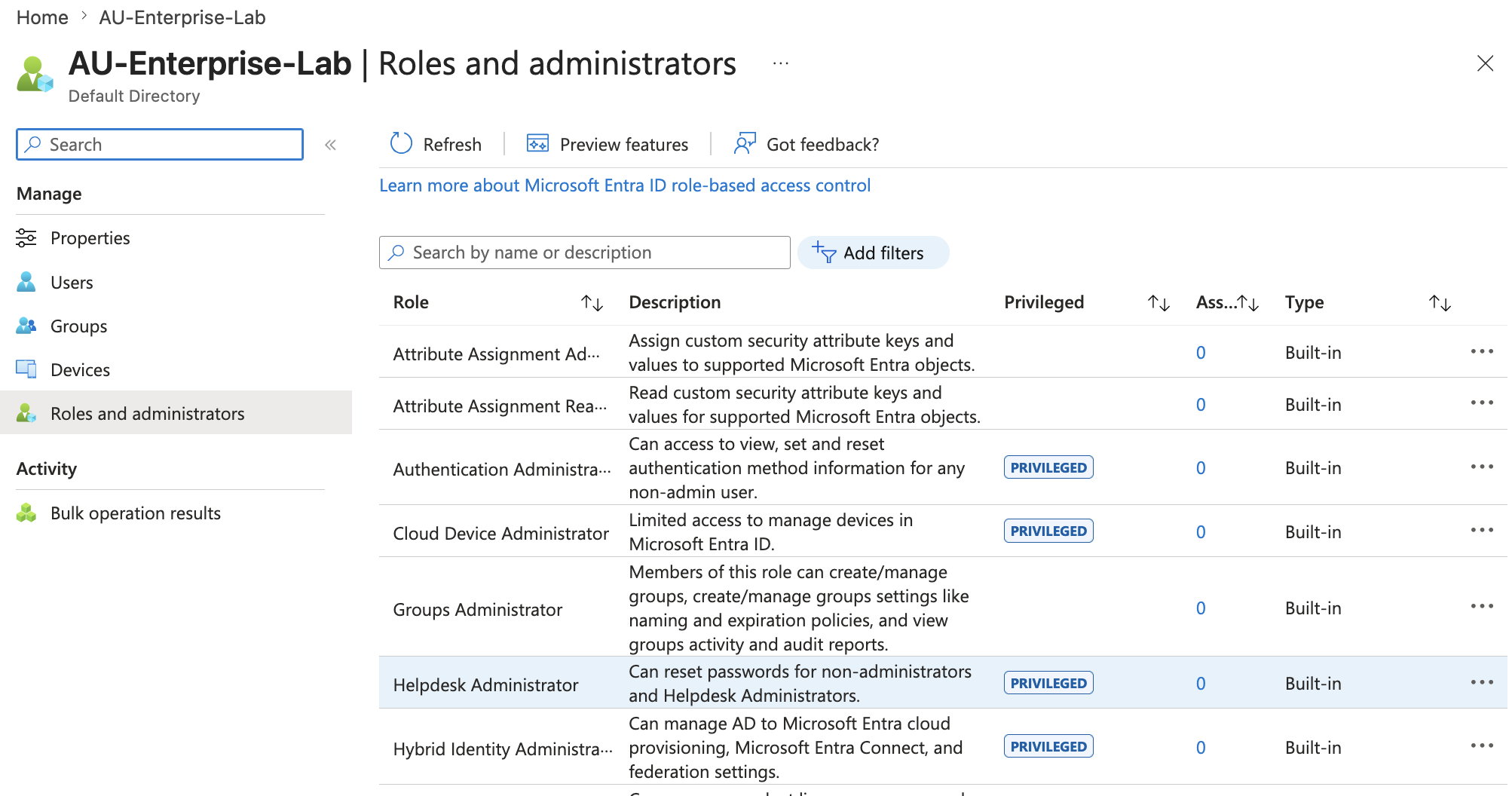
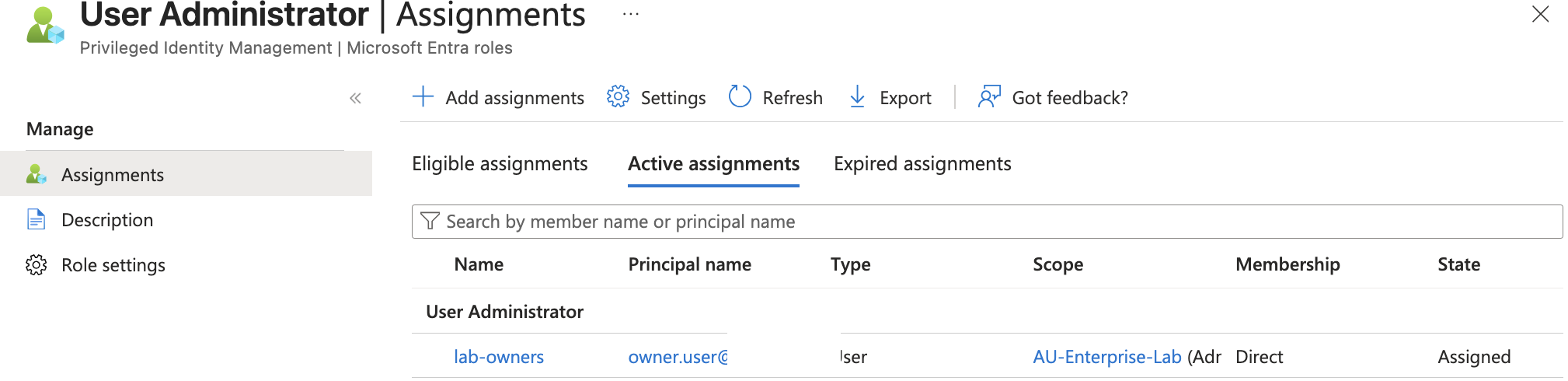
This demonstrates delegated administration.
The selected identity can administer users only within the administrative unit scope.
Important distinction:
Global role assignment:
User Administrator across the tenant

Scoped role assignment:
User Administrator only inside AU-Enterprise-Lab
This is useful for large organizations where different teams should administer different sets of users, groups, or devices.
SC-300 note:
Administrative Units allow Microsoft Entra administrative roles to be scoped
to a subset of directory objects.
Cleanup order matters:
Remove scoped role assignment first.
Delete the Administrative Unit after the assignment is removed.
🏷️ Custom Security Attributes Review
I reviewed Custom Security Attributes.
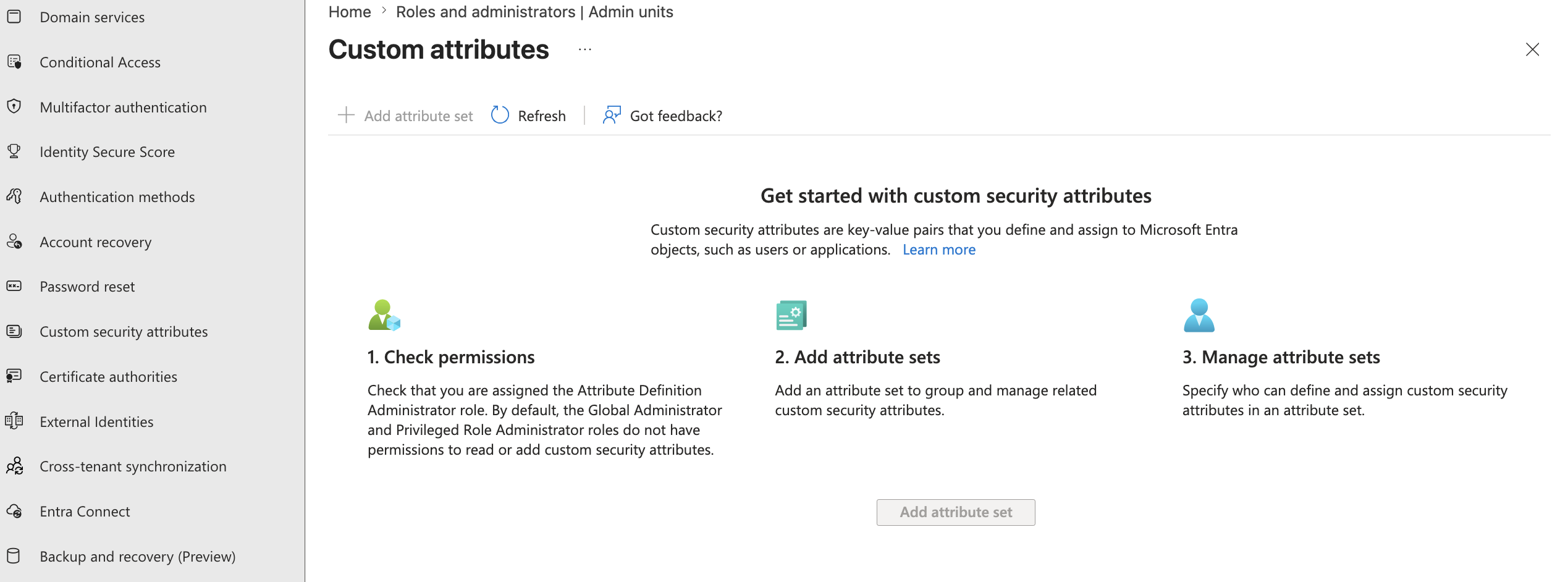
Custom Security Attributes are key-value metadata that can be assigned to supported Microsoft Entra objects.
Example design:
Attribute set: LabAttributes

Attribute definitions:
- Environment = Dev
- DataSensitivity = Training
- Department = Lab
The important concept is that custom security attributes are not ordinary profile fields.
They have their own permission model.
The portal showed the key requirement clearly:
Attribute Definition Administrator
Attribute Assignment Administrator
By default, even highly privileged roles such as Global Administrator or Privileged Role Administrator do not automatically manage custom security attributes.
For this lab, I documented the feature instead of creating a tenant-wide attribute set.
Reason:
Custom Security Attributes are powerful schema-level controls.
For SC-300 lab evidence, reviewing the permission model is enough.
This avoids creating long-lived tenant metadata just for a screenshot.
💻 Step 60 — Device Identity Review
I reviewed Microsoft Entra device identity states.
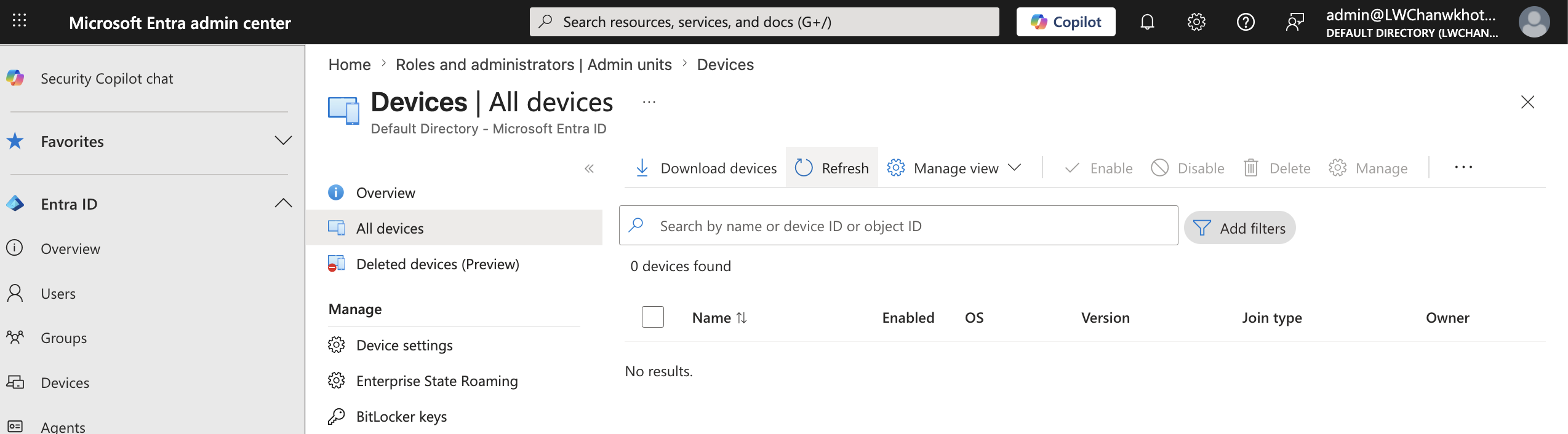
The lab tenant had no enrolled devices, which is fine for this phase.
The goal was to document the device identity model:
| Device state | Meaning | Common use case |
|---|---|---|
| Microsoft Entra registered | Personal or BYOD device with a work account added | User-owned device |
| Microsoft Entra joined | Cloud-joined corporate device | Cloud-first organization |
| Microsoft Entra hybrid joined | On-premises AD joined and registered in Entra ID | Hybrid AD environment |
SC-300 memory:
Registered      = BYOD / personal device
Joined          = cloud corporate device
Hybrid joined   = on-prem AD domain joined + Entra registered
This matters because Conditional Access can use device state and compliance signals, but only when the device identity and management model exists.
For this lab, no device enrollment was required.
🔐 Authentication Methods Policy and Passkey Pilot
I reviewed the Authentication Methods policy and then tested a small passkey / FIDO2 pilot.
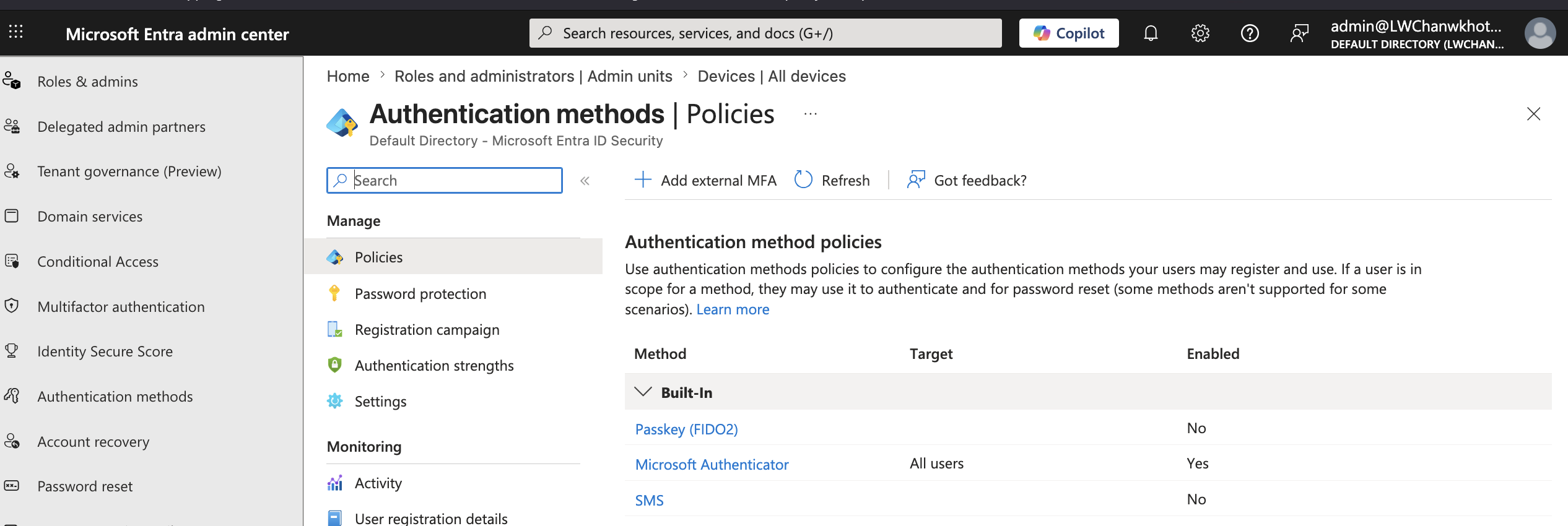
The tenant method list included controls such as:
Passkey (FIDO2)
Microsoft Authenticator
SMS
Temporary Access Pass
Hardware OATH tokens
Software OATH tokens
Voice call
Email OTP
Certificate-based authentication
Verified ID
QR code
The most important point is that authentication methods are not all equal.
| Method | Notes |
|---|---|
| Microsoft Authenticator | Common MFA and passwordless method |
| Temporary Access Pass | Bootstrap or recovery method |
| Passkey / FIDO2 | Phishing-resistant passwordless authentication |
| Software OATH | TOTP code-based authentication |
| SMS / voice | Weaker legacy MFA methods |
| Certificate-based authentication | High assurance, certificate-backed authentication |
| Email OTP | Useful for external identities and fallback scenarios |
The clean production pattern is:
Enable passkey / FIDO2 for a pilot group first.
Do not immediately enable it for all users.
Do not make break-glass access depend on a hardware key policy.
The portal showed that passkeys can be enabled and targeted through the Authentication Methods policy.
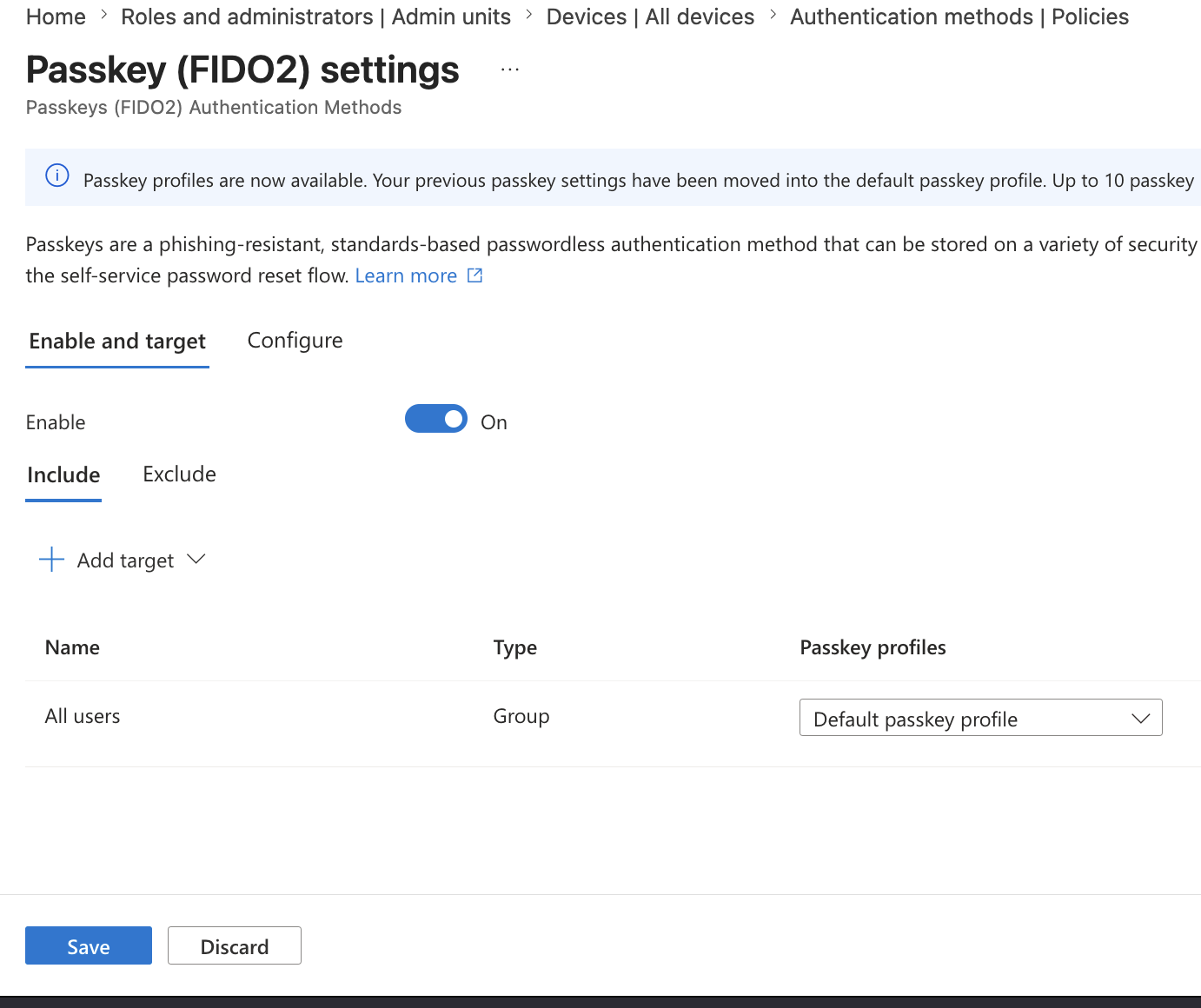
At first, the policy could be targeted to All users, but that is too broad for a lab tenant.
For this lab, I created a dedicated pilot group instead.
Group type: Security
Group name: lab-fido2-admins
Description: Privileged admin group scoped for FIDO2/passkey authentication method policy
Microsoft Entra roles can be assigned to the group: No
Membership type: Assigned
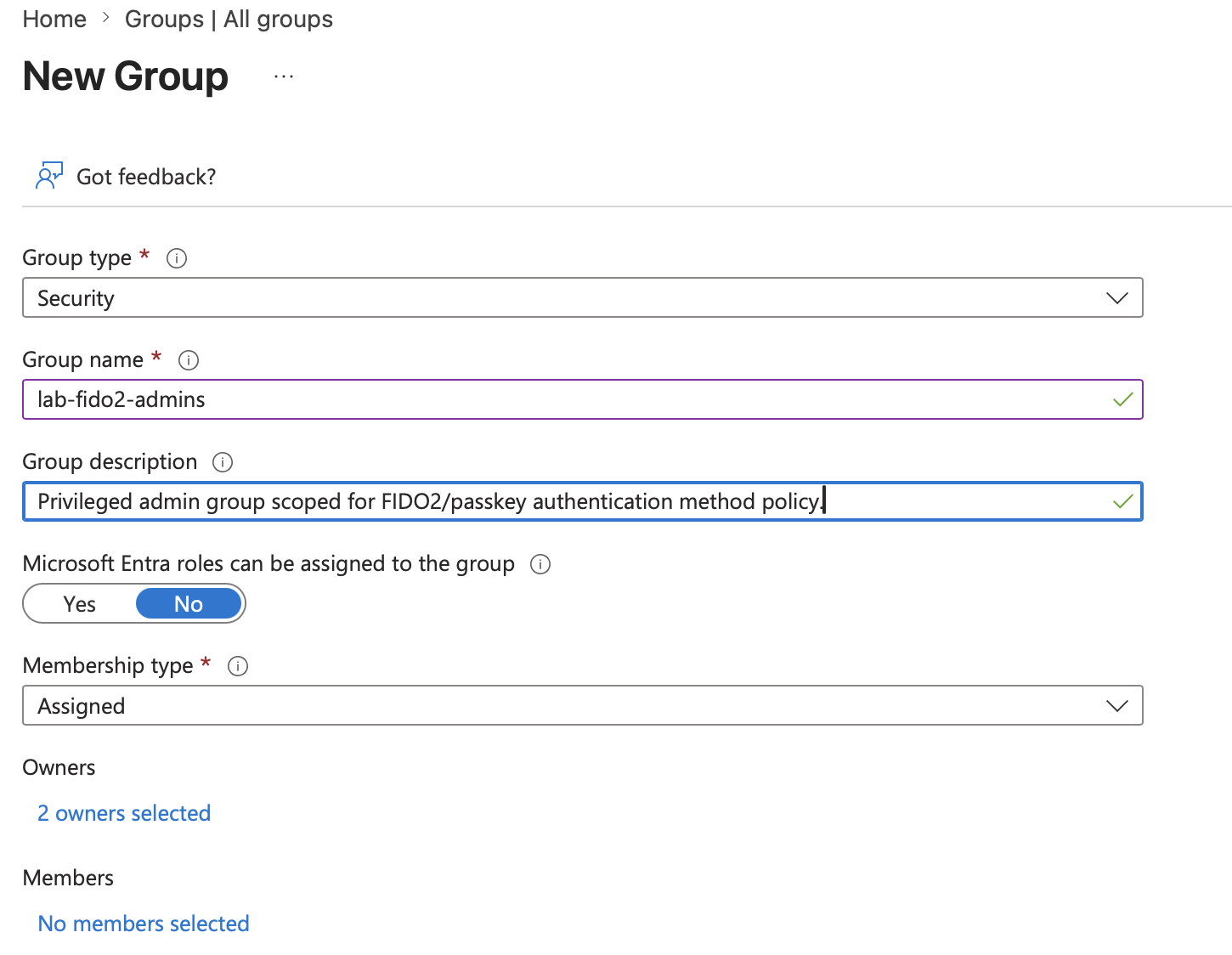
This group is not an admin role group.
It is only a policy targeting group for the Authentication Methods policy.
That distinction matters:
lab-fido2-admins does not grant admin permissions.
It only controls who is allowed to register and use passkeys / FIDO2.
After creating the group, I removed the broad All users target and added lab-fido2-admins as the specific passkey target.
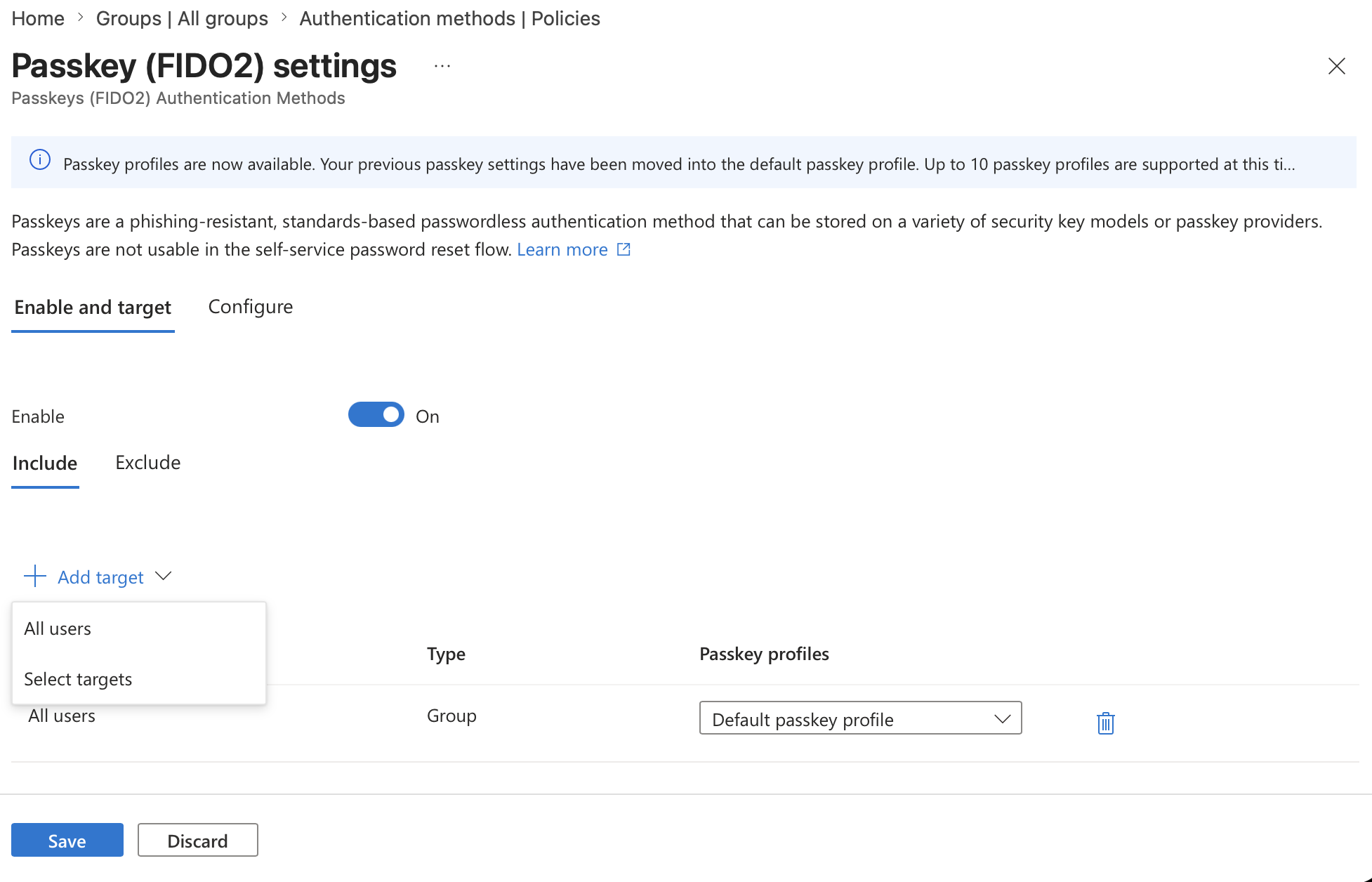
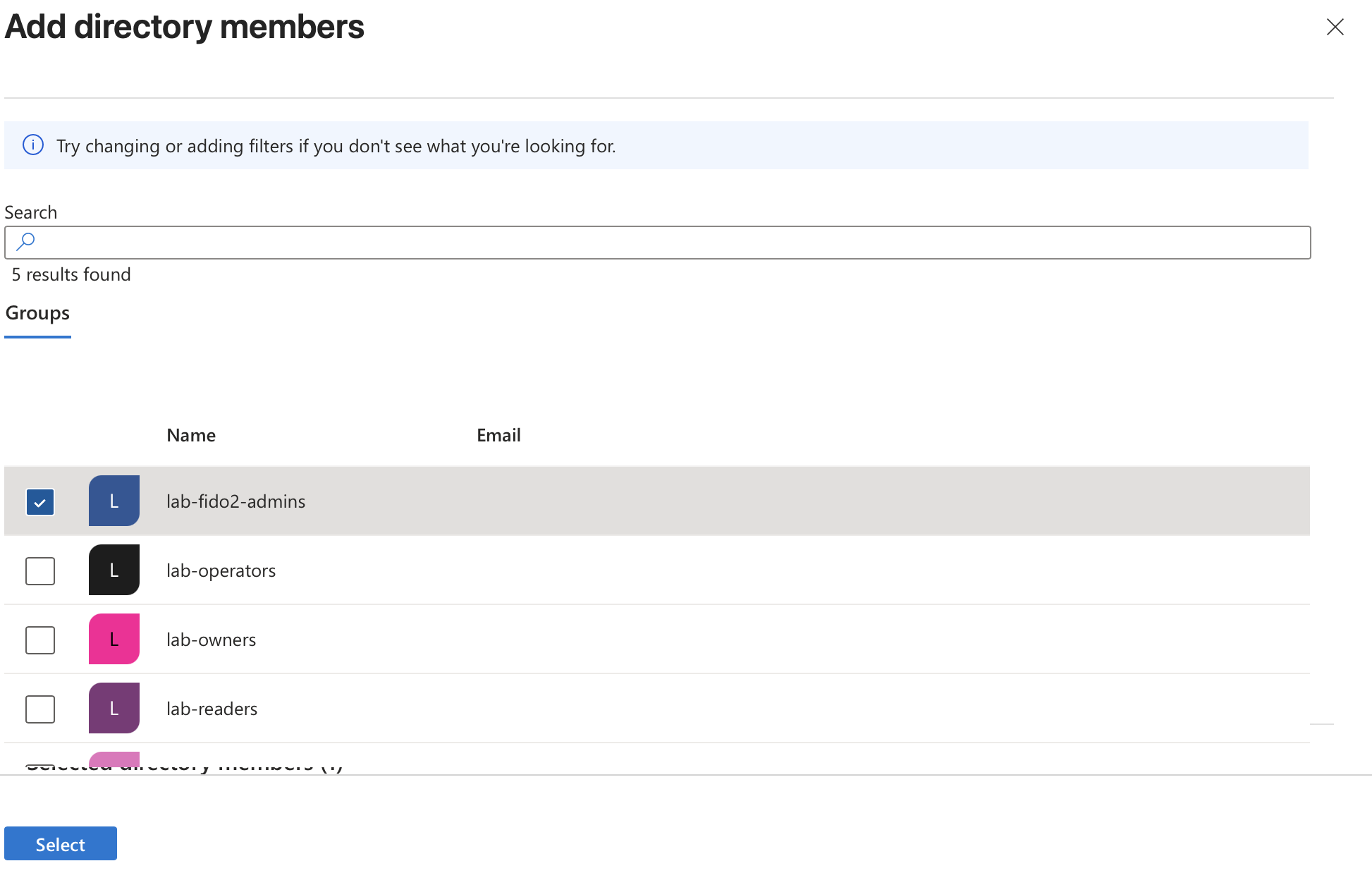
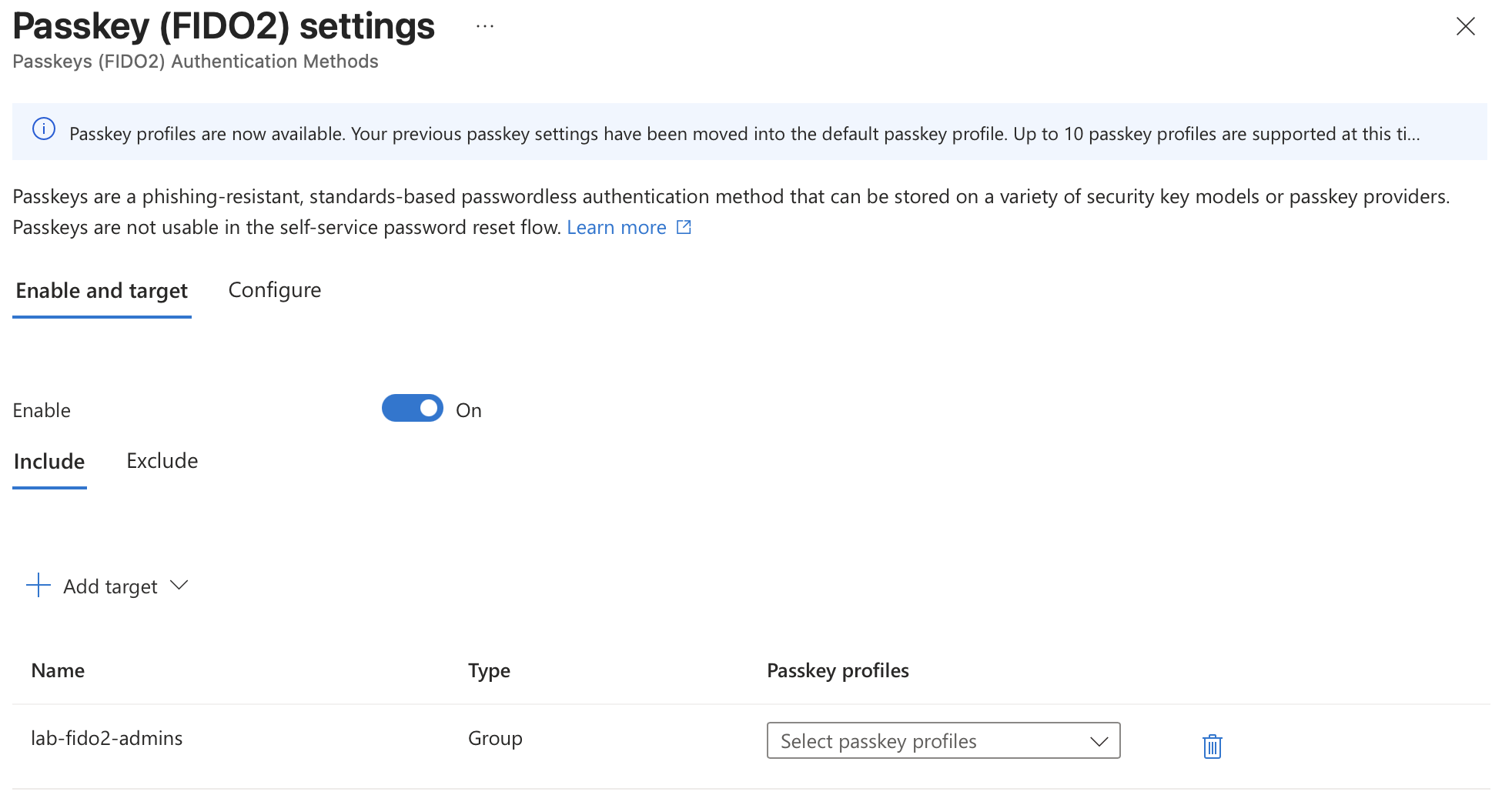
The policy also required a passkey profile to be assigned to the target.
For this lab, I used the default passkey profile.
Policy: Passkey (FIDO2)
Enable: On
Target: lab-fido2-admins
Passkey profile: Default passkey profile
The Configure tab showed the default passkey profile behavior.
Allow self-service set-up: Enabled
Passkey types: Device-bound, Synced
Enforce attestation: No
Key restrictions: No
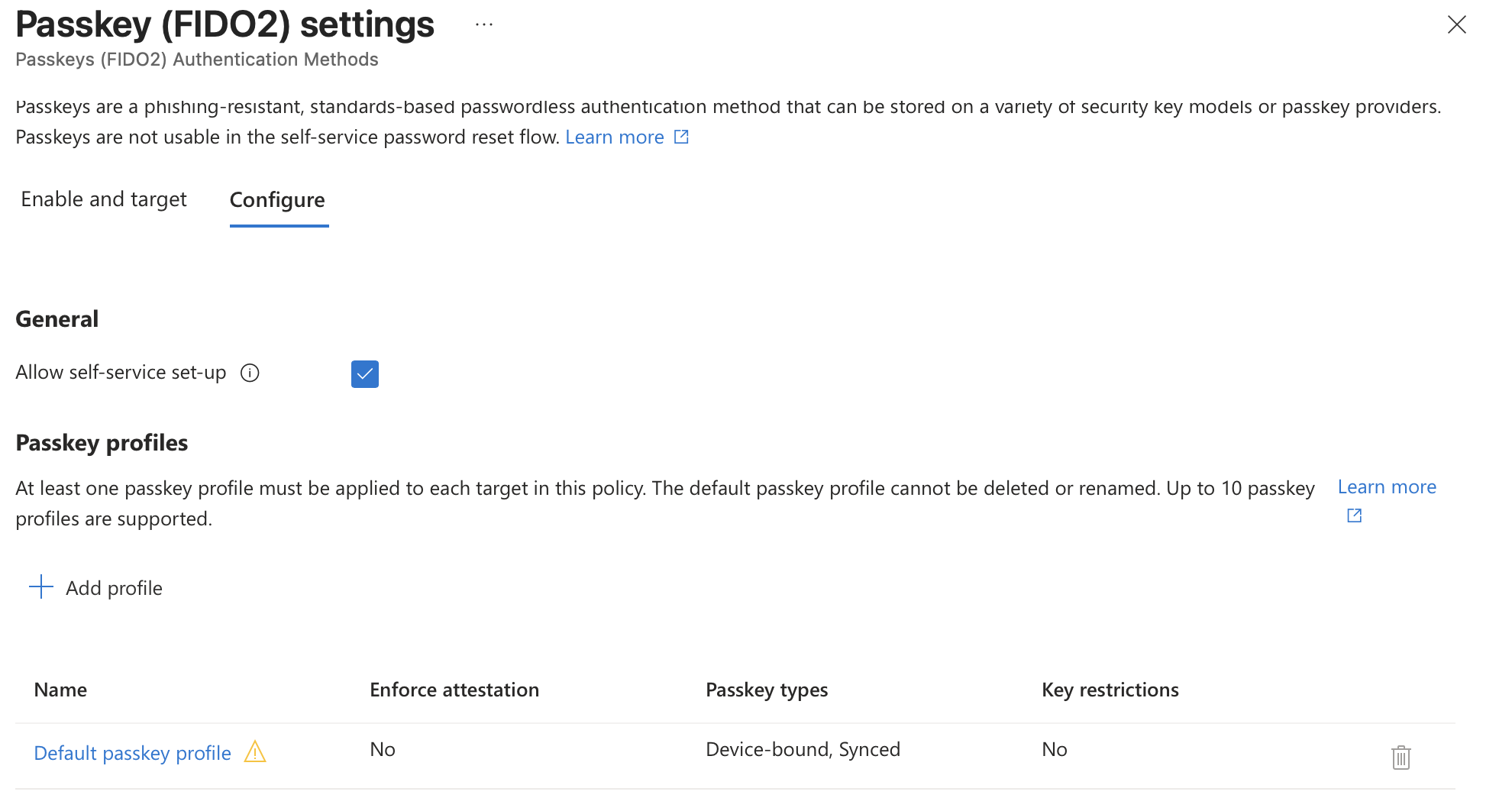
For production, I would normally review whether only device-bound security keys should be allowed, and whether key restrictions or attestation are required.
For this lab, the default profile was enough to prove the workflow.
🗝️ User Passkey Registration Test
After the policy was targeted to the pilot group, I tested registration from the user-facing Security Info page.
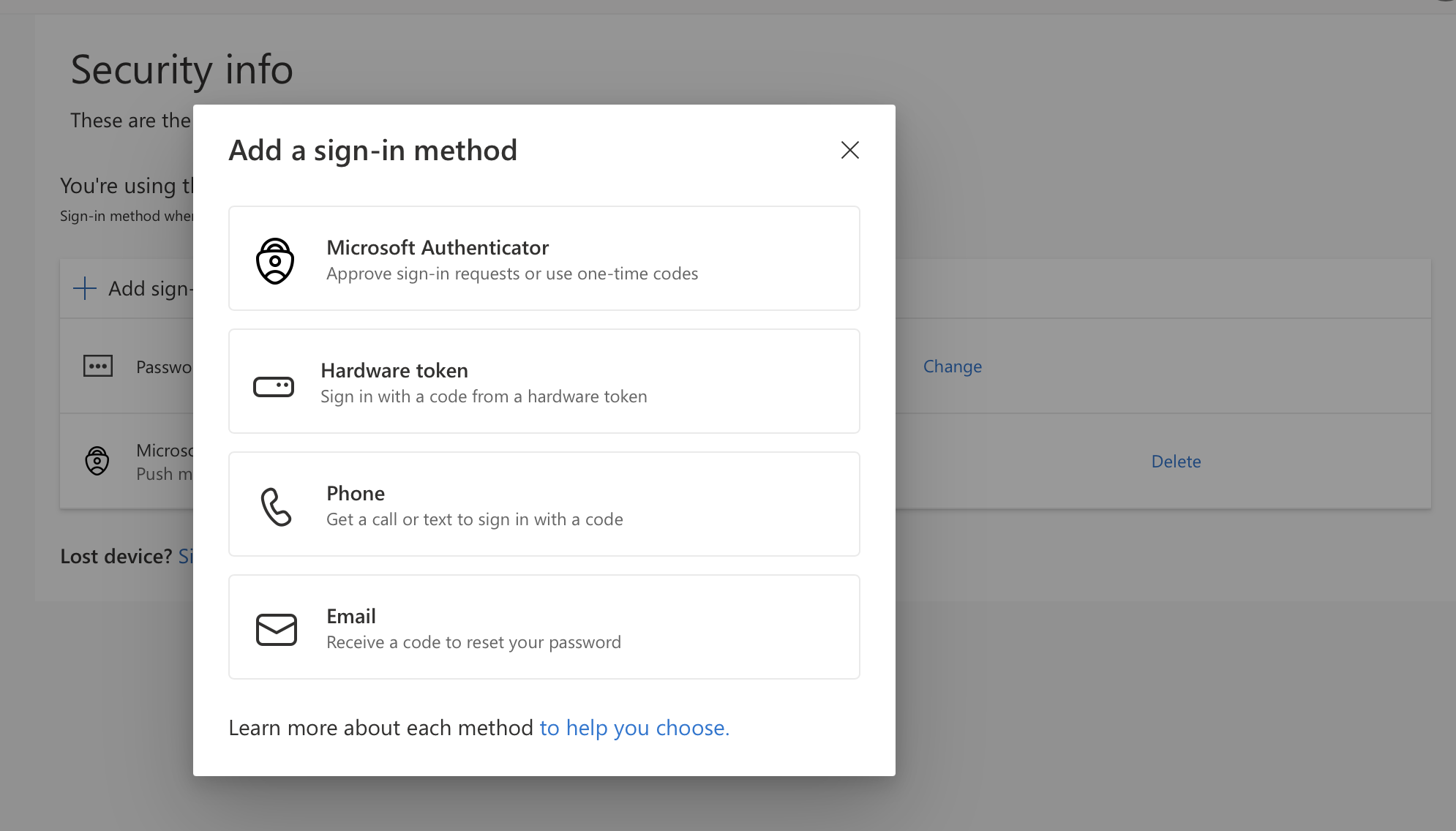
Before the passkey policy applied, the available sign-in methods were limited to methods such as Microsoft Authenticator, hardware token, phone, and email.
After the passkey / FIDO2 method was enabled for the target group, the Security Info page showed passkey options.
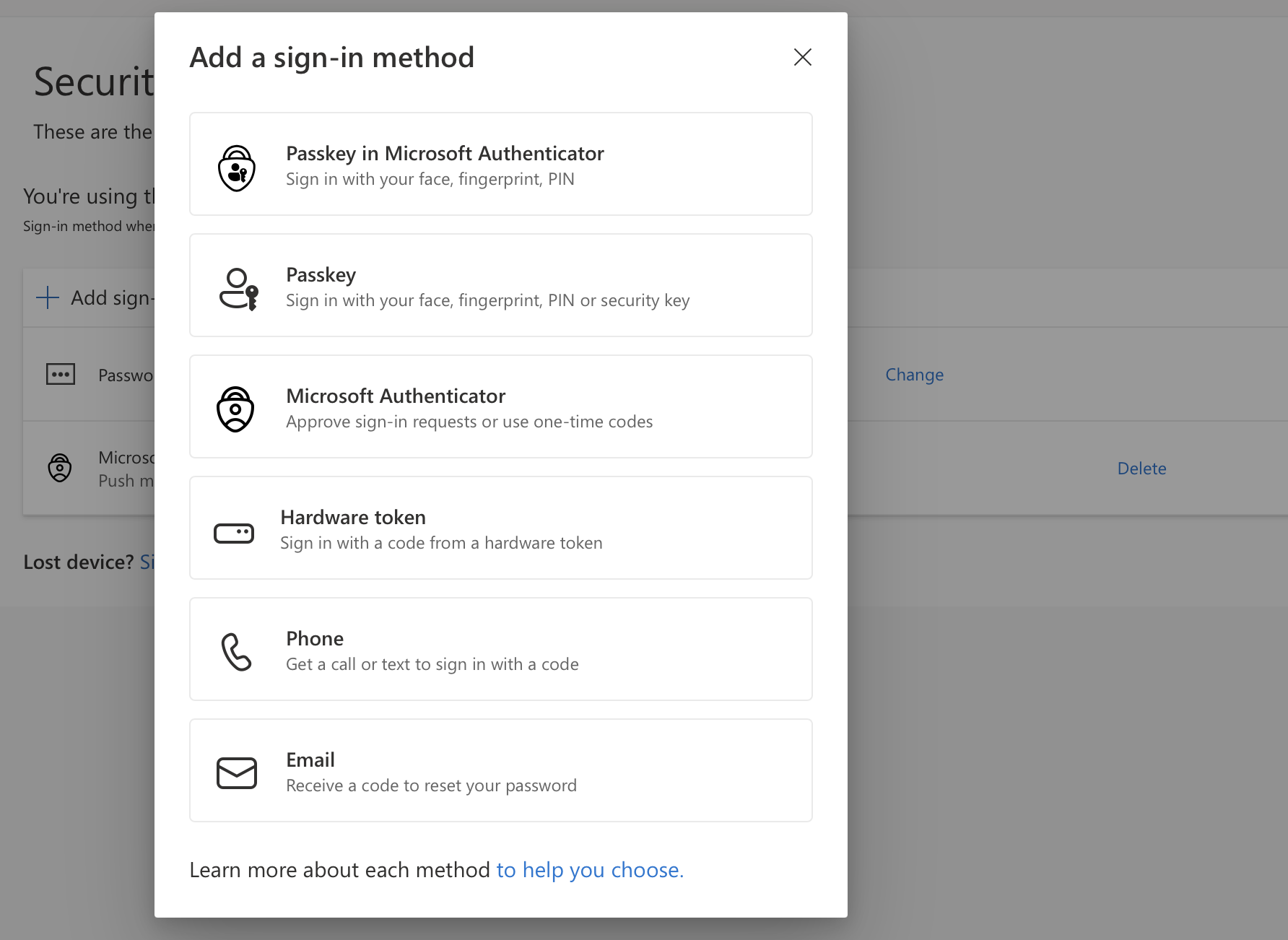
The important user-facing difference is:
| Option | Meaning |
|---|---|
| Passkey in Microsoft Authenticator | Synced passkey stored through the Authenticator app |
| Passkey | Platform passkey or security key passkey through the device/browser flow |
| Hardware token | OATH-style code from a hardware token, not the same as FIDO2 |
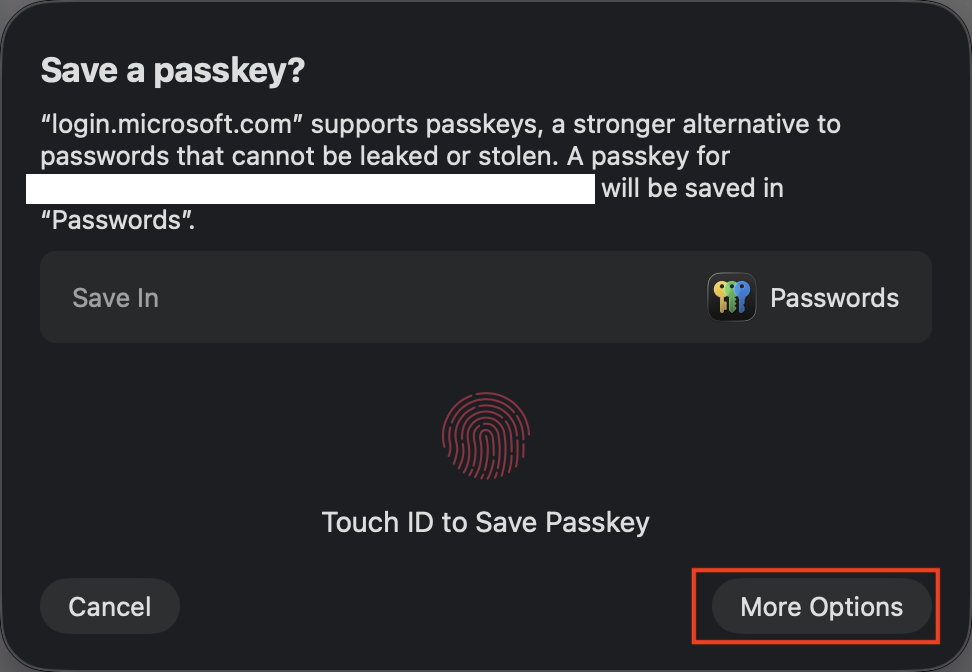
For this test, I selected the passkey registration flow and completed the browser / operating system security prompt.
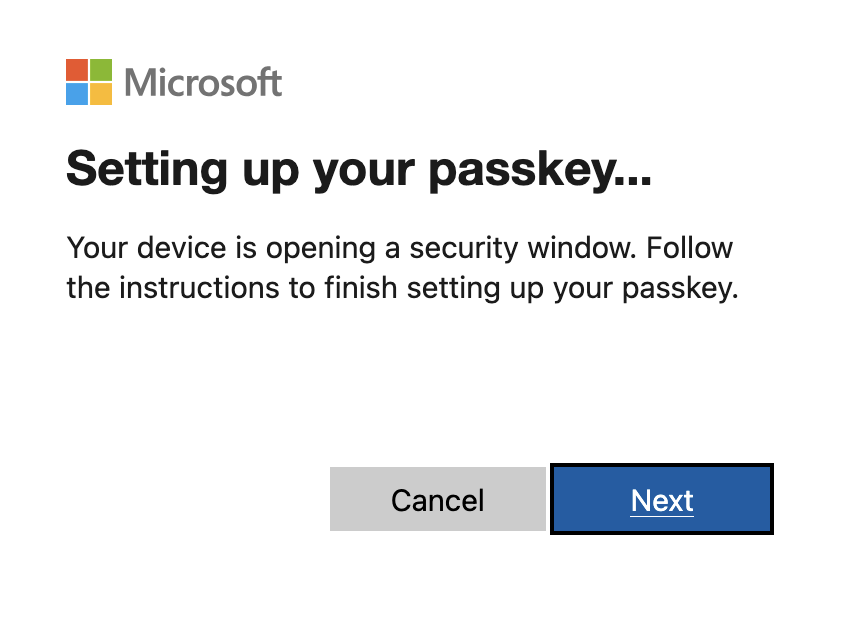
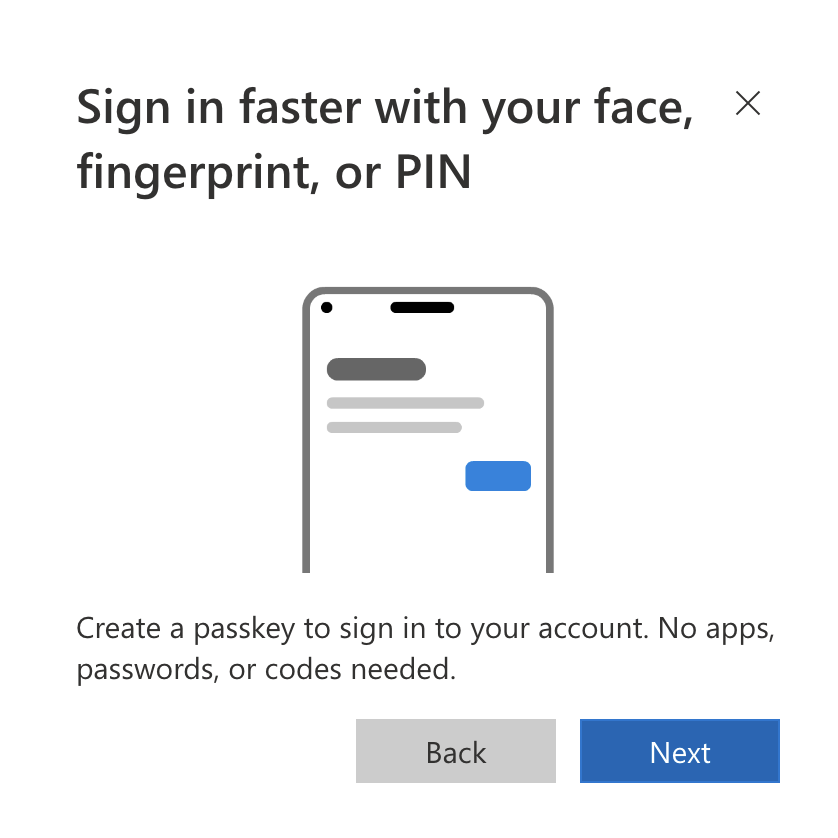
Click 'more option'
For the security key test, I used the security key option and followed the hardware-key setup prompts.
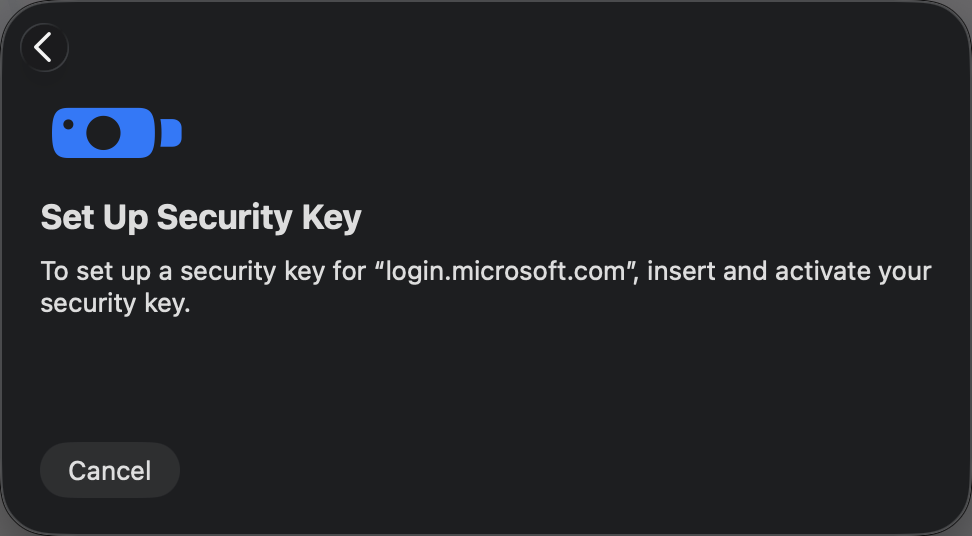
The security key required a PIN.
This PIN is not the Microsoft account password.
It is a local unlock PIN for the hardware security key.
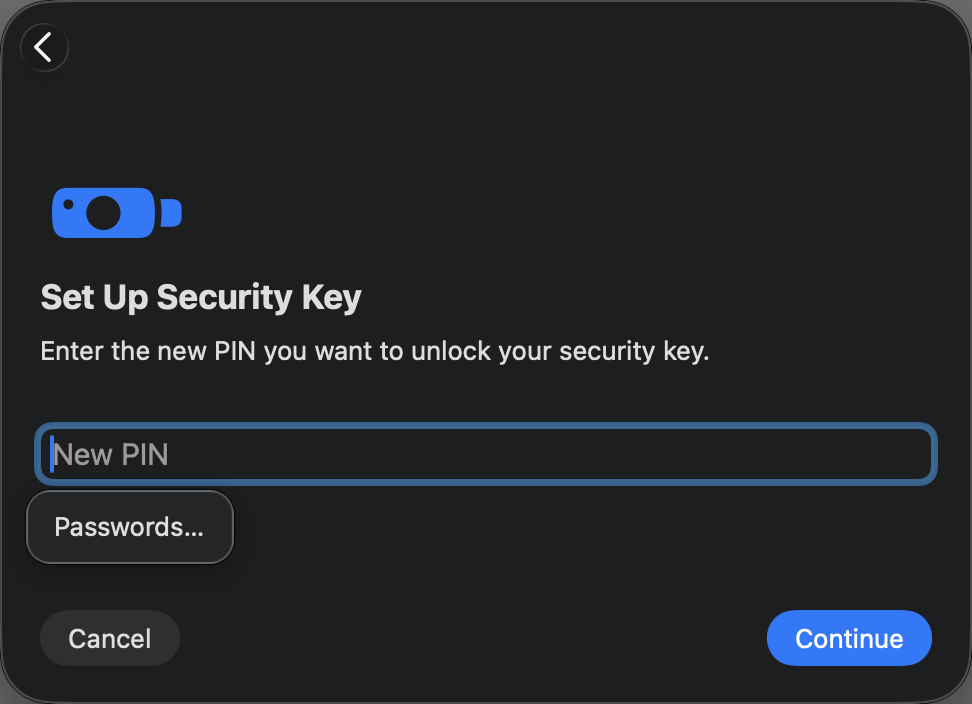
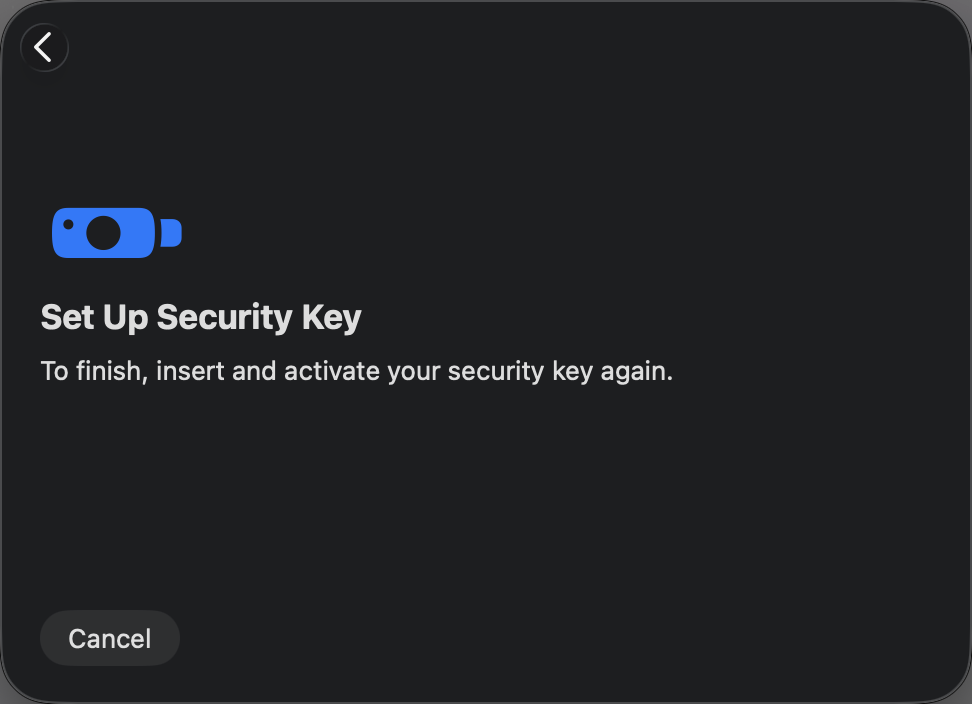
The key then had to be inserted and activated again to complete the registration.
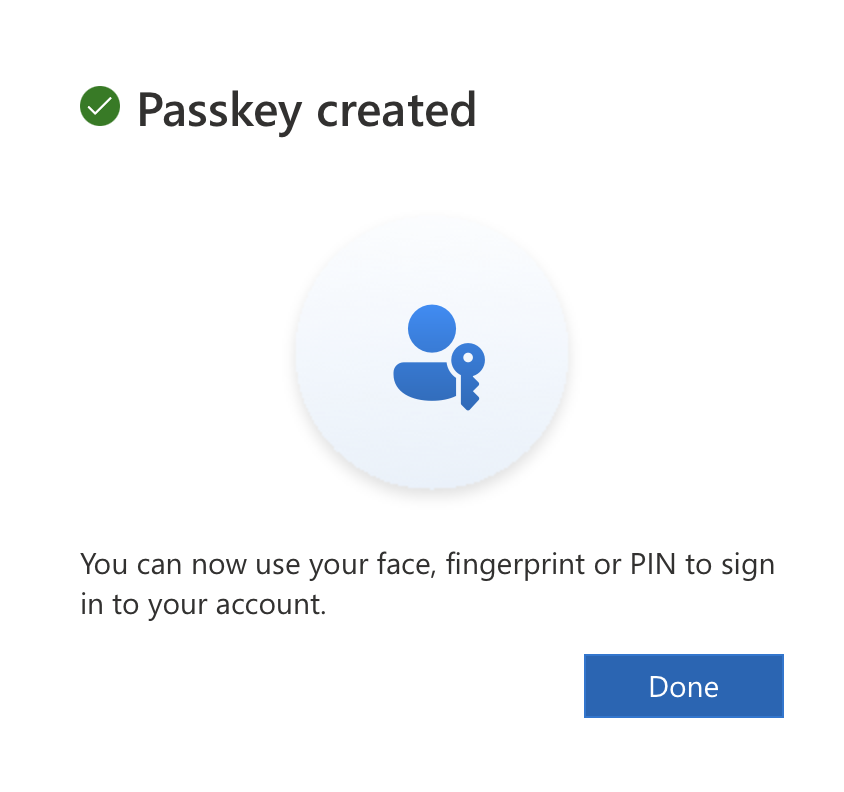
After the registration completed, Microsoft confirmed that the passkey was created.
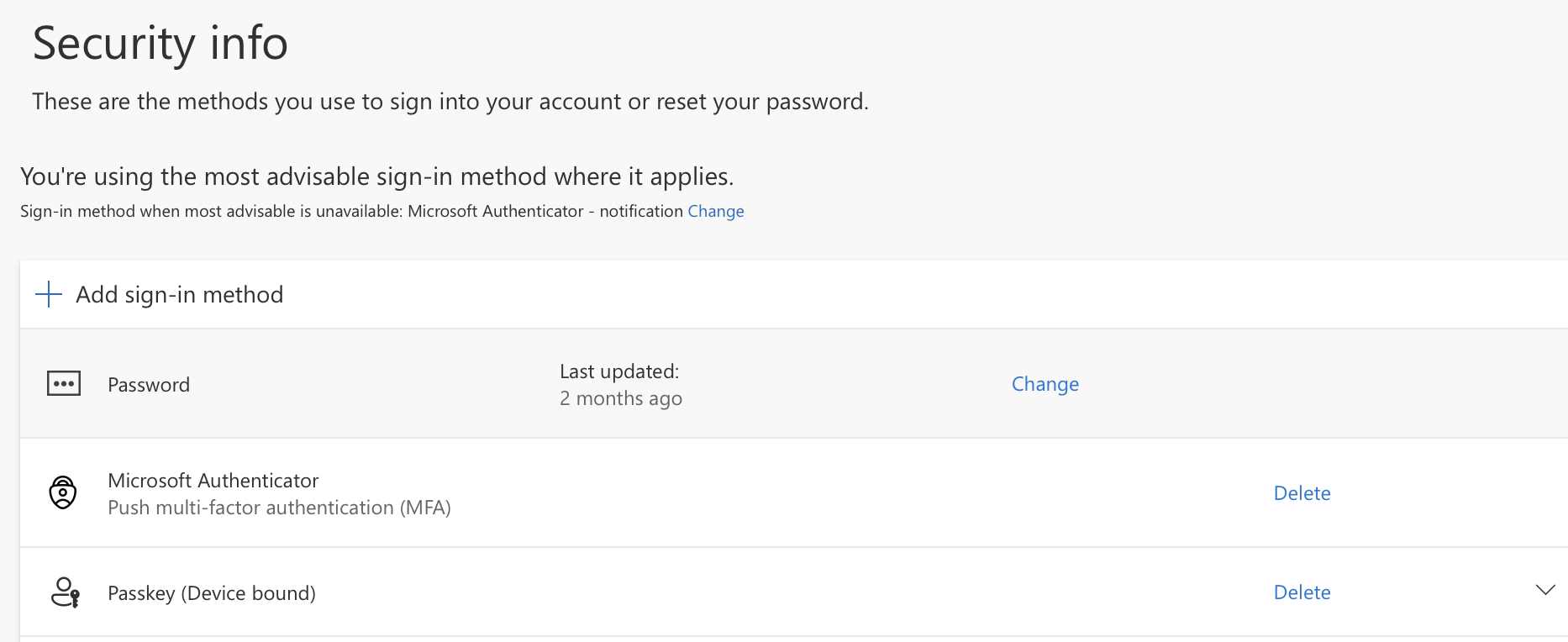
The Security Info page then showed a registered passkey as a device-bound sign-in method.
Final evidence:
Authentication method policy: Passkey / FIDO2 reviewed
Targeting model: scoped pilot group
Policy group: lab-fido2-admins
Passkey profile: Default passkey profile
Registration result: Passkey (Device bound)
Lab note:
Browser and operating system support matters for WebAuthn / passkey registration.
In this lab, the security key flow worked better through the supported platform prompt.
The important security lesson is not just “turn on passkeys.”
The real lesson is controlled rollout:
Passkey / FIDO2 should be enabled by policy,
targeted to a pilot group,
validated through user registration,
and only then expanded to more users.
For this lab, the passkey work remained scoped to the pilot group and was treated as evidence of the authentication method workflow, not a permanent tenant-wide rollout.
🔁 Self-Service Password Reset
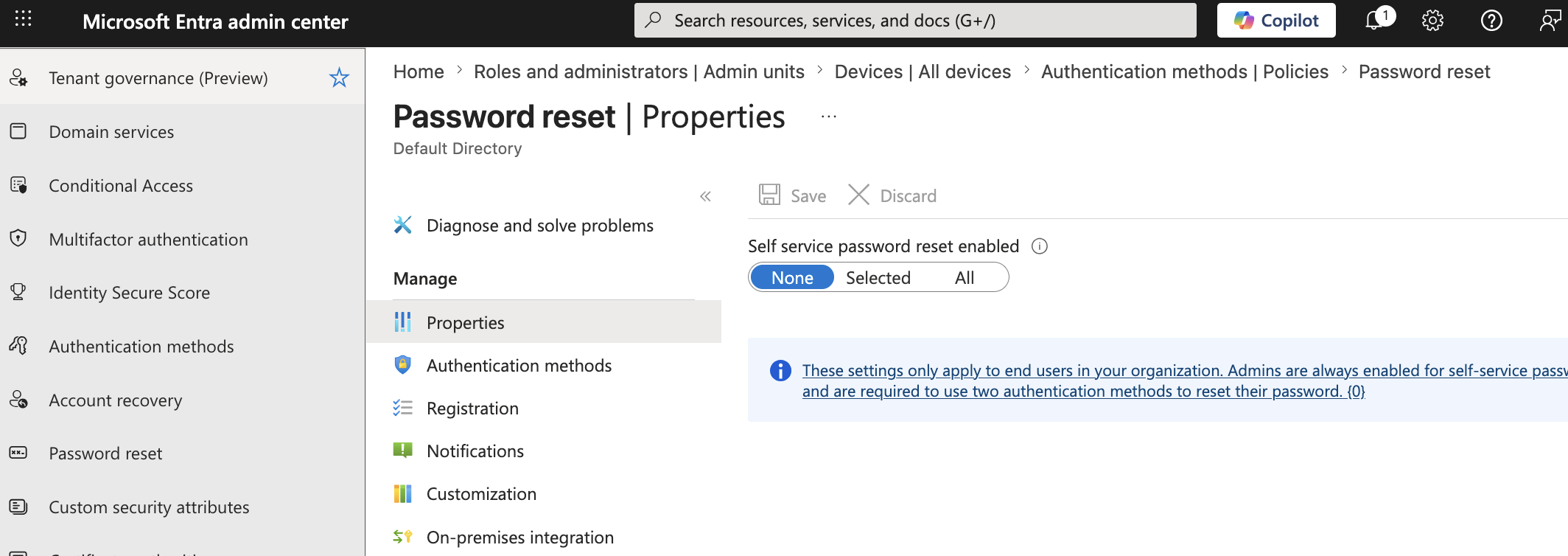
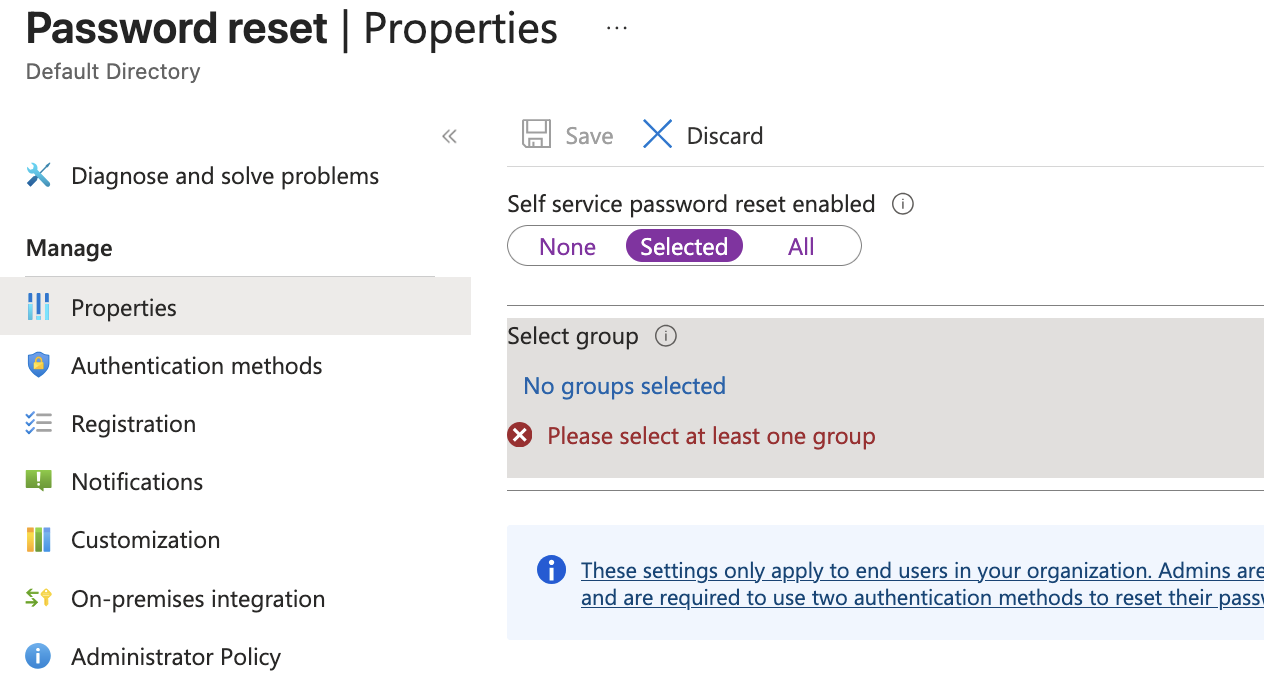
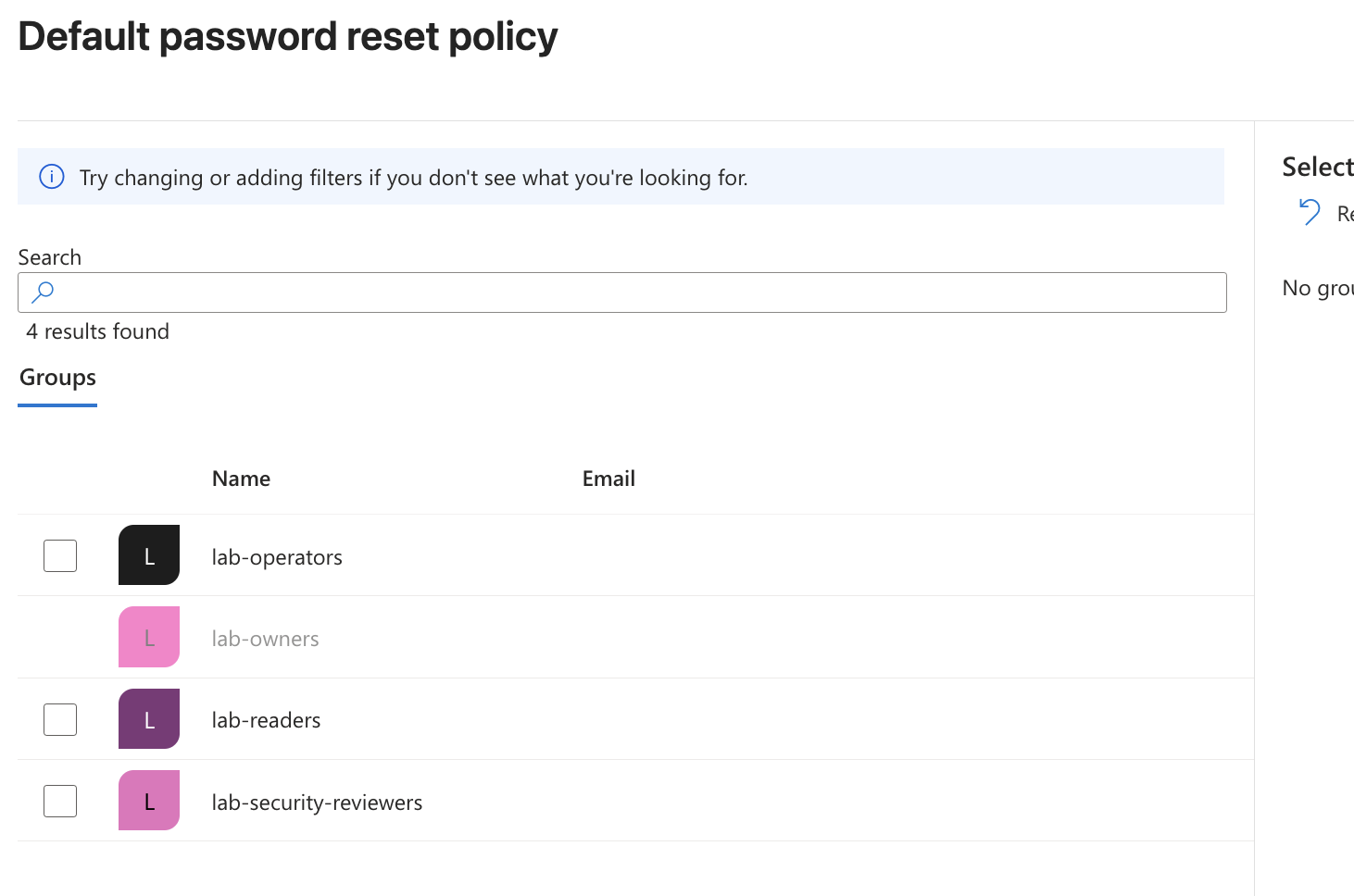
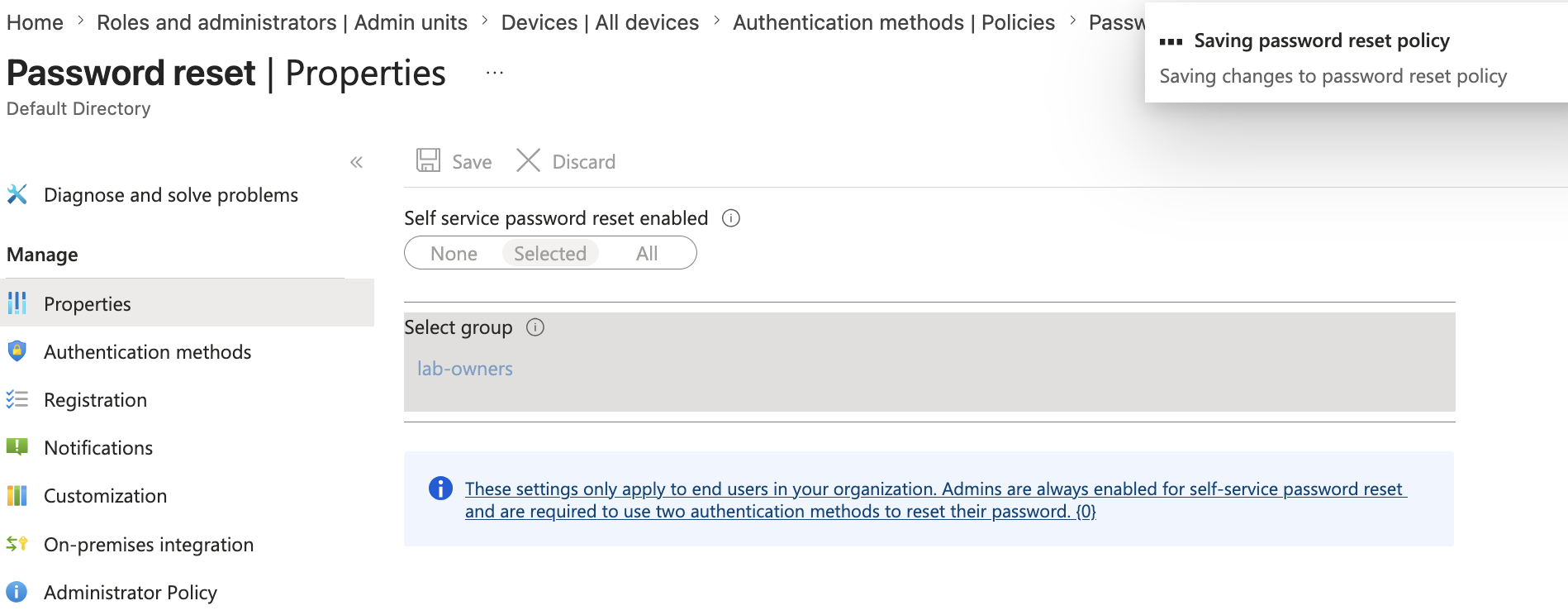
I configured Self-Service Password Reset for a selected lab group.
Configuration:
Self-service password reset enabled: Selected
Selected group: lab-owners
Important distinction:
SSPR lets users reset their own passwords.
It does not give them permission to reset other users' passwords.
Resetting other users' passwords requires an administrative role such as:
Password Administrator
Helpdesk Administrator
User Administrator
For the lab, I scoped SSPR to lab-owners instead of enabling it for the whole tenant.
This keeps the change limited and easy to clean up.
🔑 Step 62 — SSPR Authentication Methods and Registration
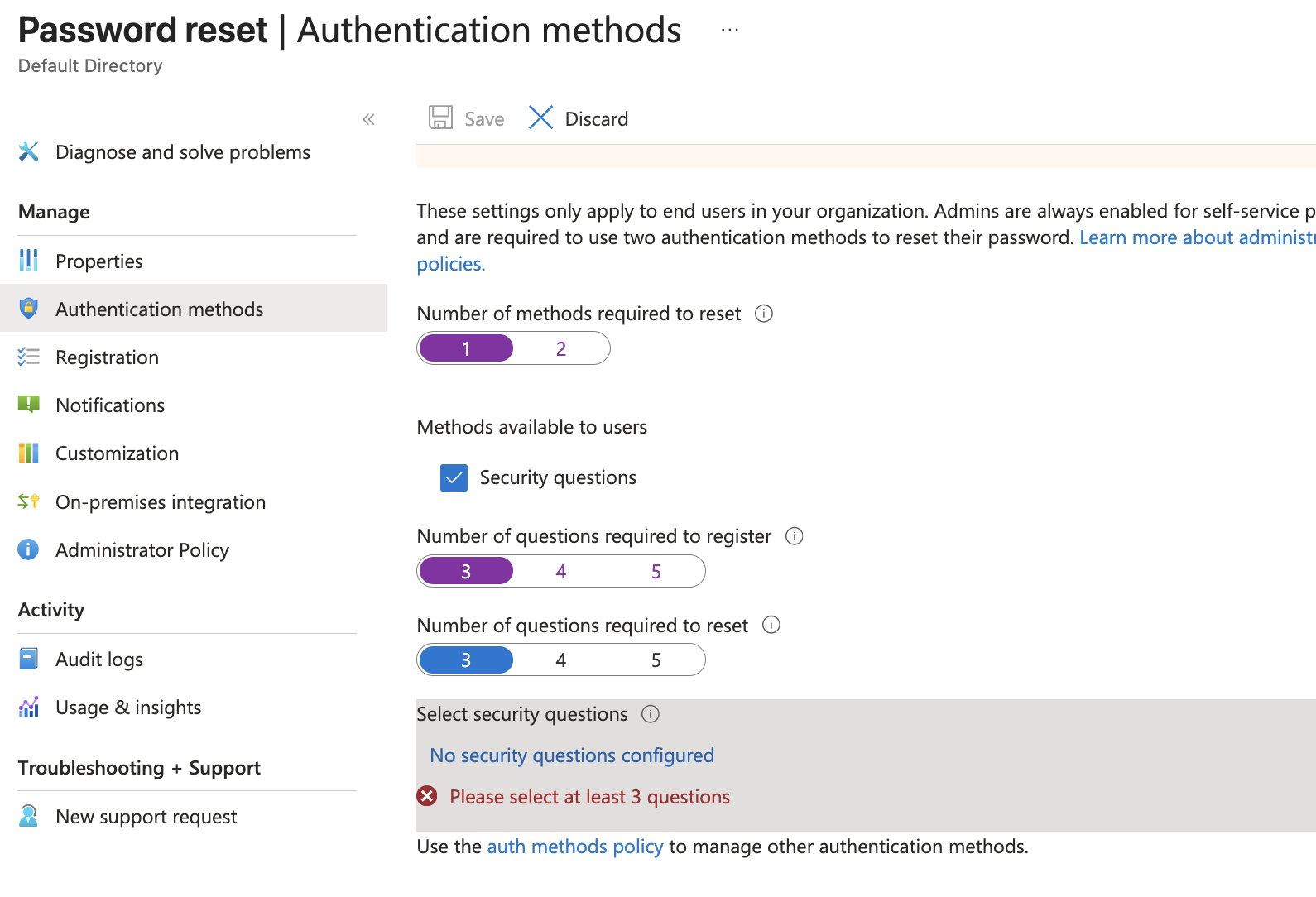
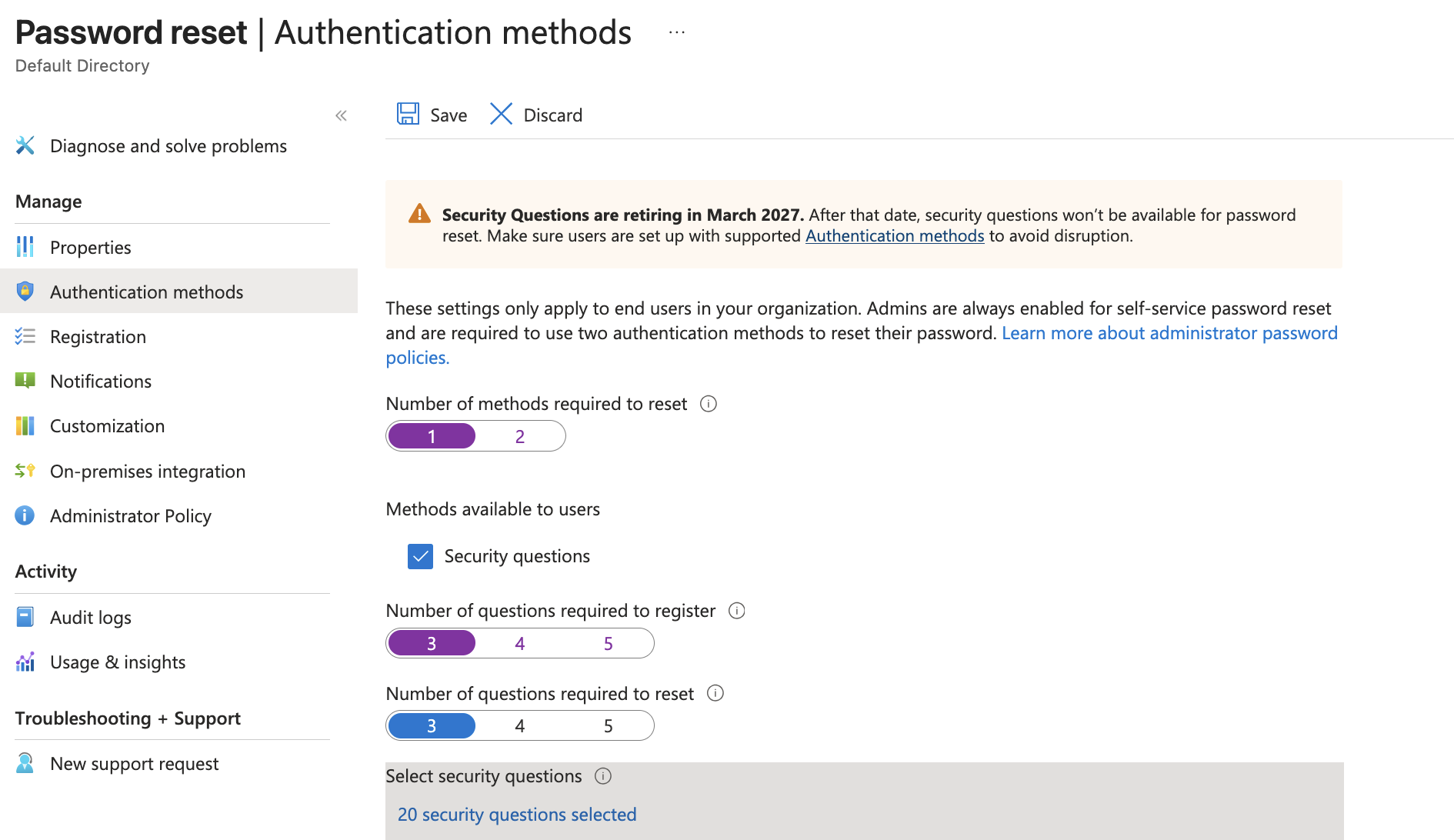
I reviewed the password reset authentication methods.
For a lab, one method is enough to demonstrate the configuration:
Number of methods required to reset: 1
For production, two methods are usually safer.
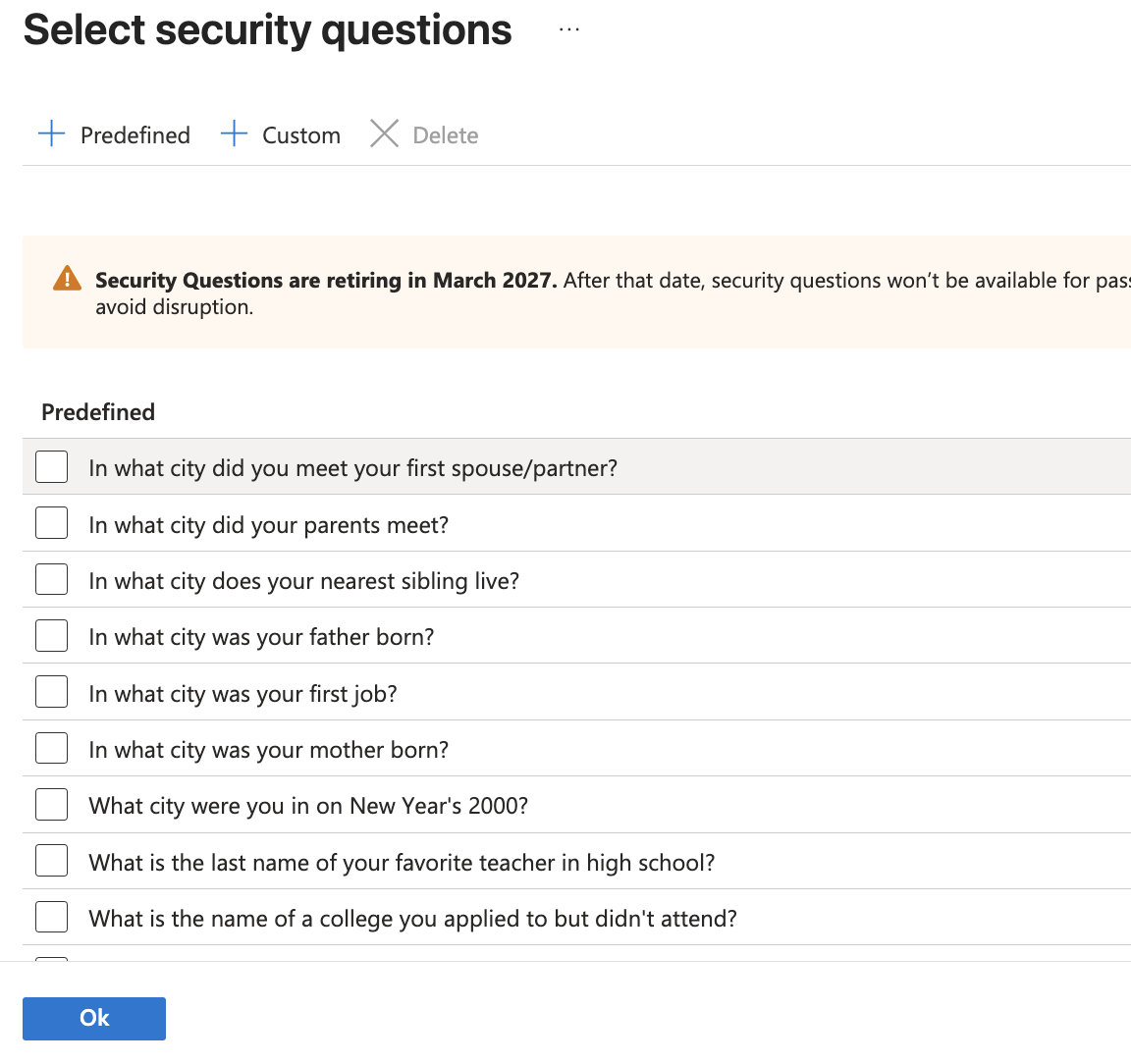
The portal also showed that security questions are retiring.
That is a useful SC-300 note:
Security questions are legacy knowledge-based authentication.
Modern recovery should use supported authentication methods instead.
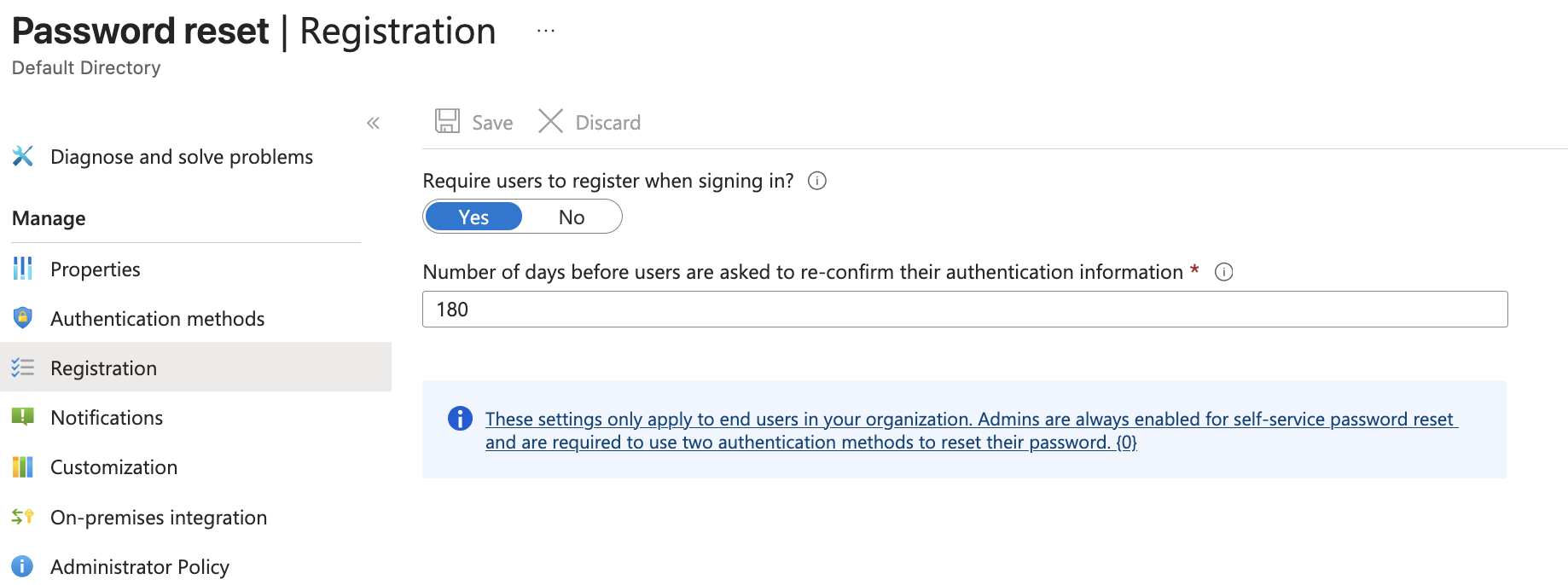
I also reviewed the registration settings:
Require users to register when signing in: Yes
Number of days before reconfirming authentication information: 180
 s
s
This means selected users are prompted to register recovery information when signing in, and they are asked to reconfirm it periodically.
🧱 Step 62 — Password Protection
I reviewed Microsoft Entra password protection.
The reviewed settings included:
Custom smart lockout
Lockout threshold
Lockout duration
Custom banned password list
Password protection for Windows Server Active Directory
Audit / Enforced mode
For lab evidence, I used a small custom banned password list conceptually:
123456789
qwertyuiop
asdfghjkl
zxcvbnm
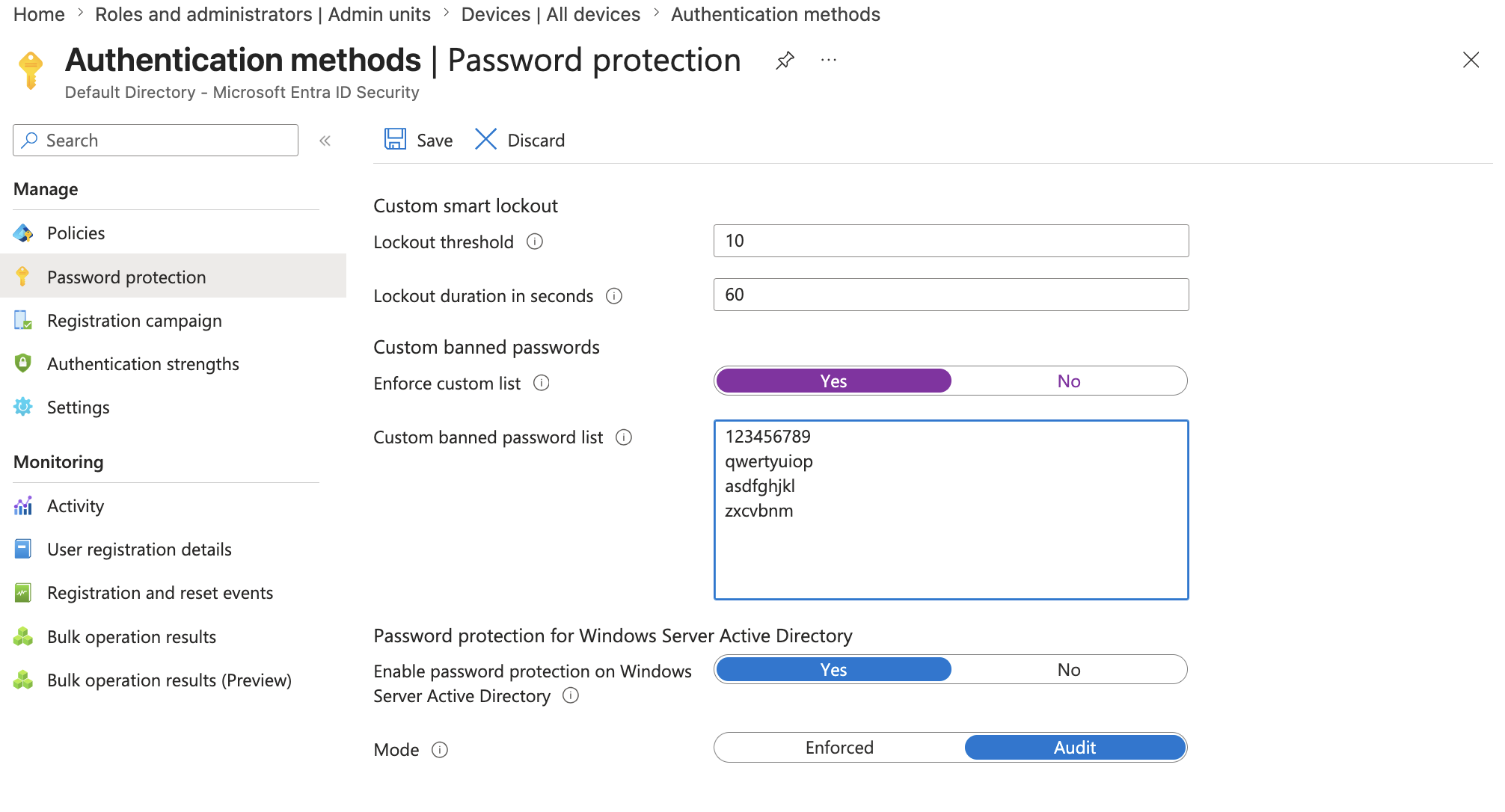
The important concept:
Password protection blocks weak or organization-specific passwords.
Smart lockout helps protect against password spray and brute-force attempts.
For a real tenant, the custom banned password list should include company-specific words, product names, local terms, and predictable variations.
For this lab, the focus was documenting the feature and understanding where the control lives.
🧪 Advanced Conditional Access Review
I reviewed advanced Conditional Access settings.
This included:
Conditional Access App Control
Sign-in frequency
Persistent browser session
Continuous Access Evaluation
Resilience defaults
Token protection
Global Secure Access security profile
Device filters
Authentication context
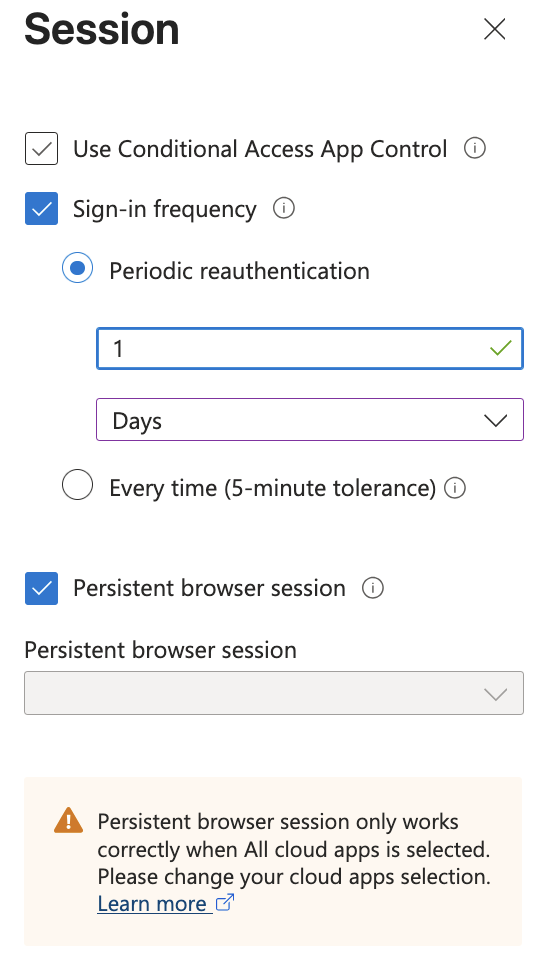
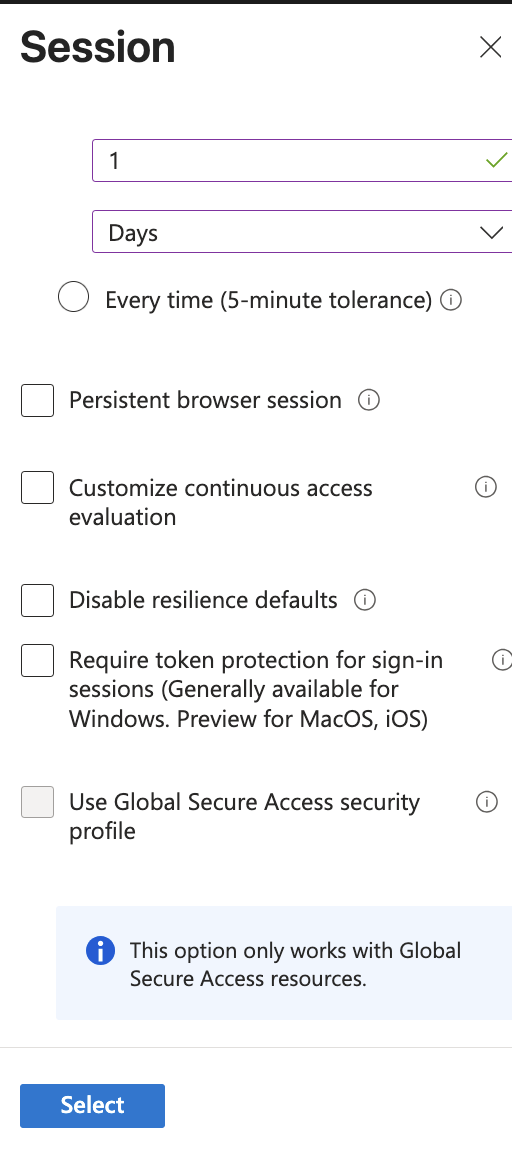
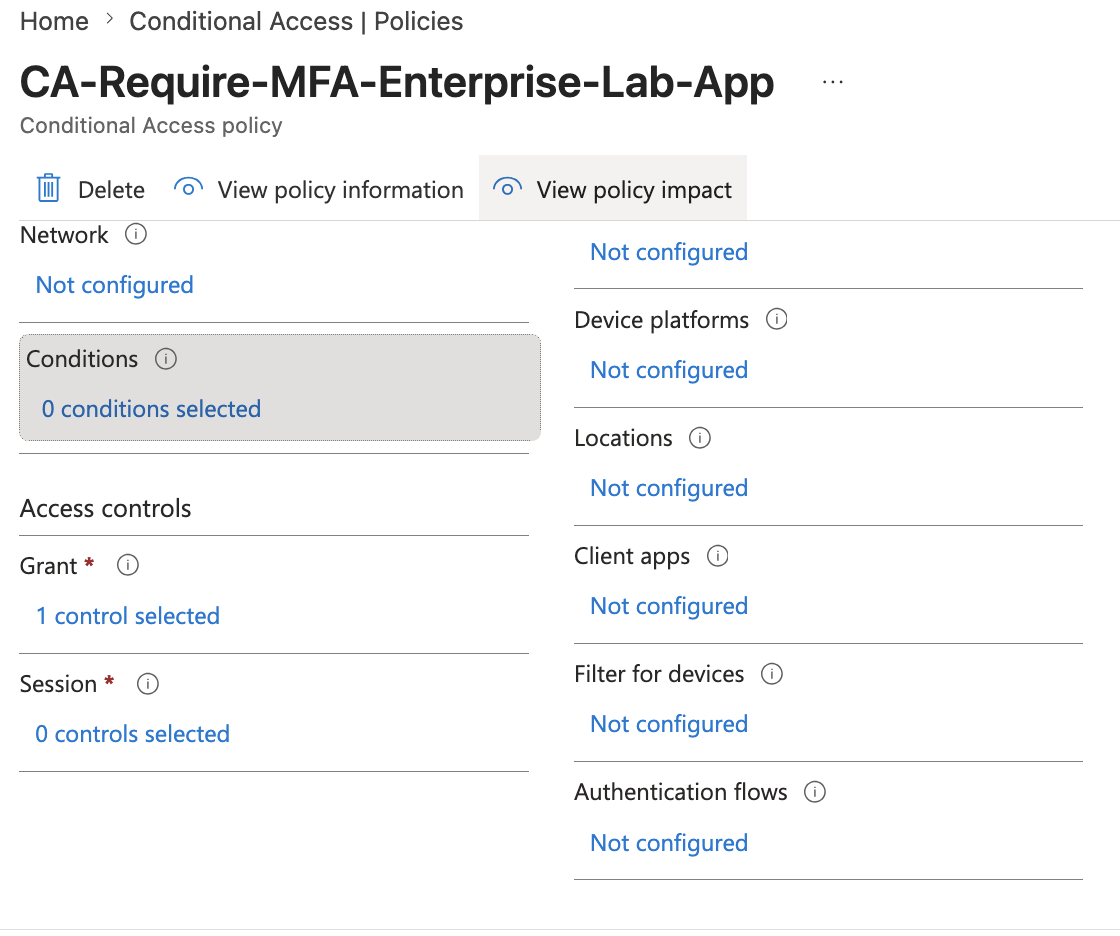
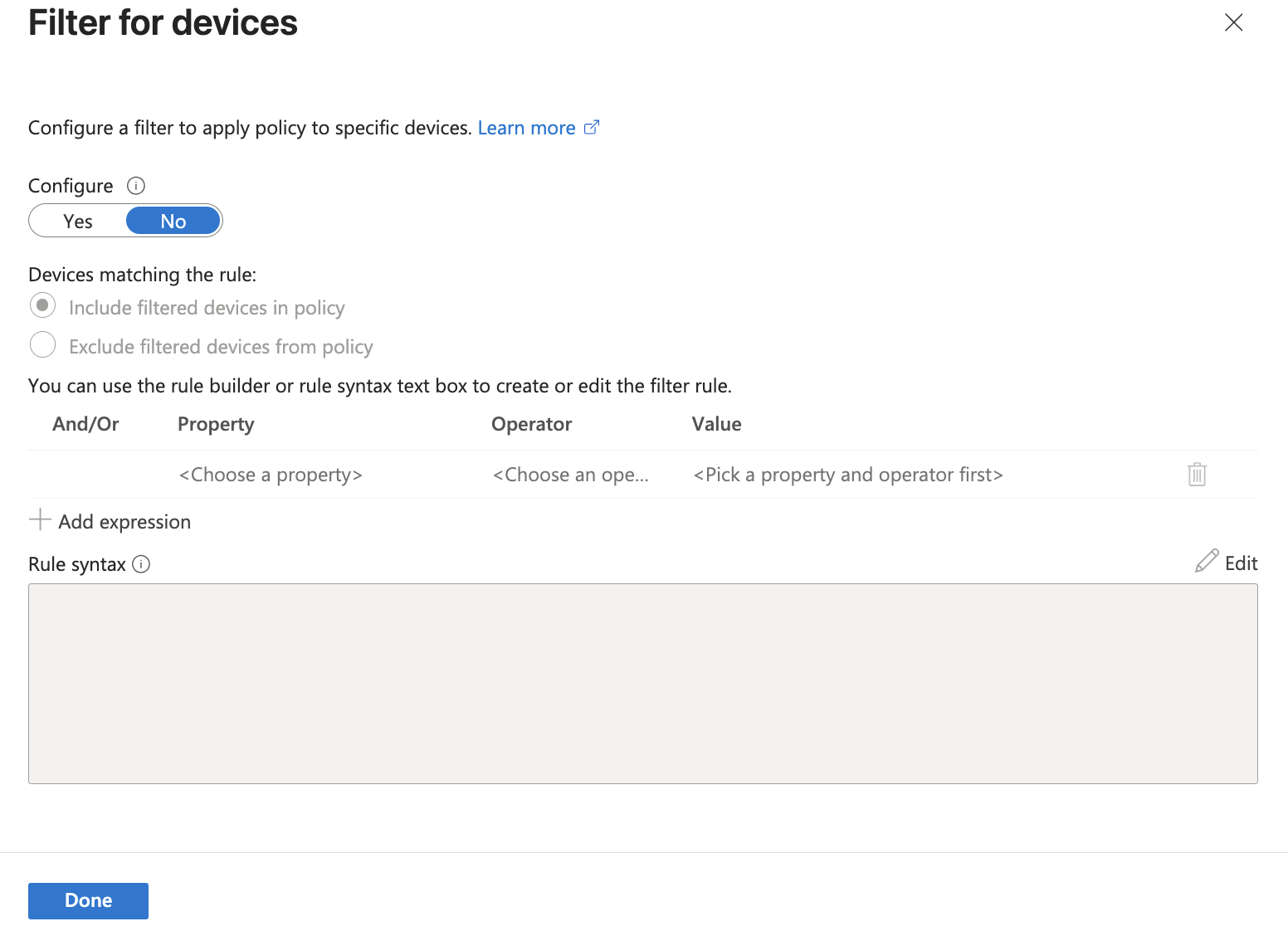
For this lab, I used report-only or review-only behavior.
The main lesson:
Conditional Access can control not only whether access is granted,
but also how long the session lasts and how access is reevaluated.
Session controls are powerful, but they can easily create a bad user experience if applied broadly.
Example interpretation:
| Session control | Meaning |
|---|---|
| Sign-in frequency | How often users must reauthenticate |
| Persistent browser session | Whether browser sessions stay signed in |
| Continuous Access Evaluation | Reevaluate sessions after critical changes |
| Token protection | Bind tokens more strongly to devices |
| App Control | Use Defender for Cloud Apps session controls |
I avoided enabling broad session controls tenant-wide.
SC-300 note:
Conditional Access should be tested in report-only mode before enforcement.
Break-glass accounts should be excluded from policies that could block access.
🧾 Summary
Part 1 built the scoped administration and authentication baseline.
Completed work:
- Created
AU-Enterprise-Lab - Assigned a User Administrator role scoped to the Administrative Unit
- Reviewed Custom Security Attributes and their dedicated role requirements
- Reviewed Microsoft Entra device identity states
- Reviewed Authentication Methods policy
- Created a scoped
lab-fido2-adminspilot group for passkey / FIDO2 testing - Registered and validated a device-bound passkey through Security Info
- Configured SSPR for a selected lab group
- Reviewed password reset registration behavior
- Reviewed password protection and smart lockout
- Reviewed advanced Conditional Access session controls
The key lesson:
Identity administration should be scoped.
Authentication methods should be managed deliberately and rolled out with scoped pilot groups.
Password reset should be targeted carefully.
Conditional Access changes should be tested before enforcement.
This completes the scoped administration and authentication baseline for the SC-300 lab.
The next part moves into identity risk detection and external identity boundaries.