Enterprise Azure Terraform Lab Phase 2C Part 3: Identity Governance Lifecycle with Access Packages, Terms of Use, Access Reviews, and PIM
📁 GitHub Repository: lwc-wk/enterprise-azure-lab1
Enterprise Azure Terraform Lab Phase 2C Part 3: Identity Governance Lifecycle with Access Packages, Terms of Use, Access Reviews, and PIM
🧩 Background
After reviewing identity risk and external identity boundaries, I moved into the identity governance lifecycle section of the SC-300 lab.
This part answers a practical governance question:
How should users request access, accept terms, have access reviewed,
and receive privileged roles only when needed?
This section covers:
- Entitlement Management catalogs
- Access packages
- Group and application resource roles
- Approval and assignment expiration
- Terms of Use
- Conditional Access integration
- Access Reviews
- Privileged Identity Management
The goal is to prove the full identity governance lifecycle:
Request access
Accept terms
Receive access
Review access
Activate privileged access only when needed
Audit the result
This is where the lab moves from simple access assignment into a real governance workflow.
🧭 Identity Governance Lifecycle Design
The lifecycle model for this part is:
User needs access
 ↓
Access package request
 ↓
Approver decision
 ↓
Group membership and app role assignment
 ↓
Terms of Use requirement
 ↓
Access review
 ↓
Privileged access through PIM
 ↓
Audit trail
The short version:
Access Package = How users request access
Terms of Use   = What users must accept before access
Access Review  = How access is periodically validated
PIM            = How privileged access becomes just-in-time
This is an important SC-300 pattern because it connects request, approval, expiration, review, and privilege management.
📦 Entitlement Management Catalog
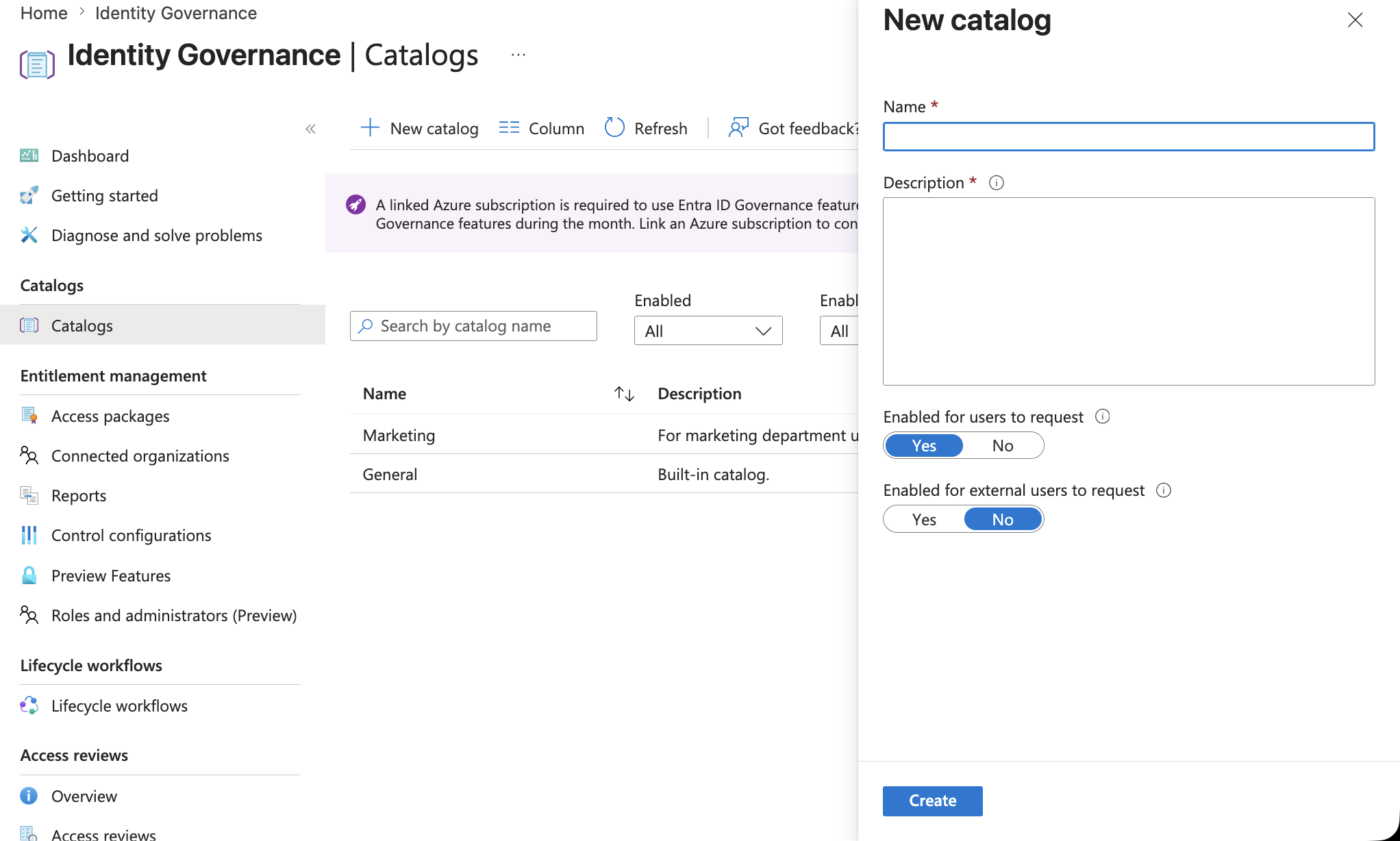
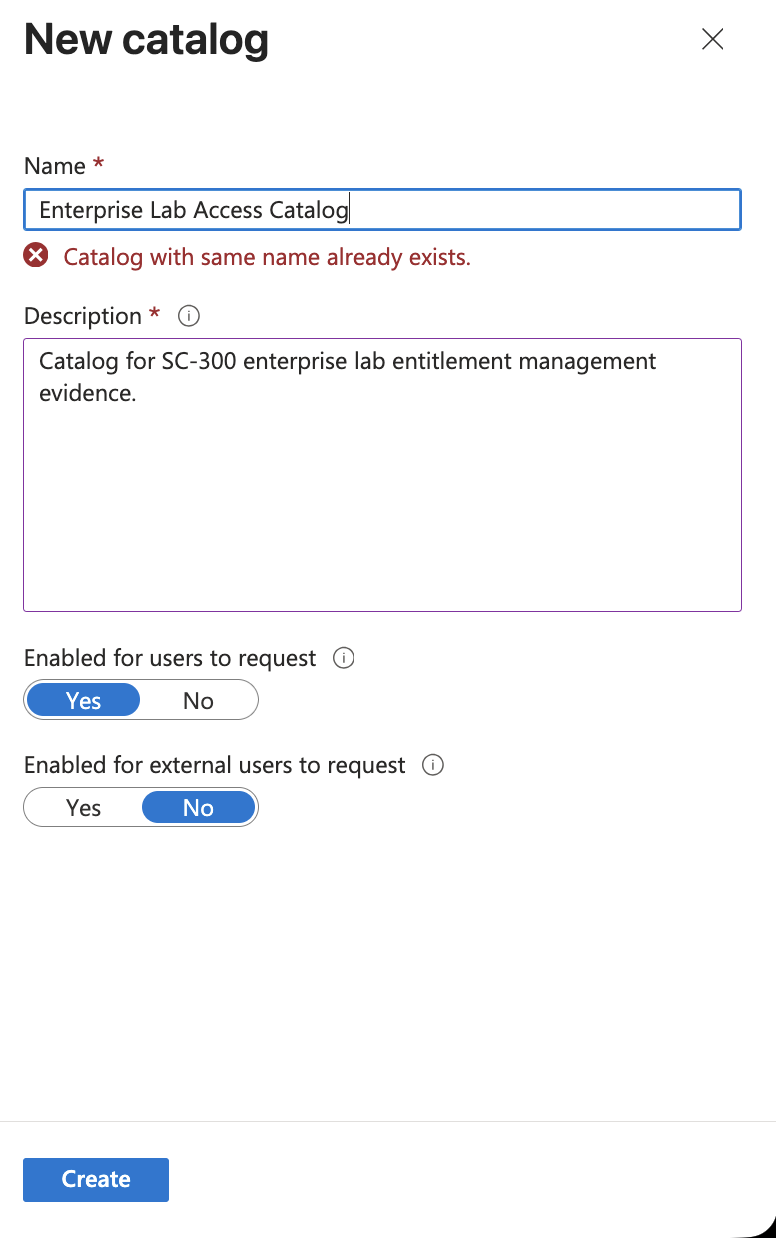
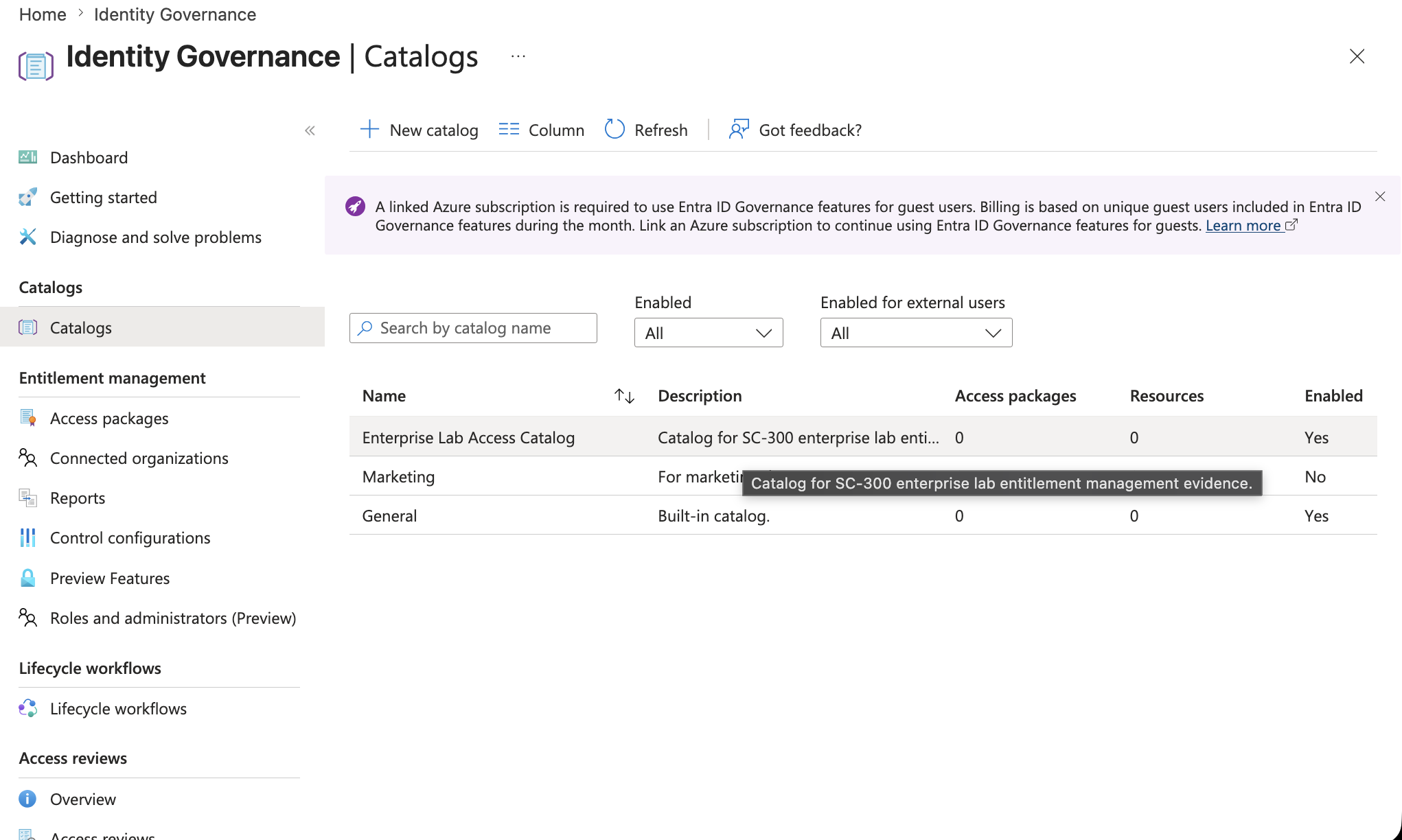
I created an Entitlement Management catalog.
Configuration:
Name: Enterprise Lab Access Catalog
Description: Catalog for SC-300 enterprise lab entitlement management evidence.
Enabled for users to request: Yes
Enabled for external users to request: No
A catalog is a container for resources and access packages.
The catalog itself does not grant access.
It organizes resources that can later be bundled into requestable access packages.
Mental model:
Catalog        = Container
Resources      = Things that can be granted
Access package = Requestable bundle of resources
Policy         = Who can request, who approves, and when access expires
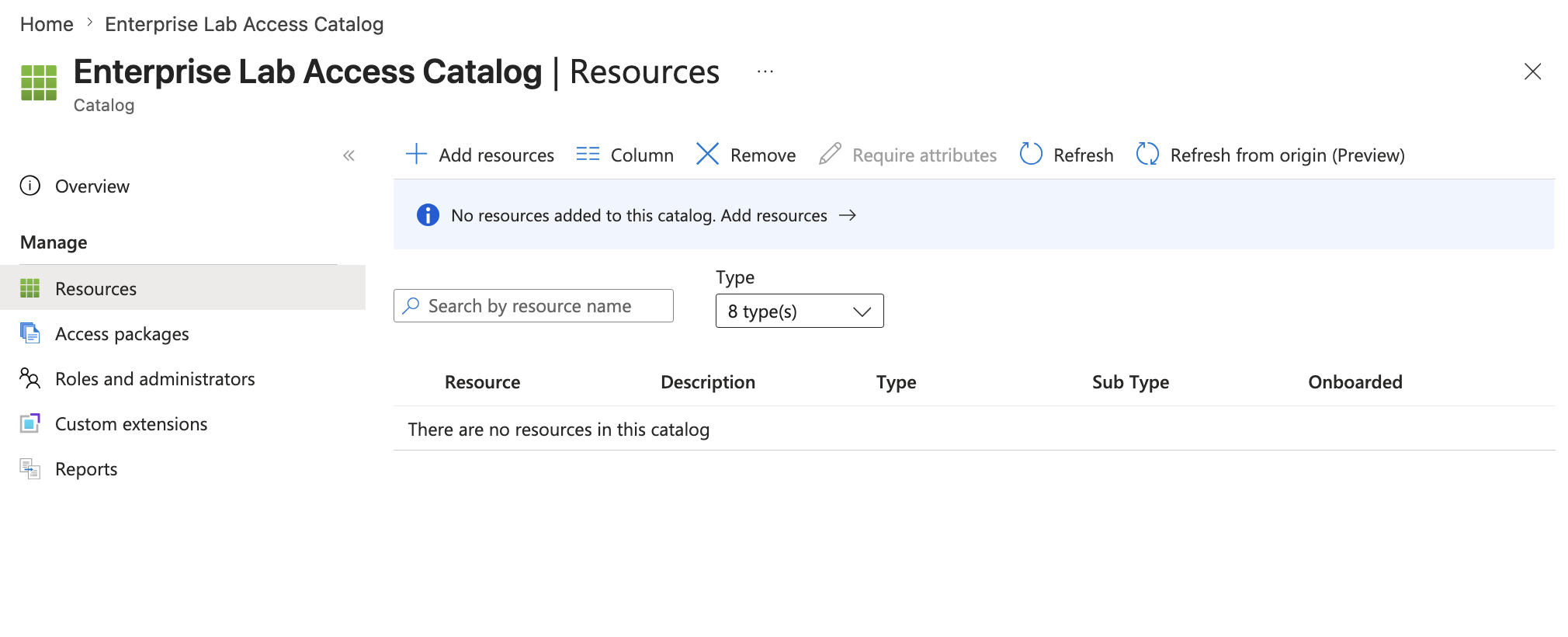
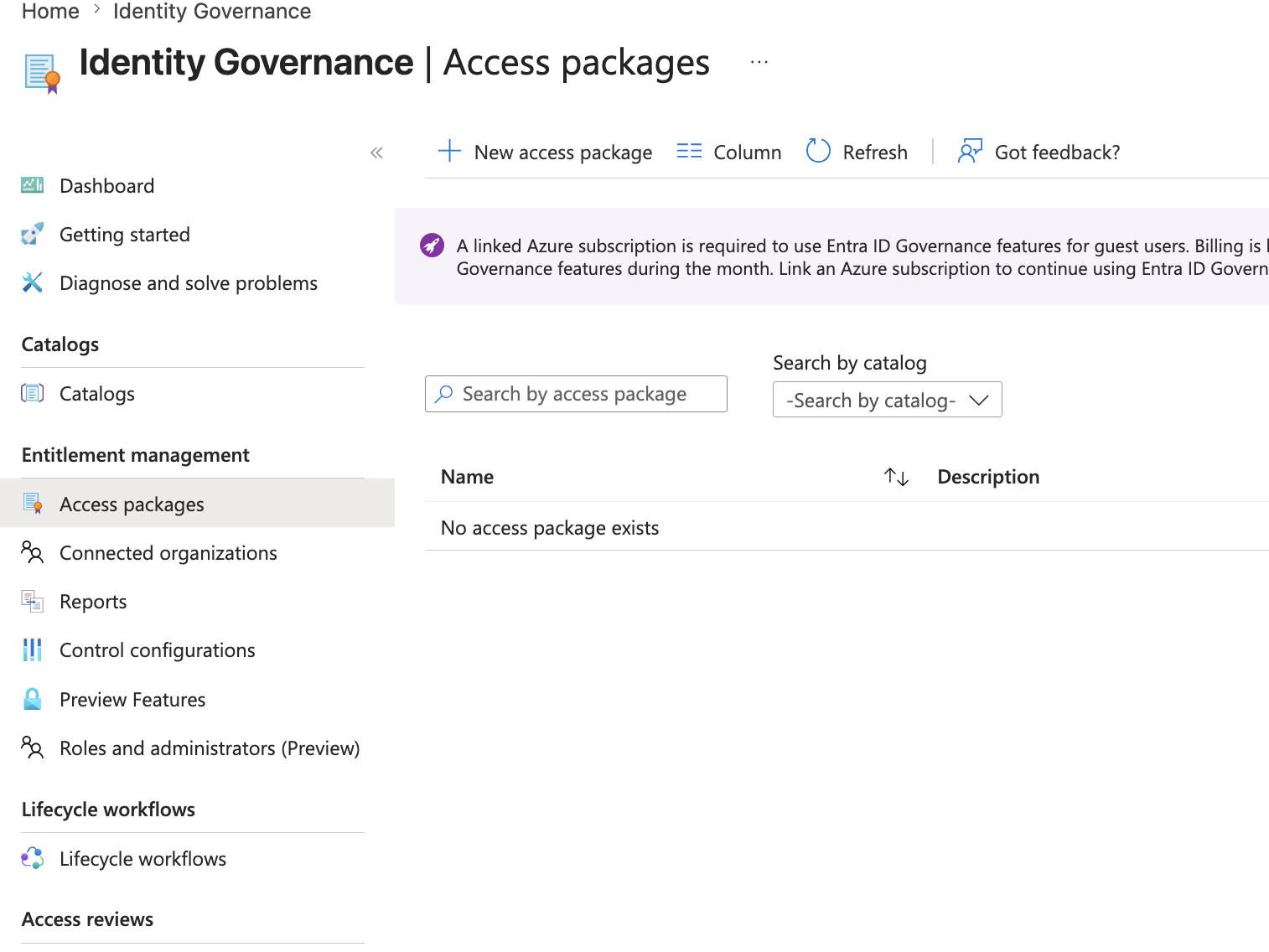
The lab catalog started with zero access packages and zero resources, then I added the lab resources.
🧱 Add Resources to the Catalog
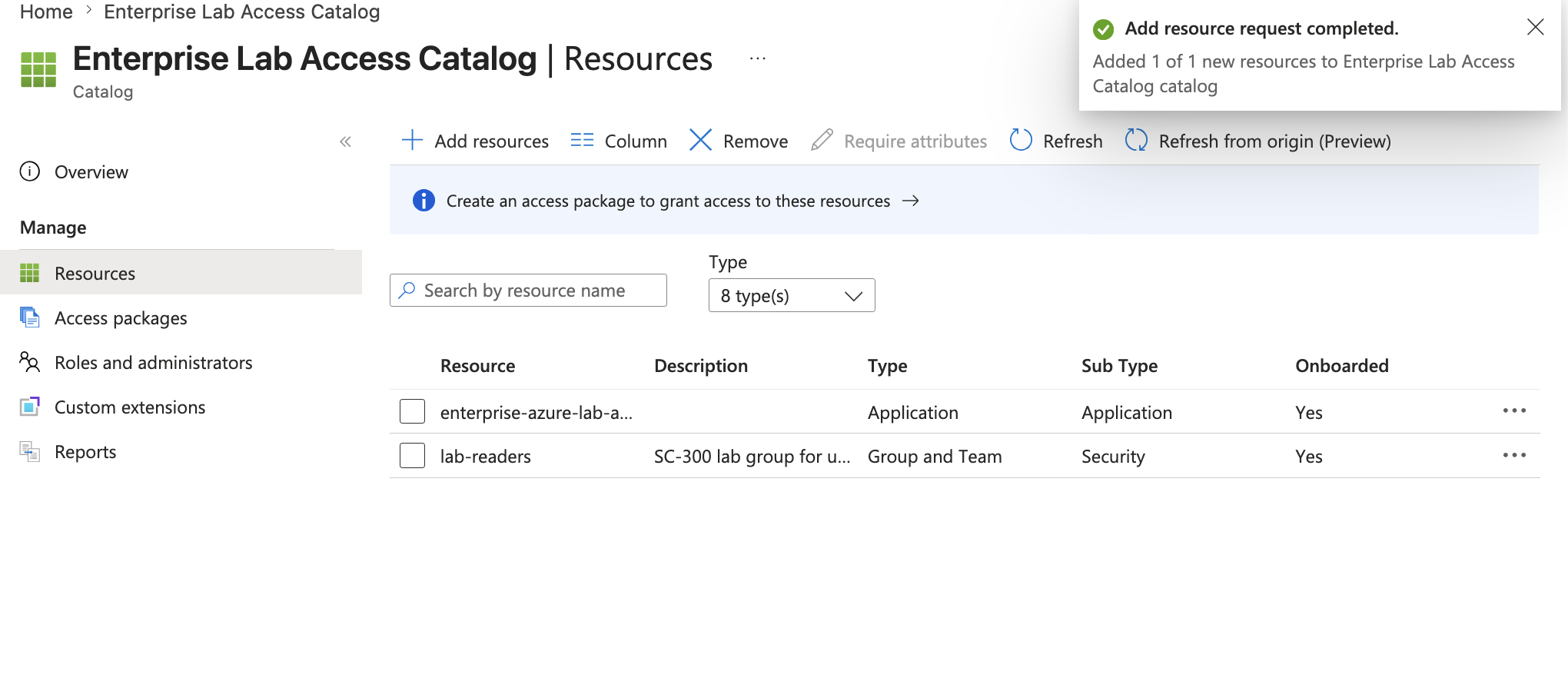
I added two resources to the catalog:
lab-readers
enterprise-azure-lab-app
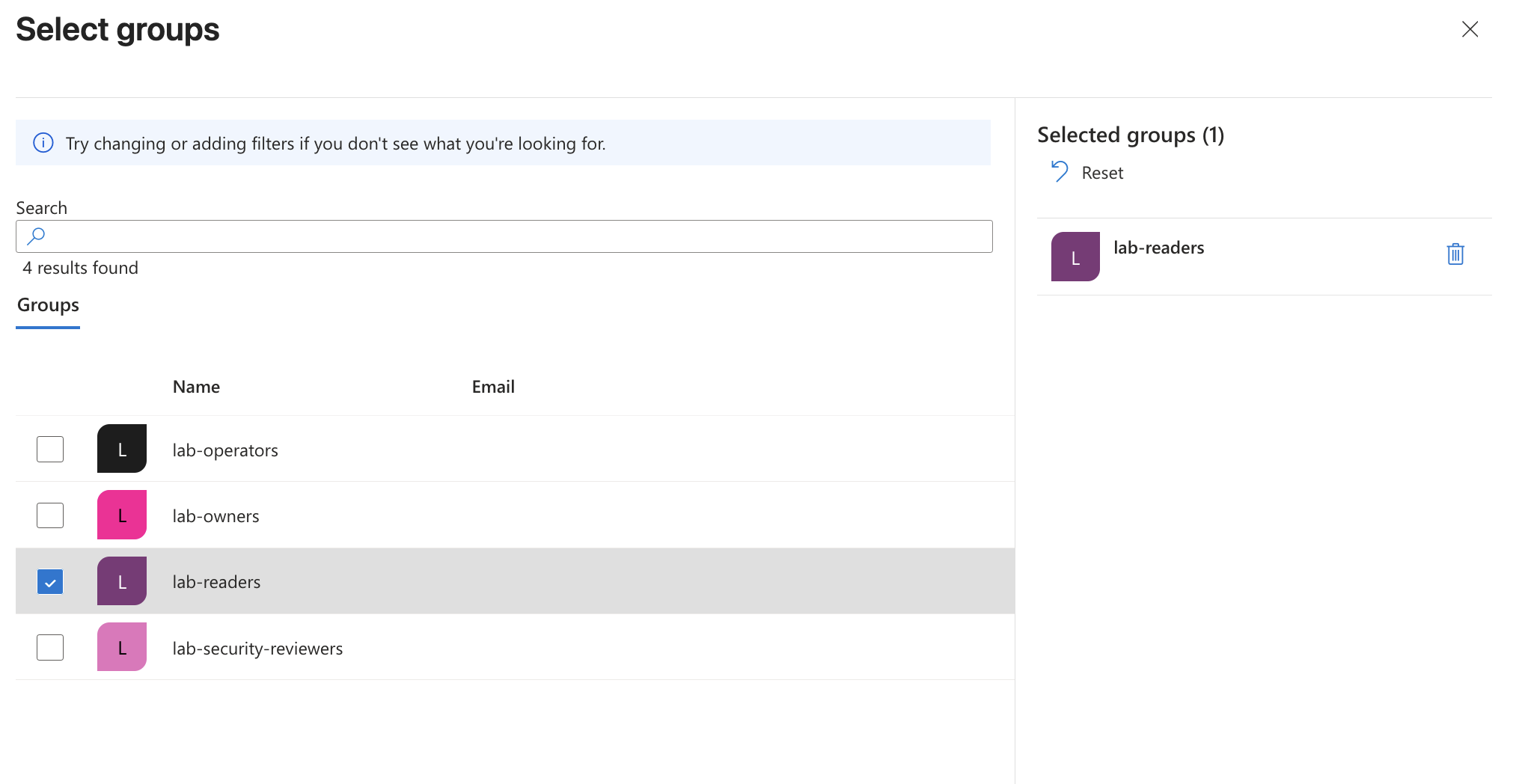
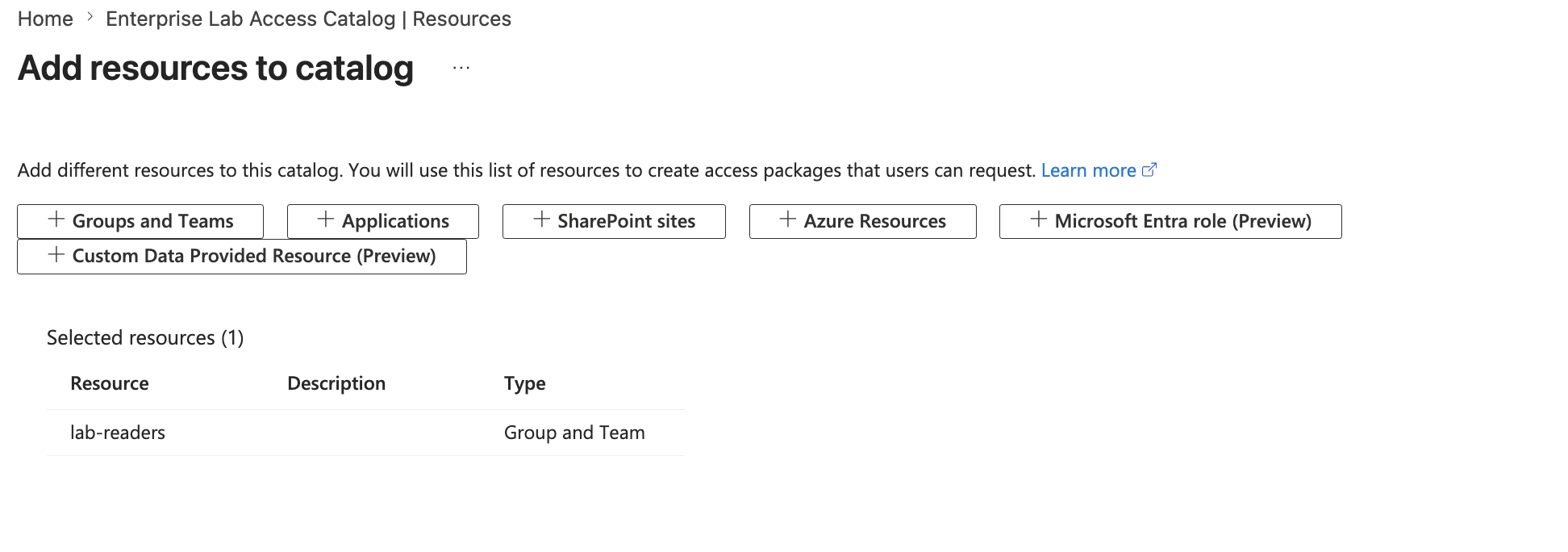
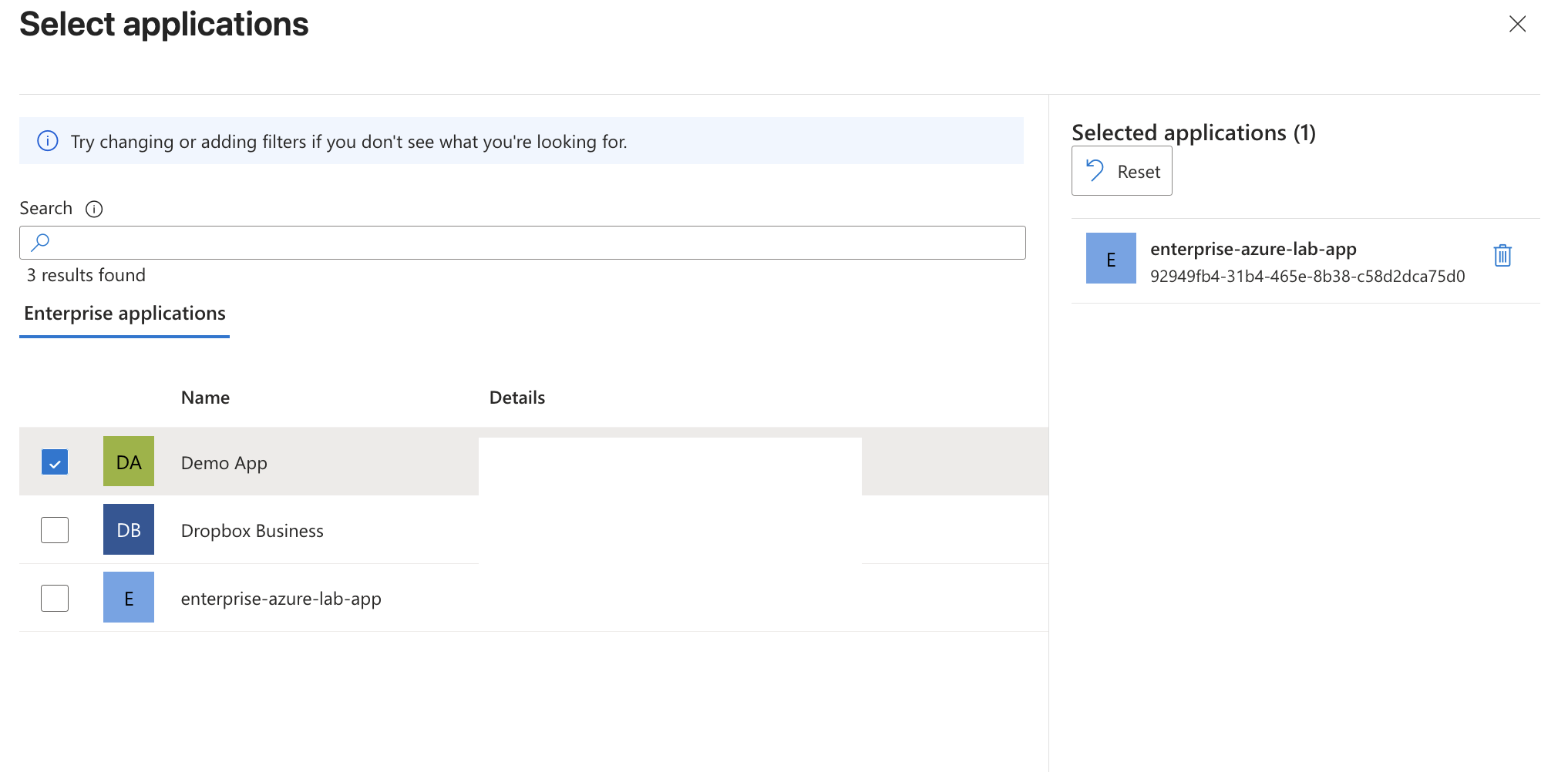
The resource types were:
| Resource | Type | Purpose |
|---|---|---|
lab-readers |
Group and Team | Grants reader group membership |
enterprise-azure-lab-app |
Application | Grants application role access |
This is useful because a single access package can grant both identity group membership and application authorization.
The lab app already used app roles from the earlier phase, so this package connects the governance layer back to the app authorization layer.
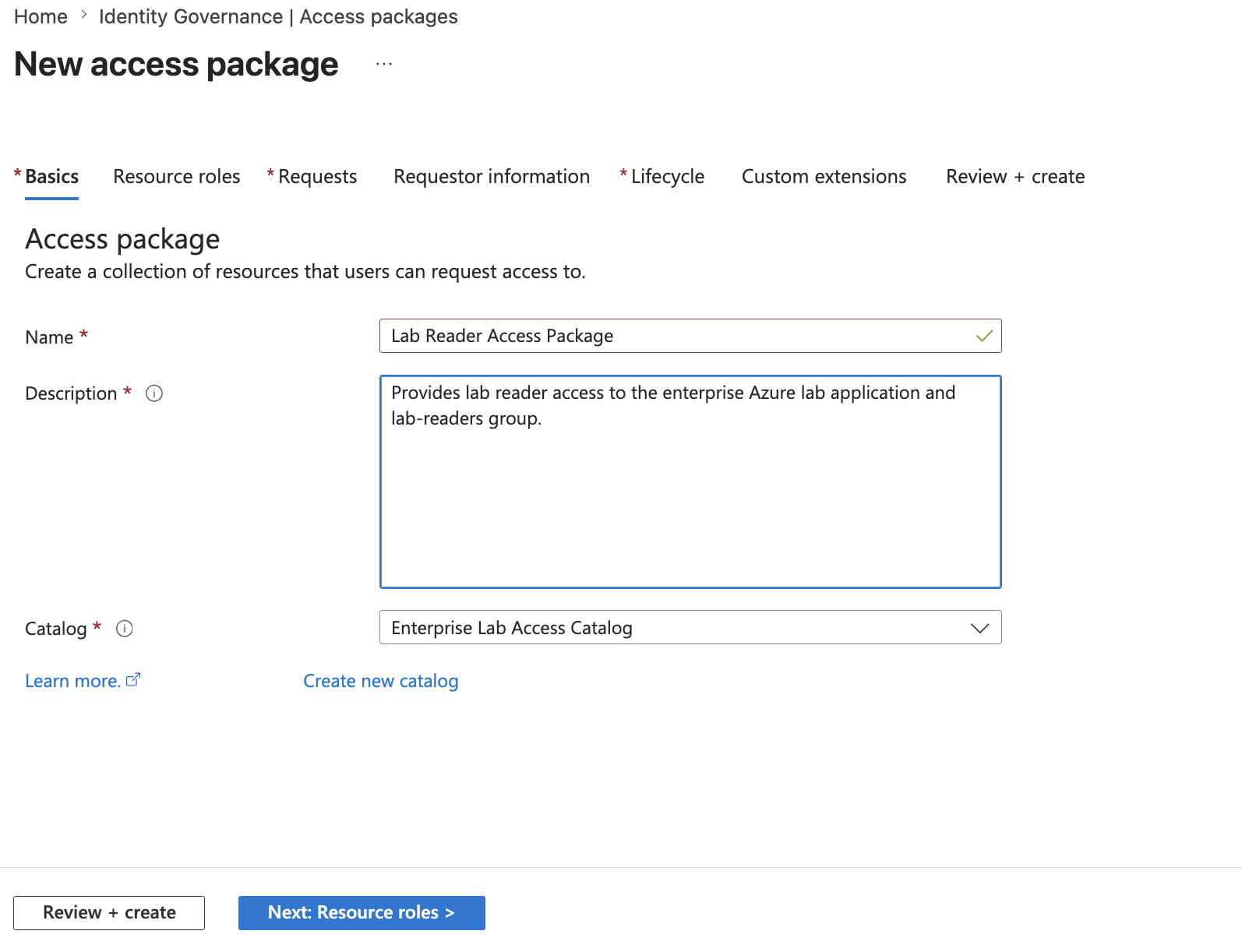
🧾 Access Package Basics
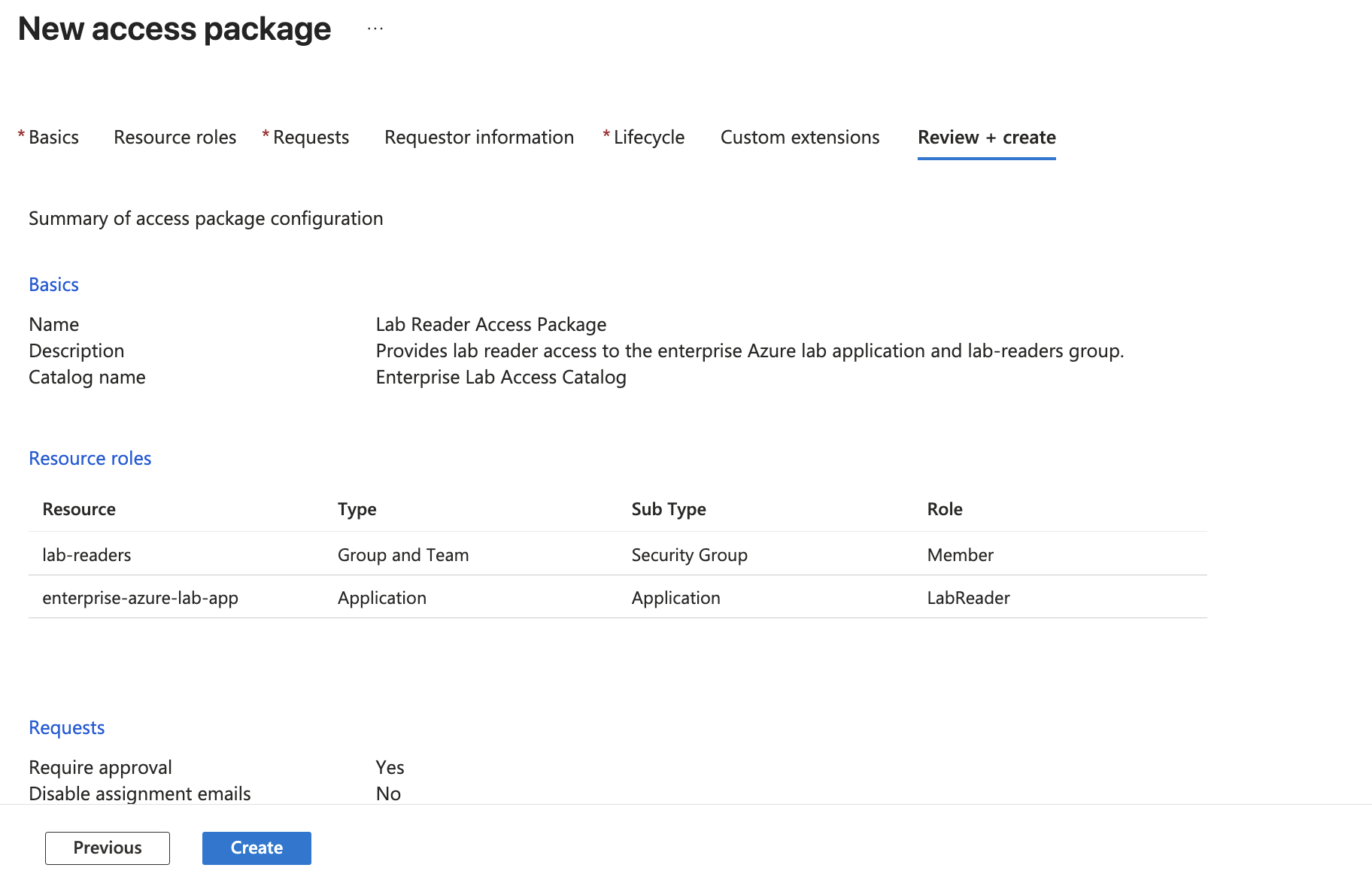
I created an access package:
Name: Lab Reader Access Package
Description: Provides lab reader access to the enterprise Azure lab application and lab-readers group.
Catalog: Enterprise Lab Access Catalog
The access package represents a requestable bundle of access.
Instead of manually assigning a user to a group and app role, the user can request the package through My Access.
The package policy then controls who can request it, whether approval is needed, and when access expires.
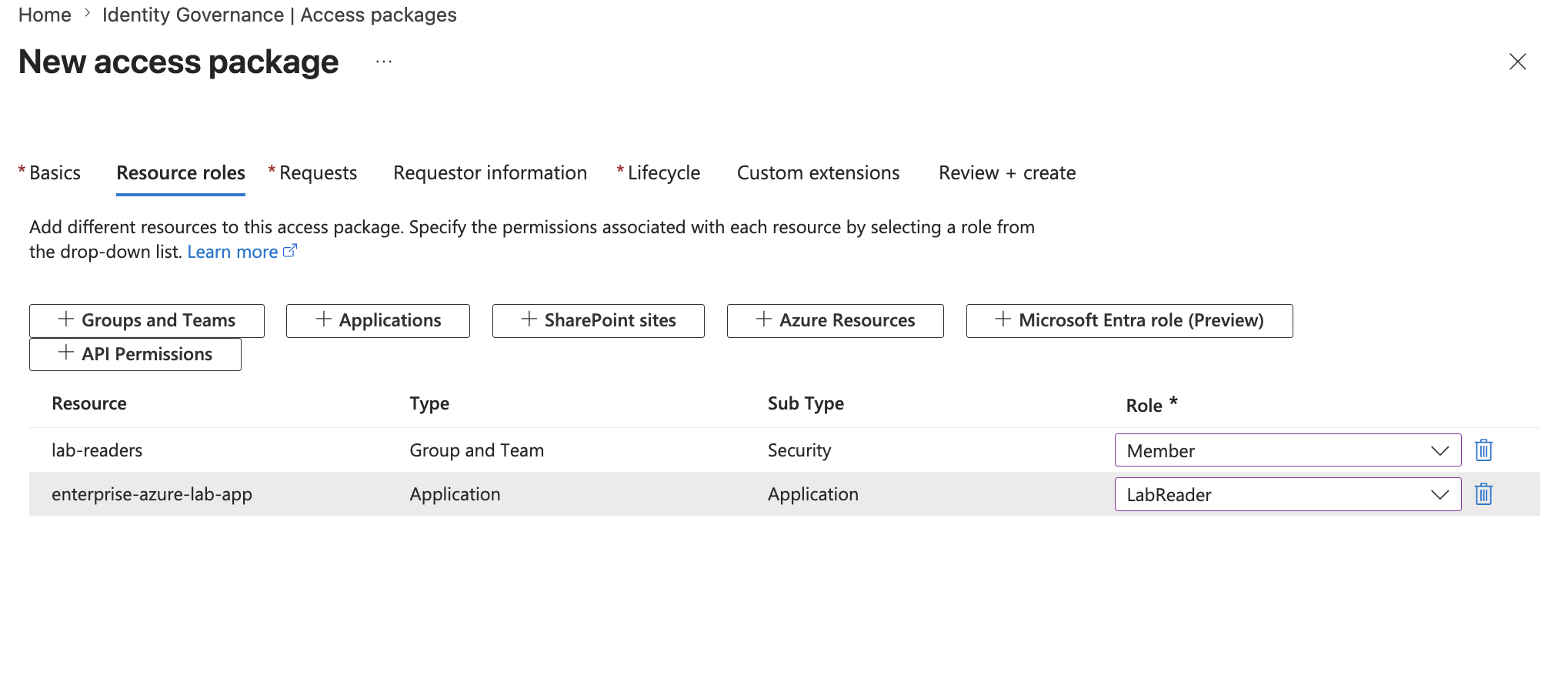
🔐 Access Package Resource Roles
The package included these resource roles:
lab-readers → Member
enterprise-azure-lab-app → LabReader
This is one of the most useful design points in the lab.
The group controls membership-based access.
The application role controls what the user can see or do inside the application.
lab-readers group     → identity access container
LabReader app role    → in-app authorization level
Access package policy → governed request workflow
This proves that Entitlement Management can combine groups and application roles into one controlled request workflow.
✅ Access Package Request Policy
I configured the access package request policy.
Settings:
Who can request:
Users in the directory

Require approval:
Yes

Require requestor justification:
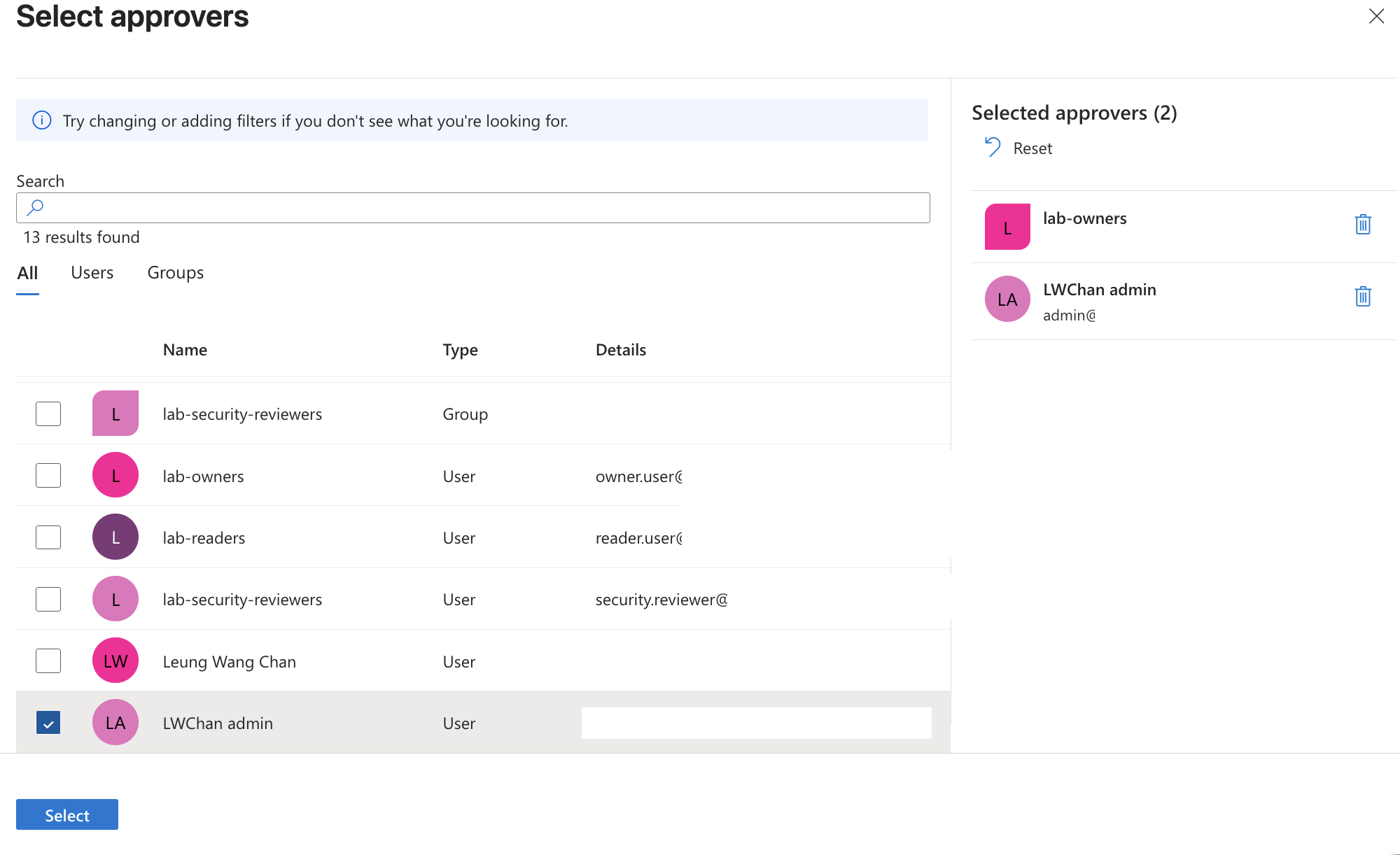
Yes

Approval stages:
1

Approvers:
lab-owners / selected admin approver

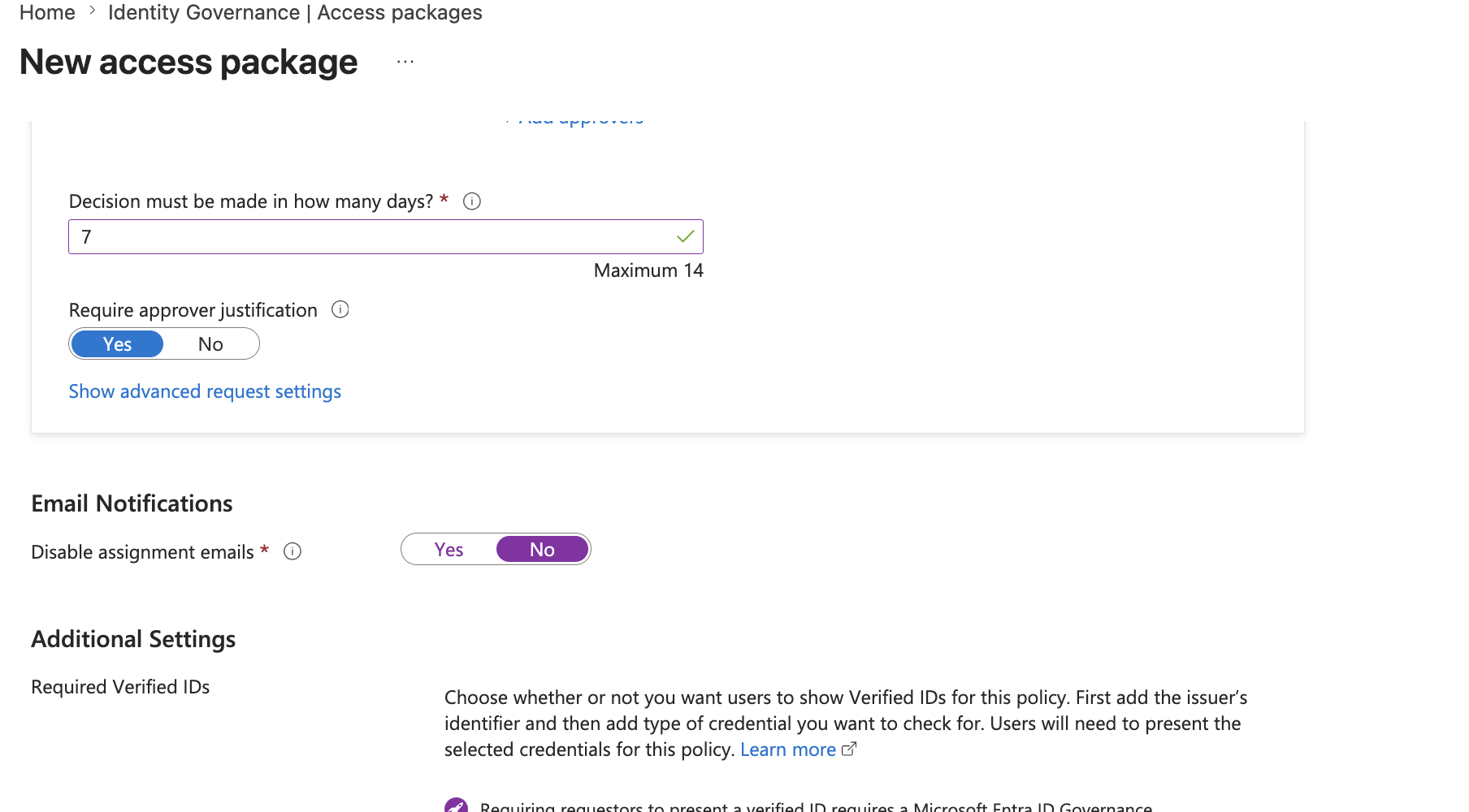
Decision must be made in:
7 days

Require approver justification:
Yes

Disable assignment emails:
No
I kept the flow simple but still governed.
Approval is enabled because this lab is about access governance, not uncontrolled self-service assignment.
Important lesson:
Self-service access does not mean uncontrolled access.
Access packages can require approval, justification, expiration, and review.
⏳ Access Package Lifecycle
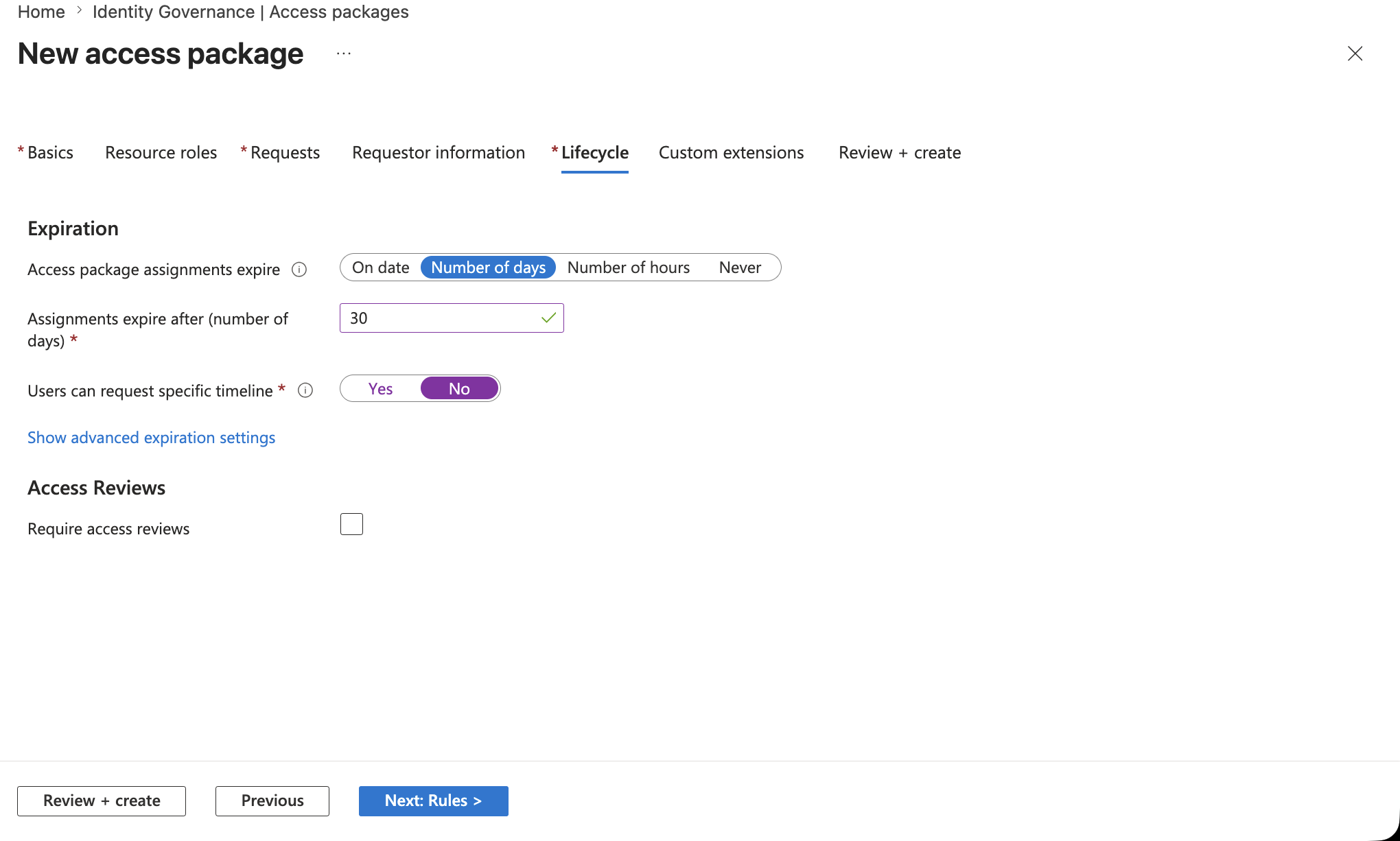
I configured assignment expiration:
Access package assignments expire: Number of days
Assignments expire after: 30
Users can request specific timeline: No
Access reviews inside access package: Not enabled for this lab step
I did not enable access reviews inside the access package because Step 69 covers Access Reviews separately.
Keeping them separate makes the lab easier to explain:
Step 67 = request and assignment workflow
Step 69 = access review workflow
📦 Access Package Created
The access package was created successfully.
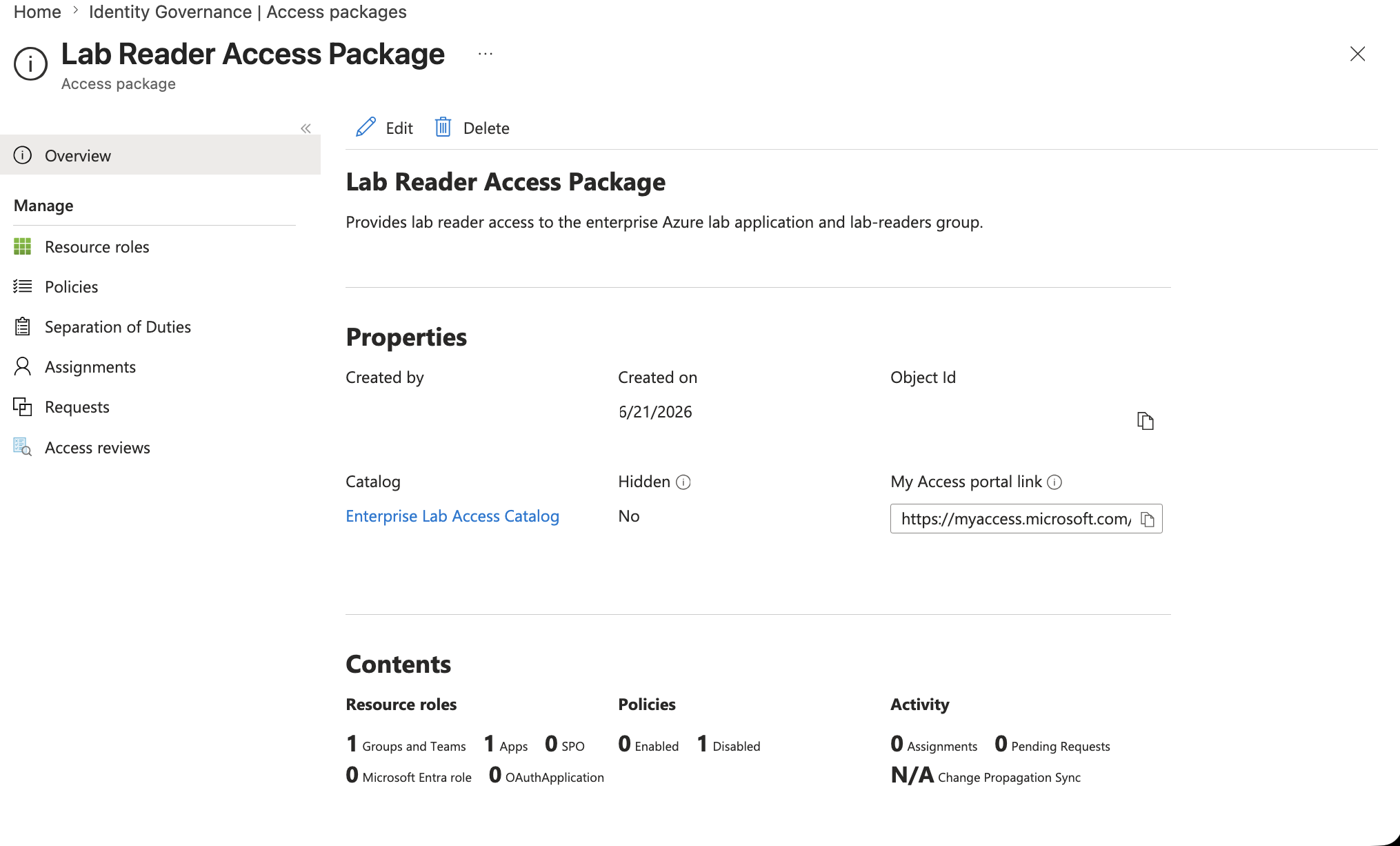
The overview showed the package contents:
Resource roles:
1 Groups and Teams
1 Apps

Activity:
0 Assignments
0 Pending Requests
This proves the access package exists and is connected to both the lab-readers group and the enterprise-azure-lab-app application role.
📄 Terms of Use
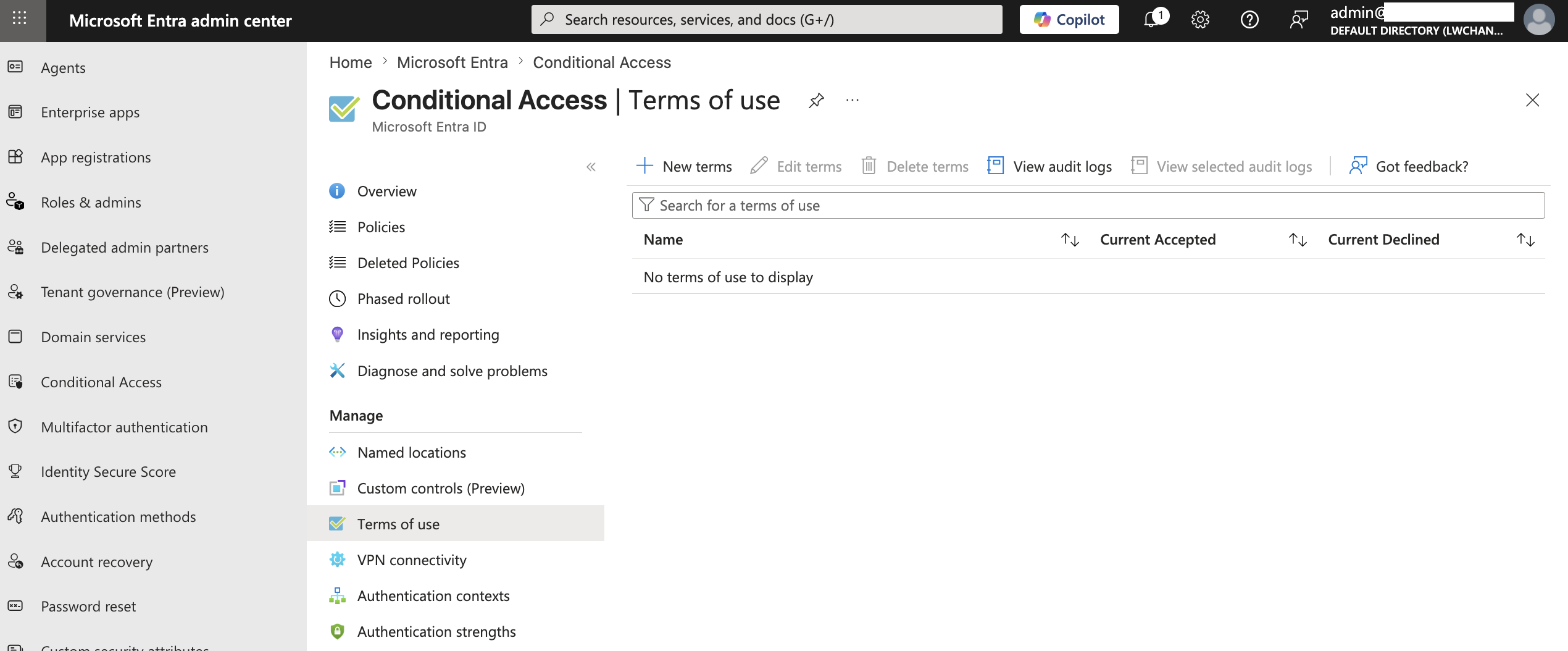
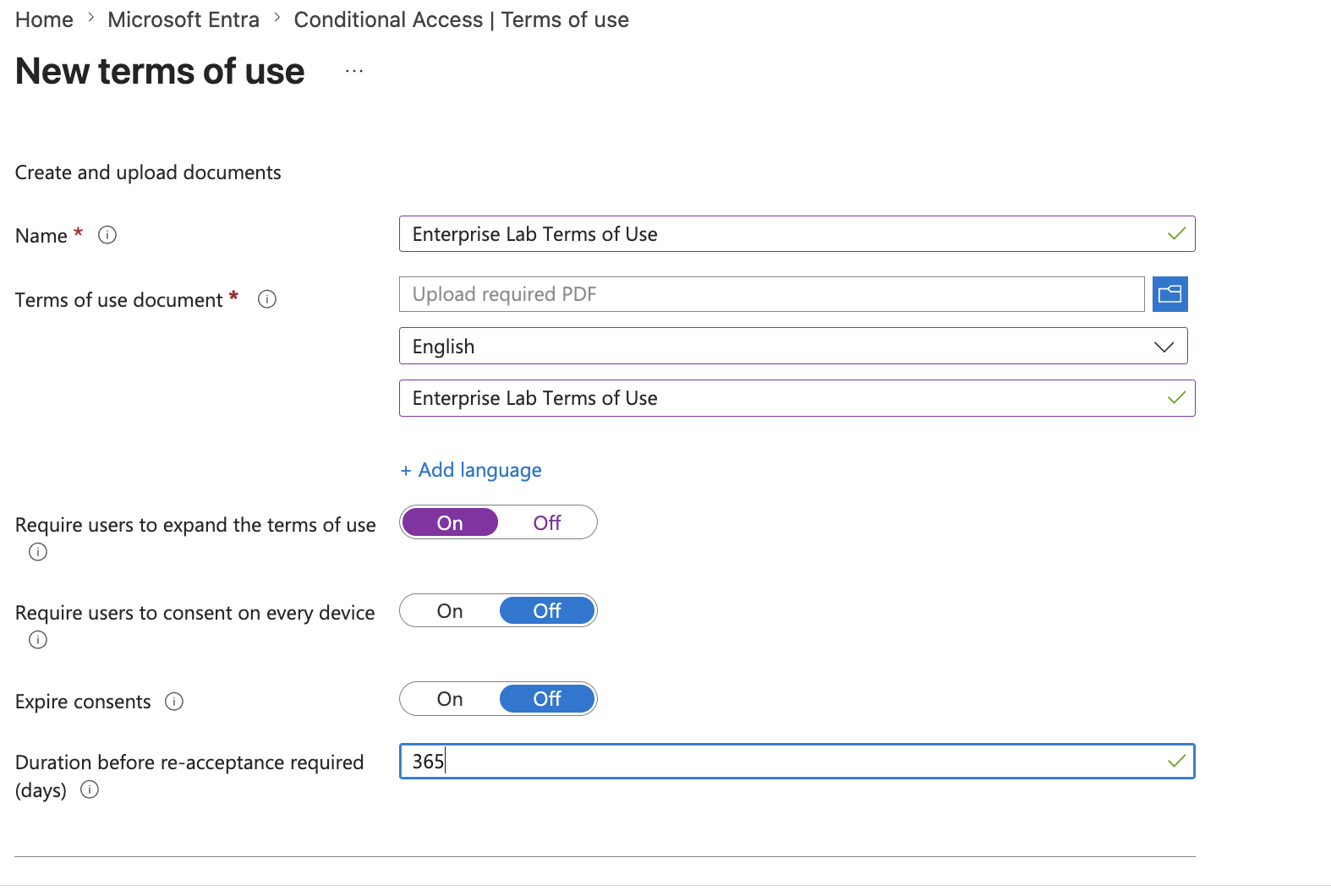
Next, I created a Terms of Use object.
Configuration:
Name: Enterprise Lab Terms of Use
Language: English
Display name: Enterprise Lab Terms of Use
Require users to expand the terms of use: On
Require users to consent on every device: Off
Expire consents: Off
Duration before re-acceptance required: 365 days
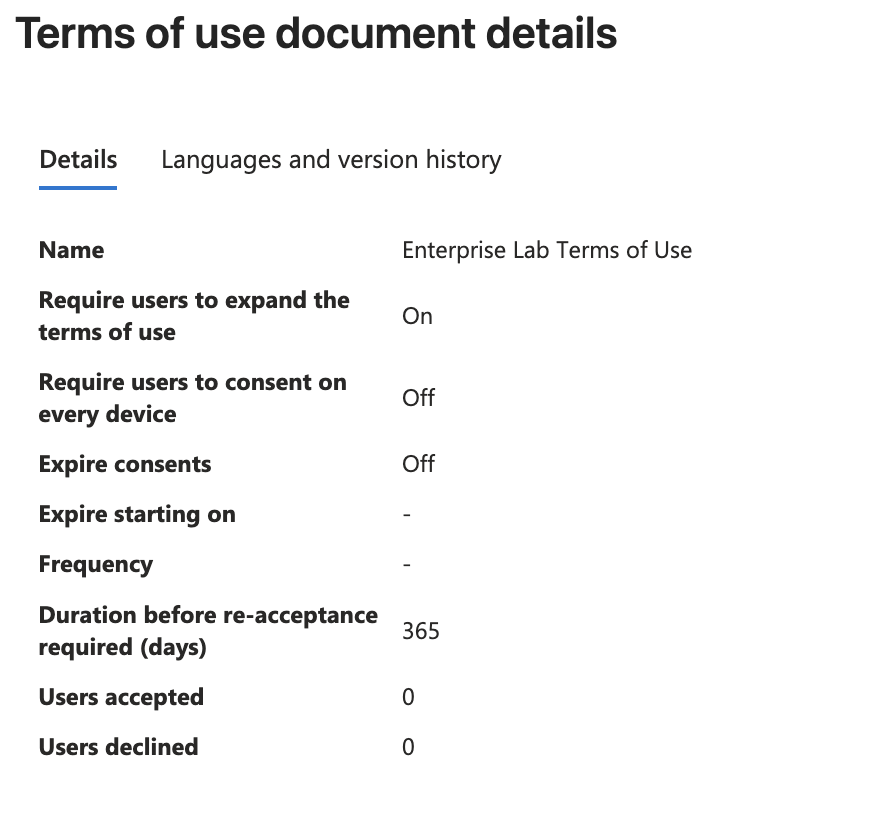
The Terms of Use object stores the document and consent record.
It does not automatically block access by itself.
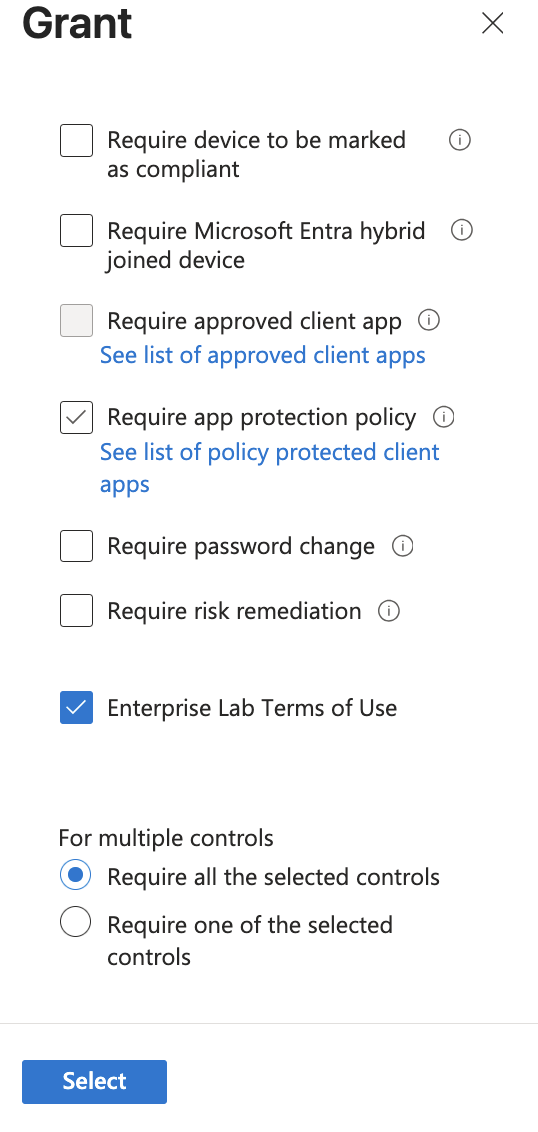
The enforcement mechanism is Conditional Access.
Mental model:
Terms of Use object = document and consent record
Conditional Access  = enforcement mechanism
📜 Terms of Use Created
The Terms of Use object was created successfully.
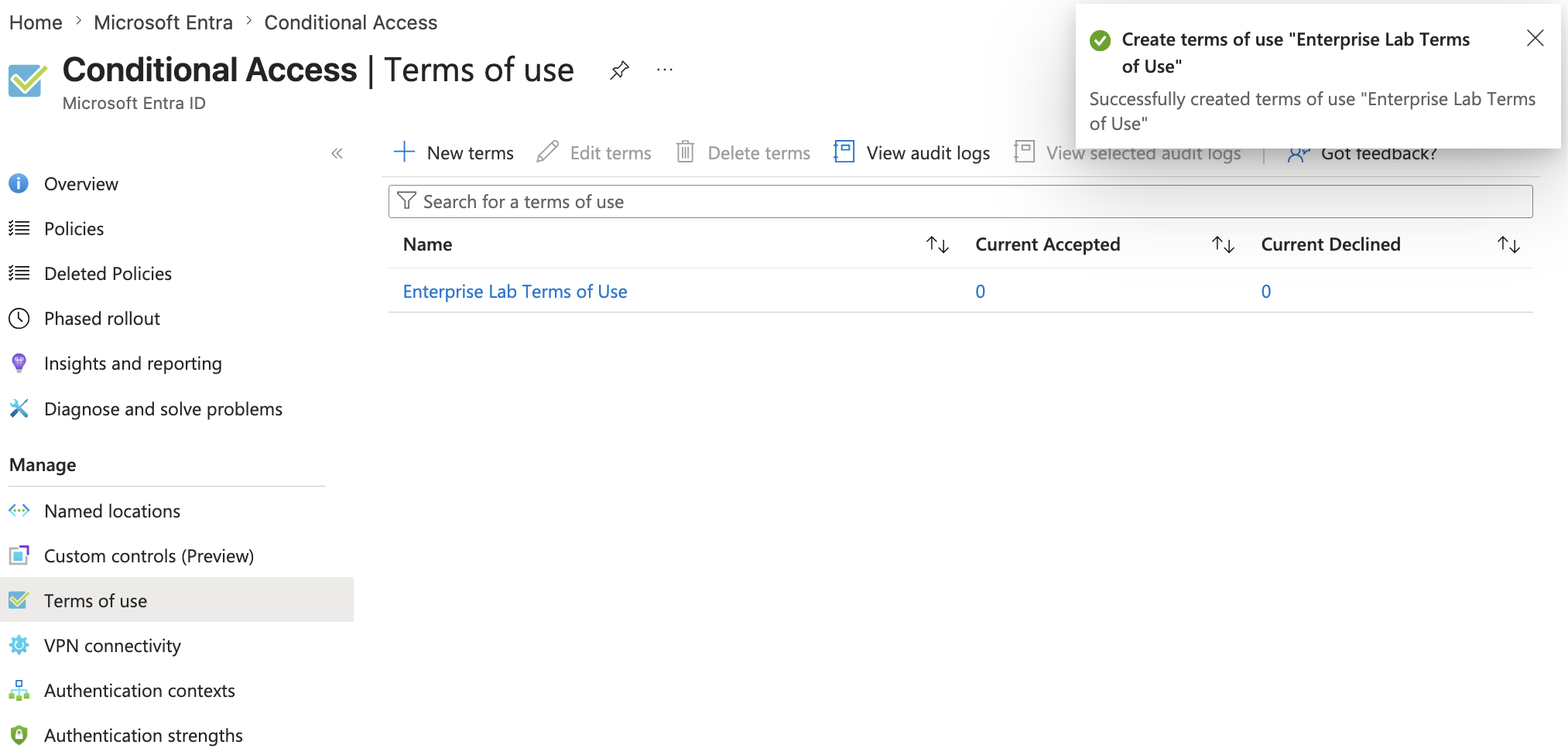
The portal showed:
Current Accepted: 0
Current Declined: 0
This is expected before users are targeted by a Conditional Access policy and prompted to accept the terms.
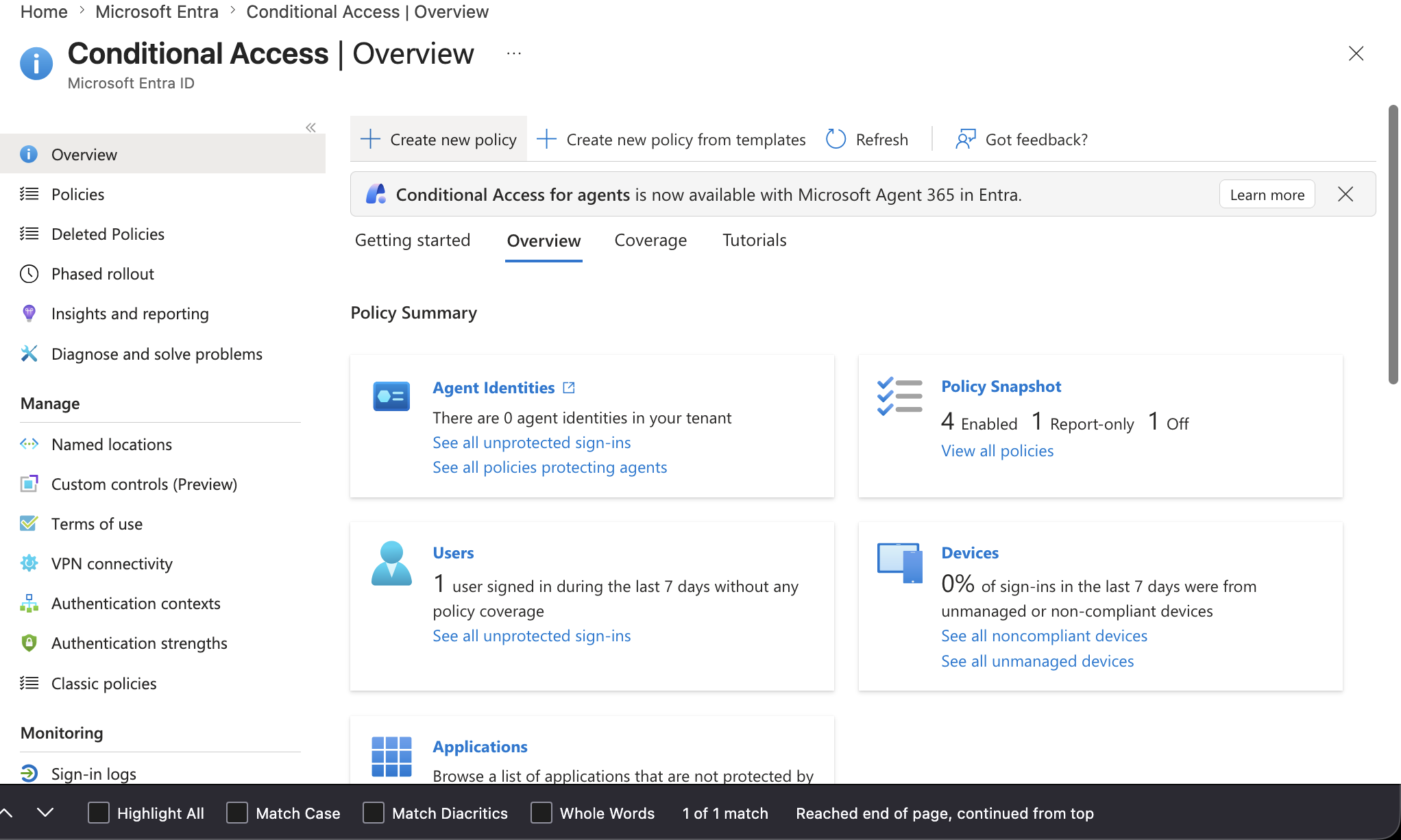
🧪 Conditional Access Policy for Terms of Use
I created a Conditional Access policy to target the lab application.
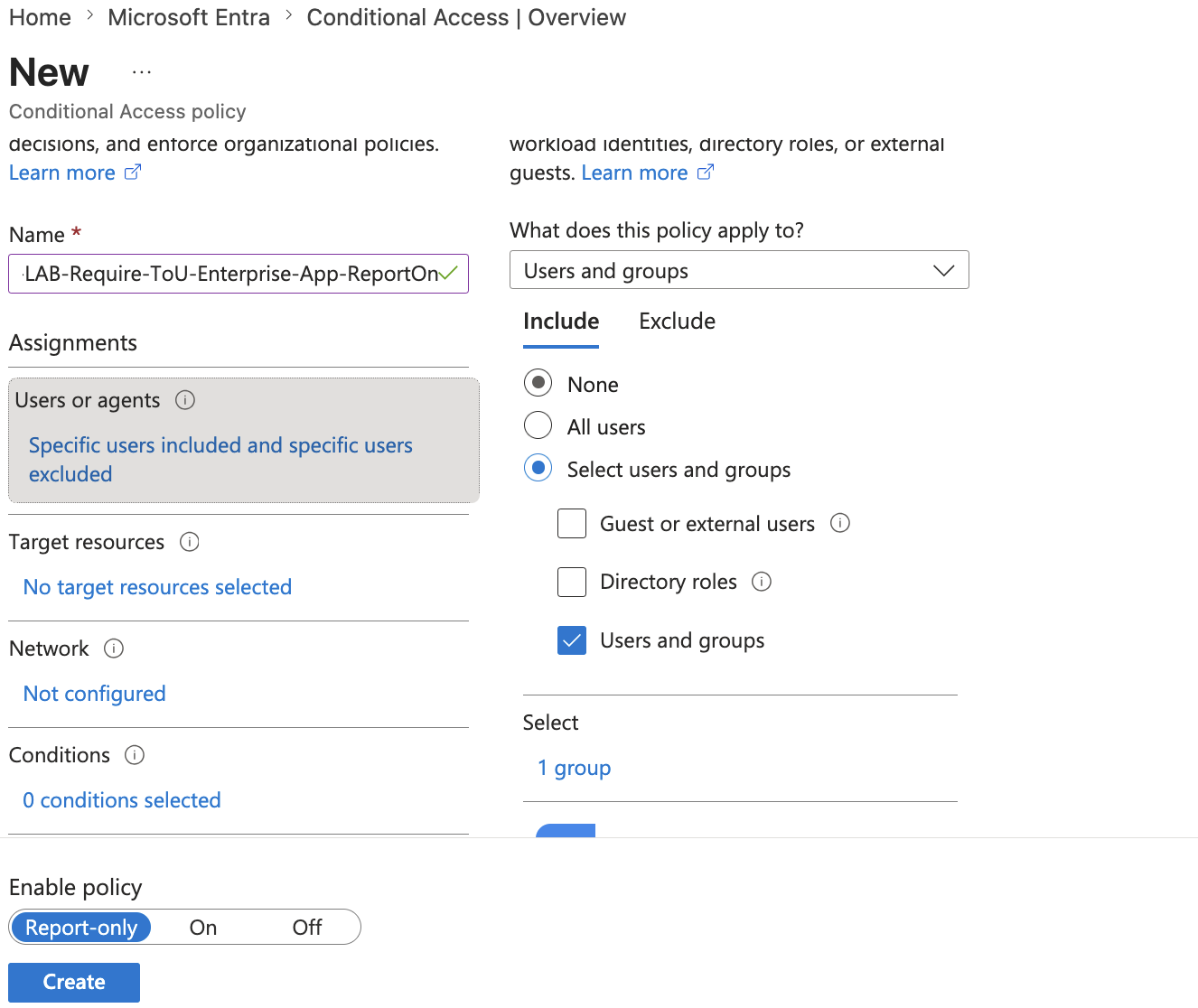
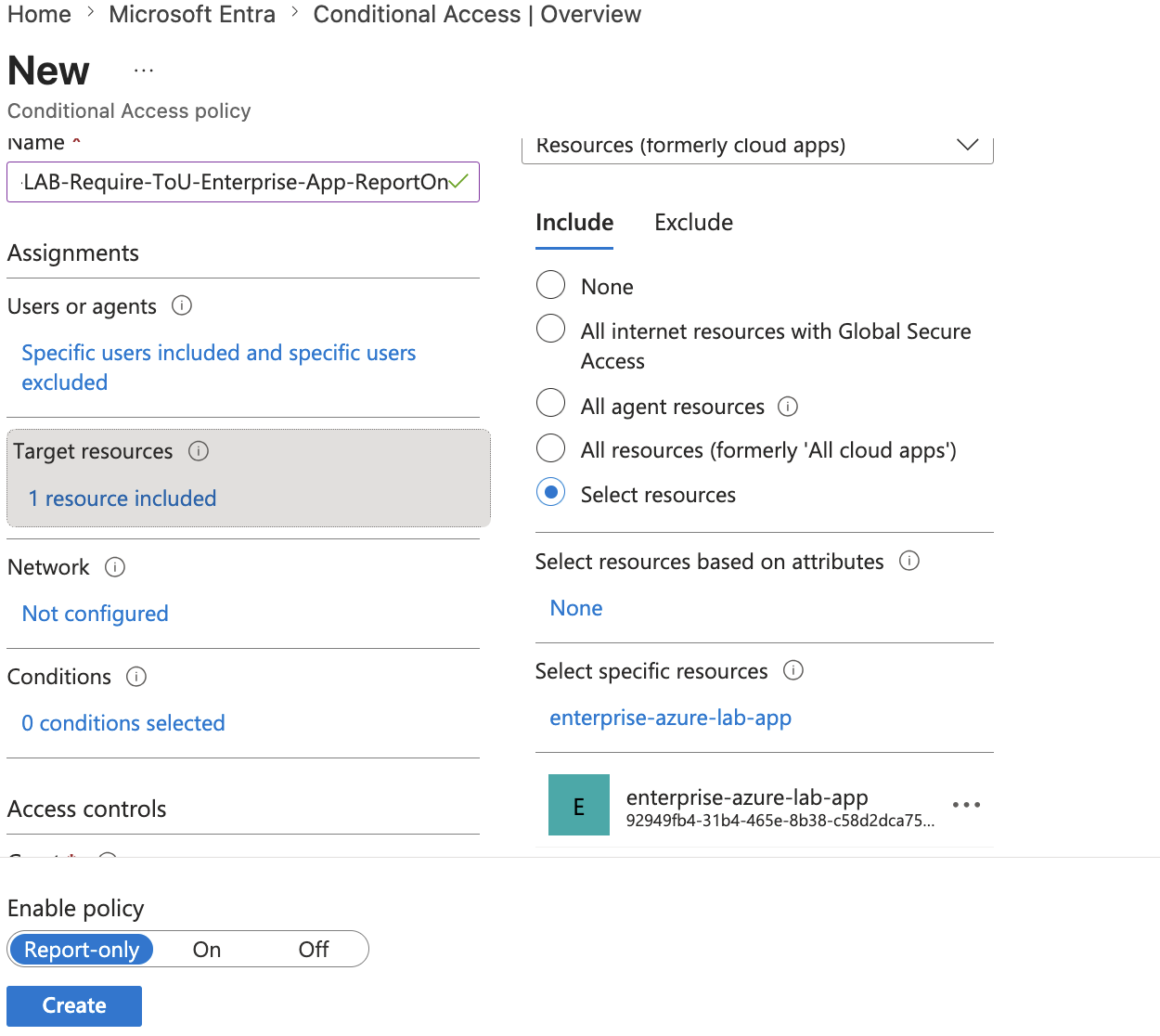
Configuration:
Name: CA-LAB-Require-ToU-Enterprise-App-ReportOnly
Users: selected lab users / lab group
Target resource: enterprise-azure-lab-app
Grant control: Enterprise Lab Terms of Use
Policy state: Report-only
I used report-only mode first.
Reason:
Terms of Use can block access if enforced incorrectly.
Report-only mode lets the policy be validated before enforcement.
After validation, I tested the user-facing experience where the user is prompted to accept the terms.
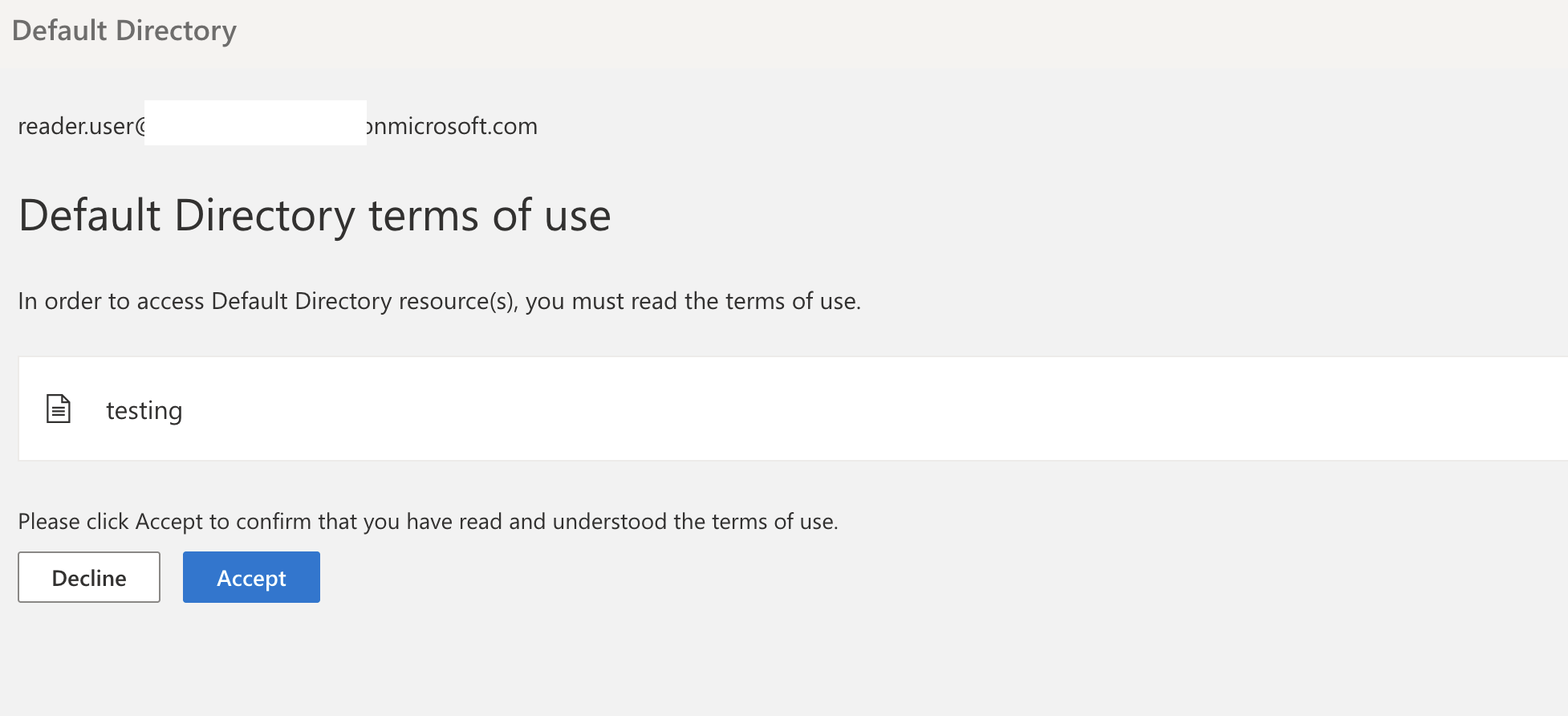
This proves that Terms of Use can be integrated into the sign-in flow.
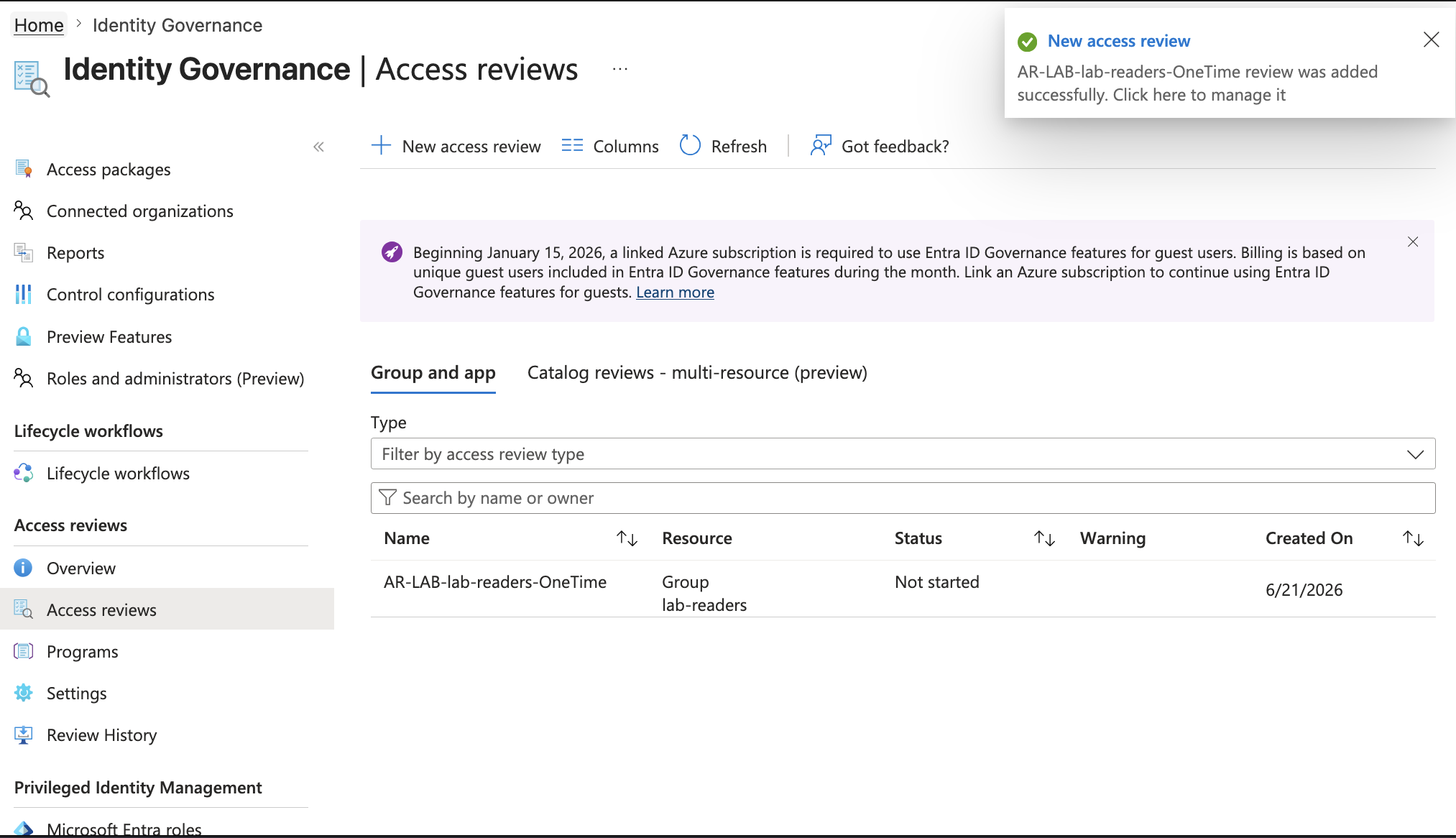
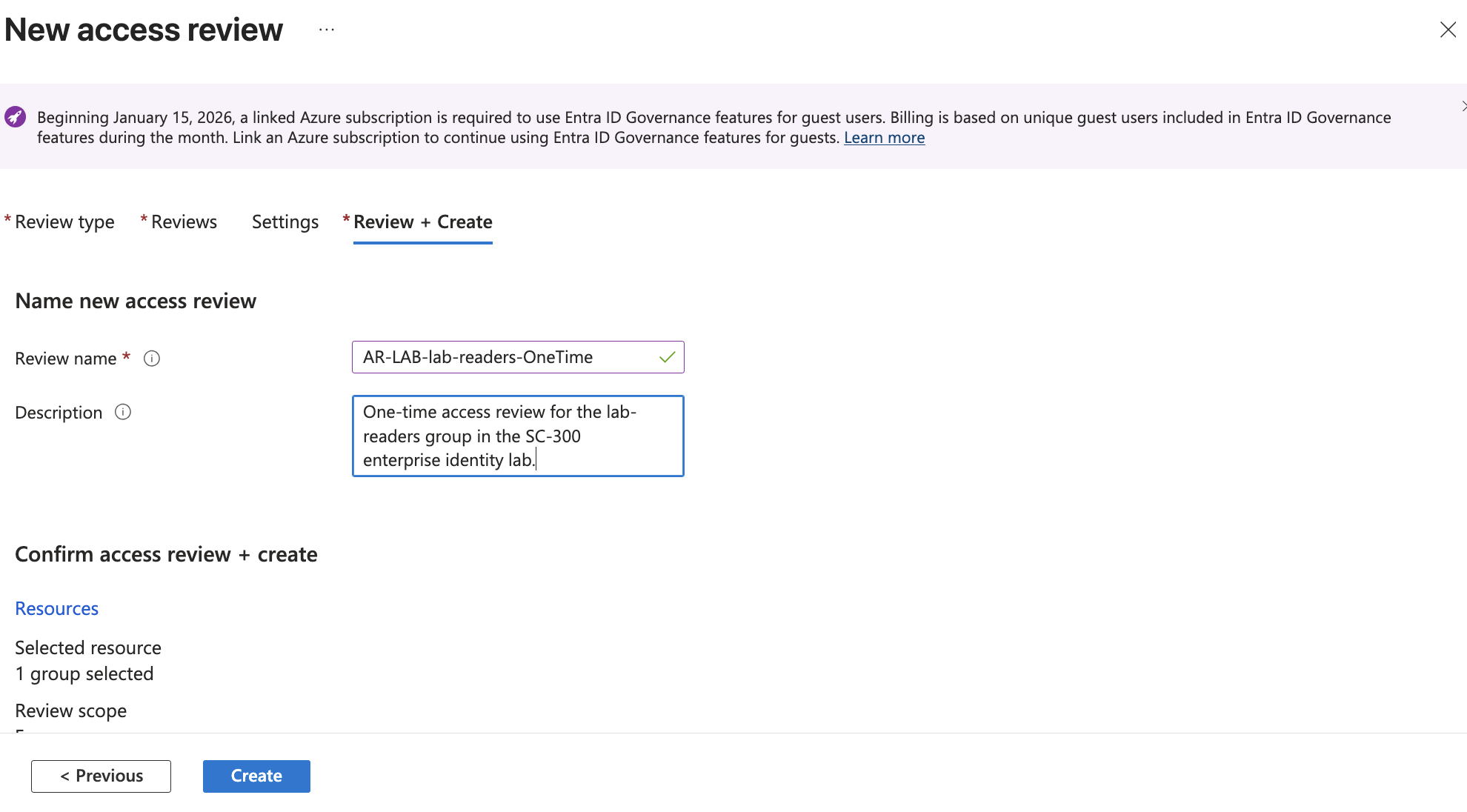
🔍 Access Review Creation
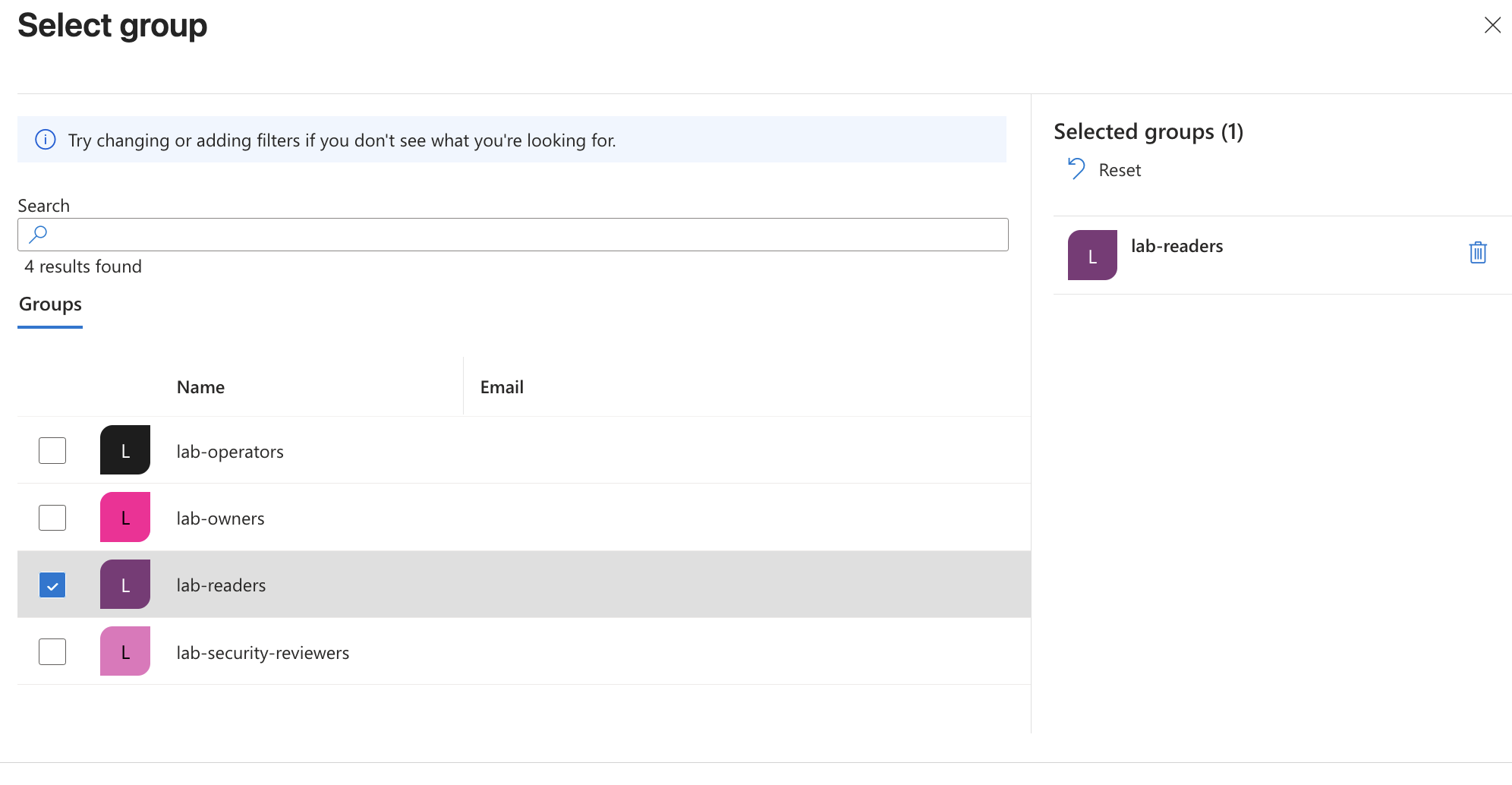
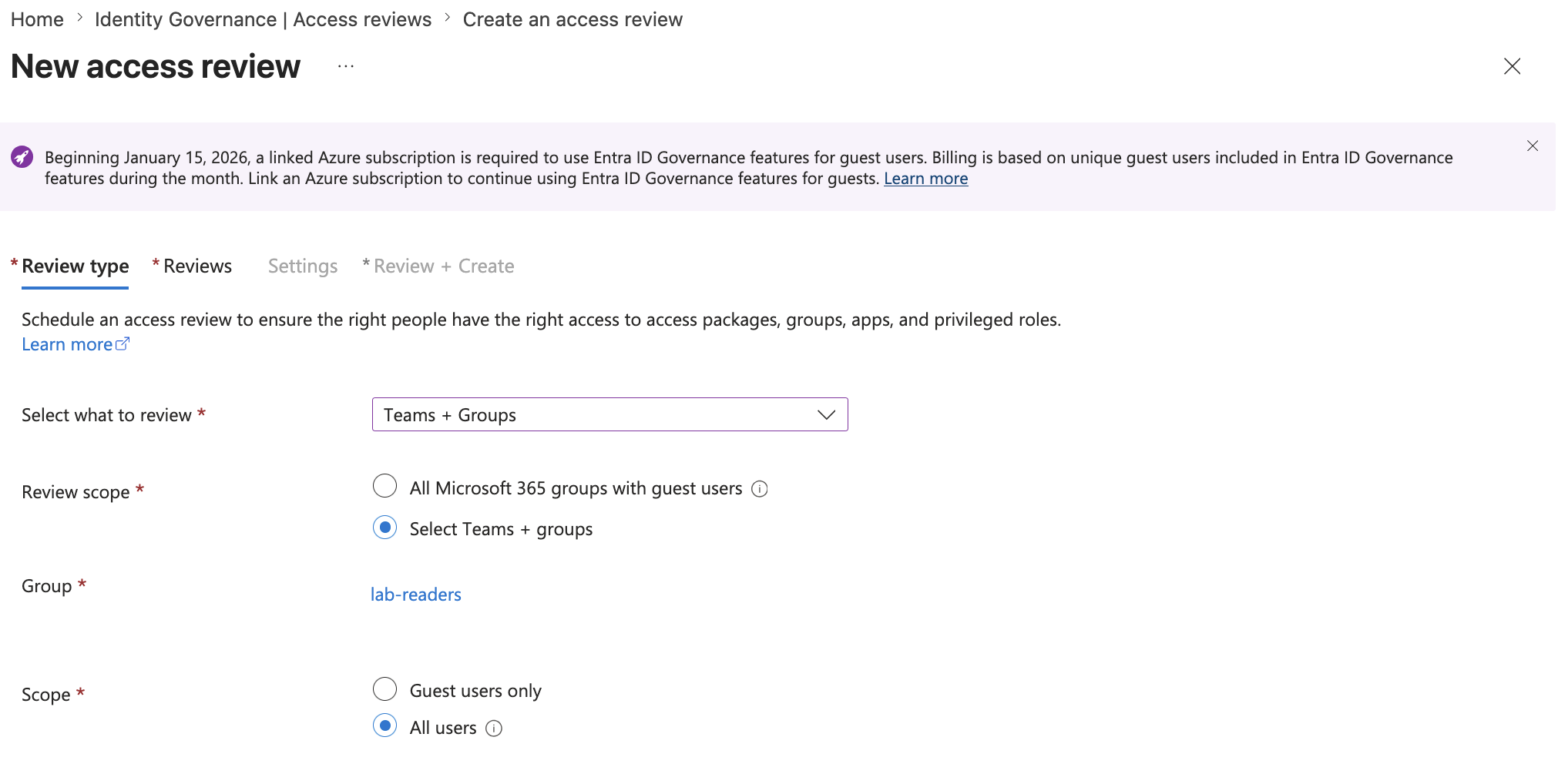
I created a one-time access review for the lab-readers group.
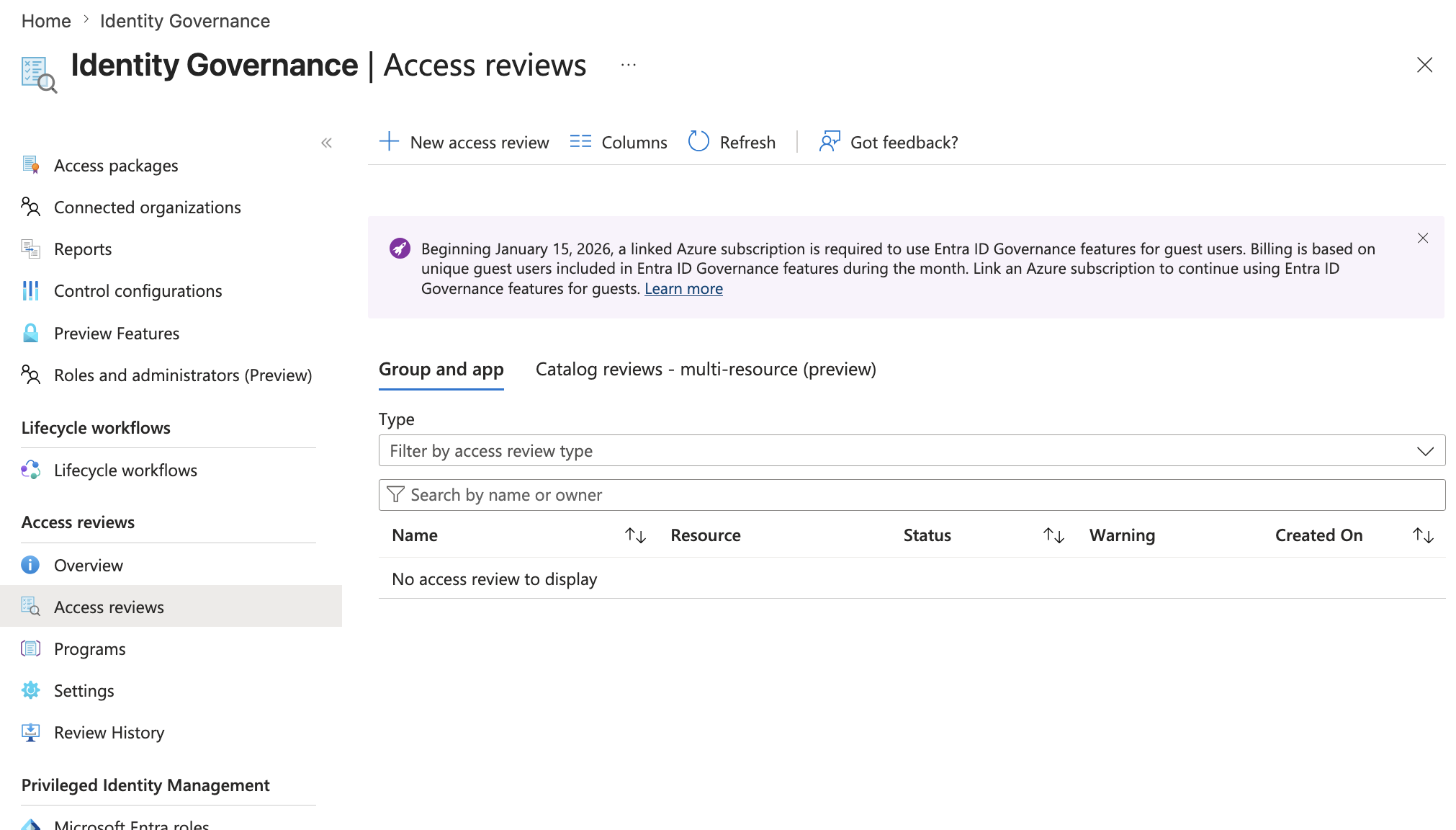
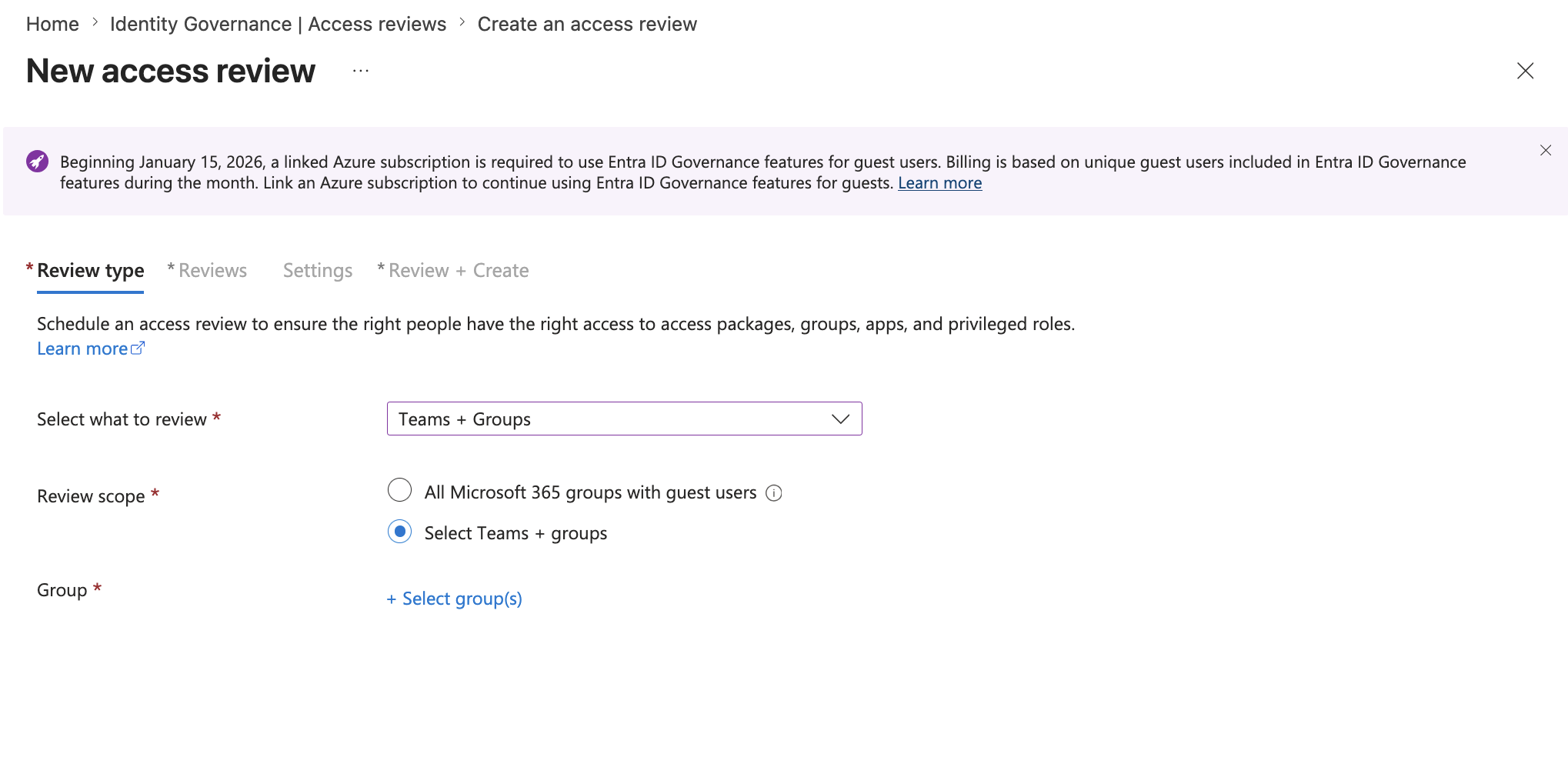
Configuration:
Review name: AR-LAB-lab-readers-OneTime
Description: One-time access review for the lab-readers group in the SC-300 enterprise identity lab.
Review type: Teams + Groups
Review scope: Select Teams + groups
Group: lab-readers
Scope: All users
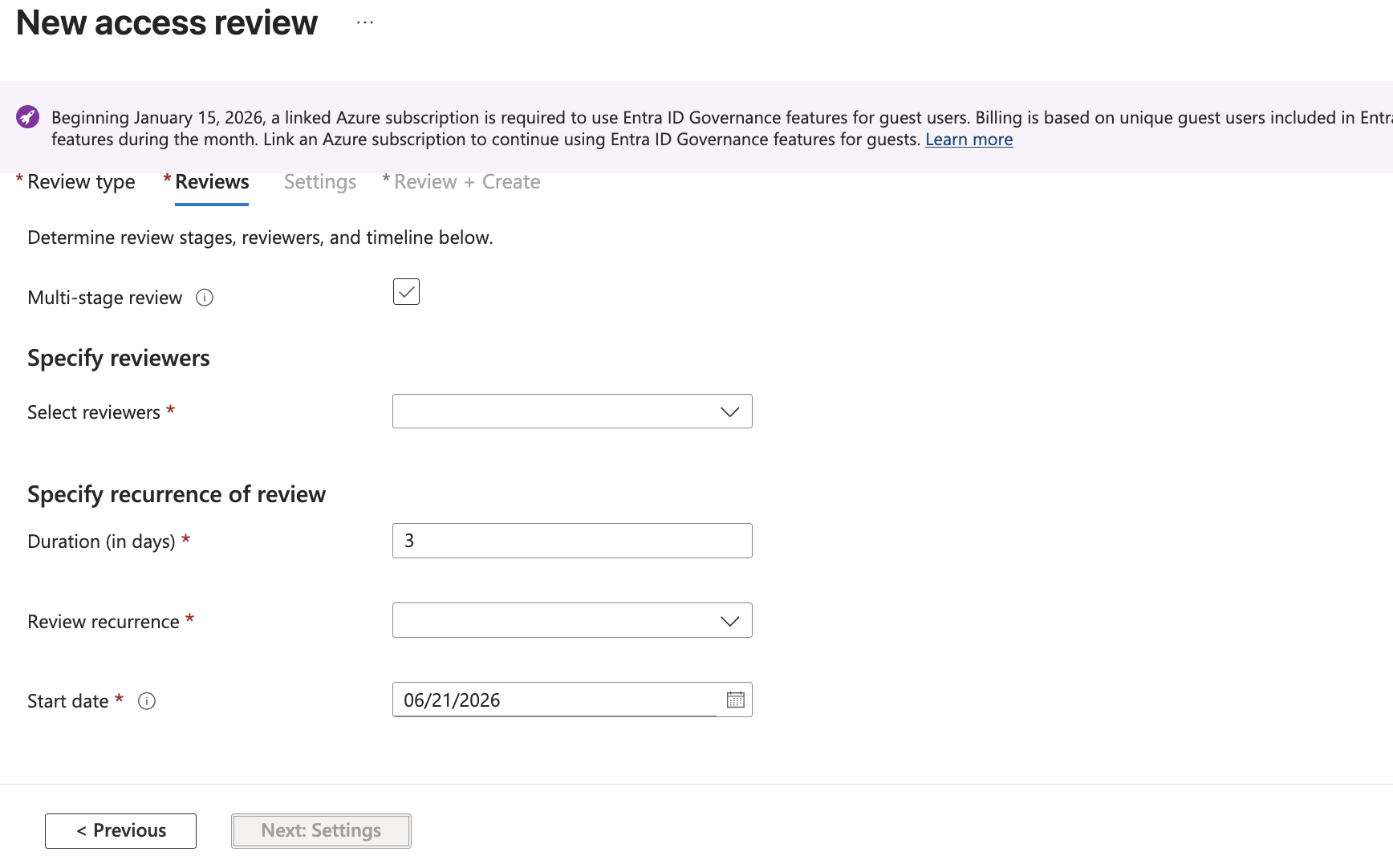
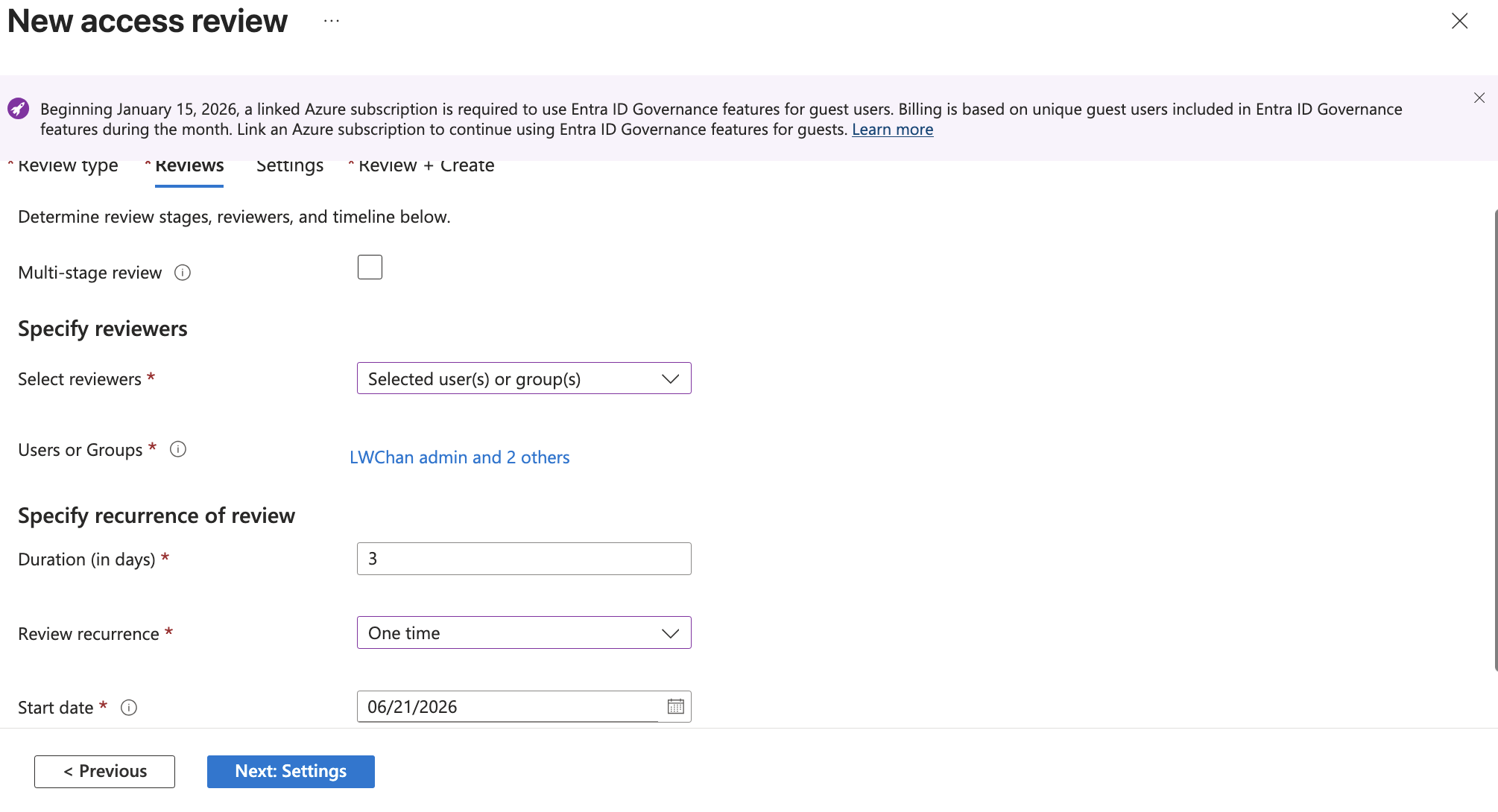
Reviewers: selected users / lab-owners
Review recurrence: One time
Duration: 3 days
Start date: 06/21/2026
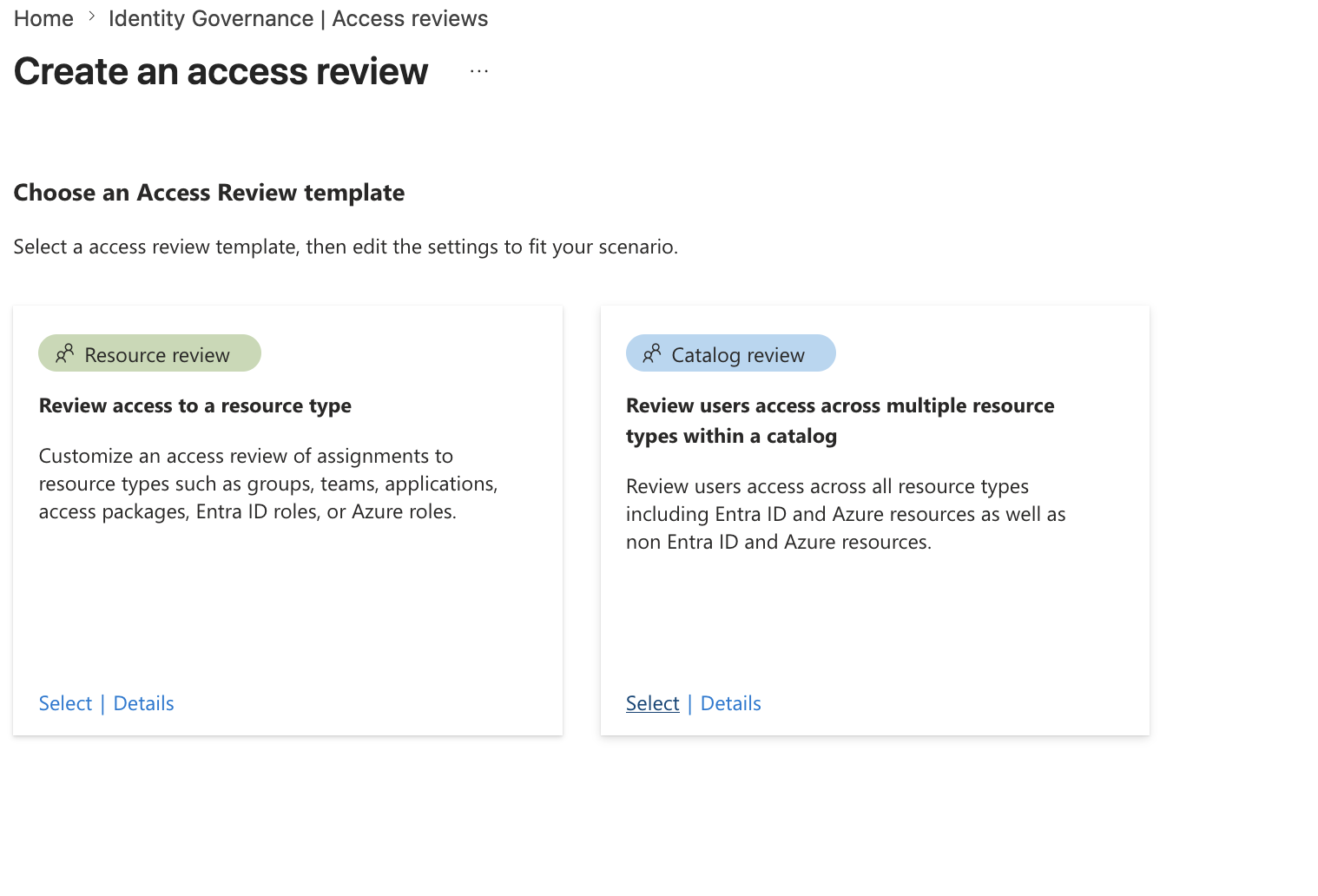
An access review answers a different question than an access package.
Access Package:
How does a user get access?

Access Review:
Should the user still have access?
This step proves periodic or one-time access validation.
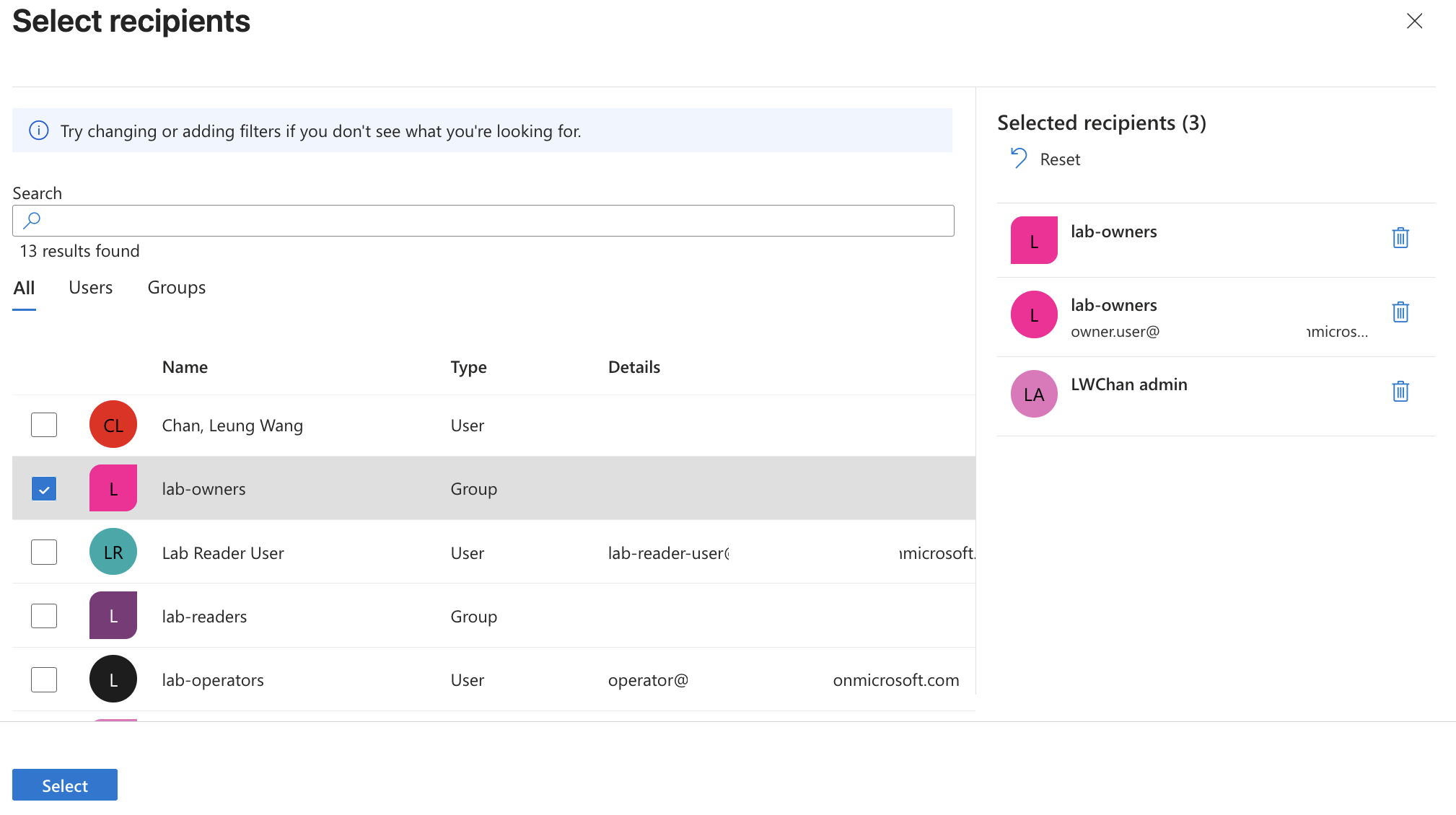
👥 Access Review Reviewers
I selected reviewers for the access review.
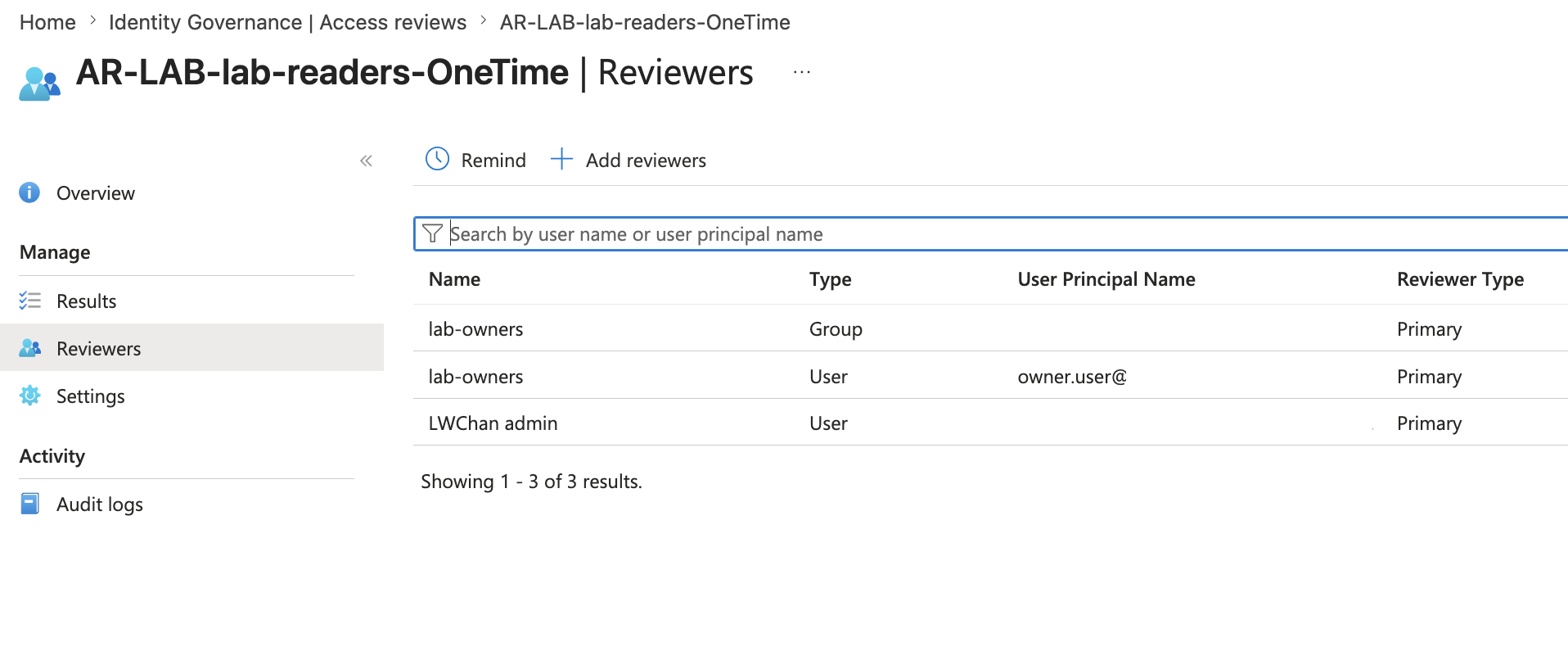
The reviewers included the lab owner group and selected admin or reviewer users.
This creates a review workflow where reviewers must decide whether a user should keep access to the group.
For this lab, I used selected reviewers instead of self-review.
Reason:
A selected reviewer flow is easier to prove in screenshots.
It also better represents delegated governance.
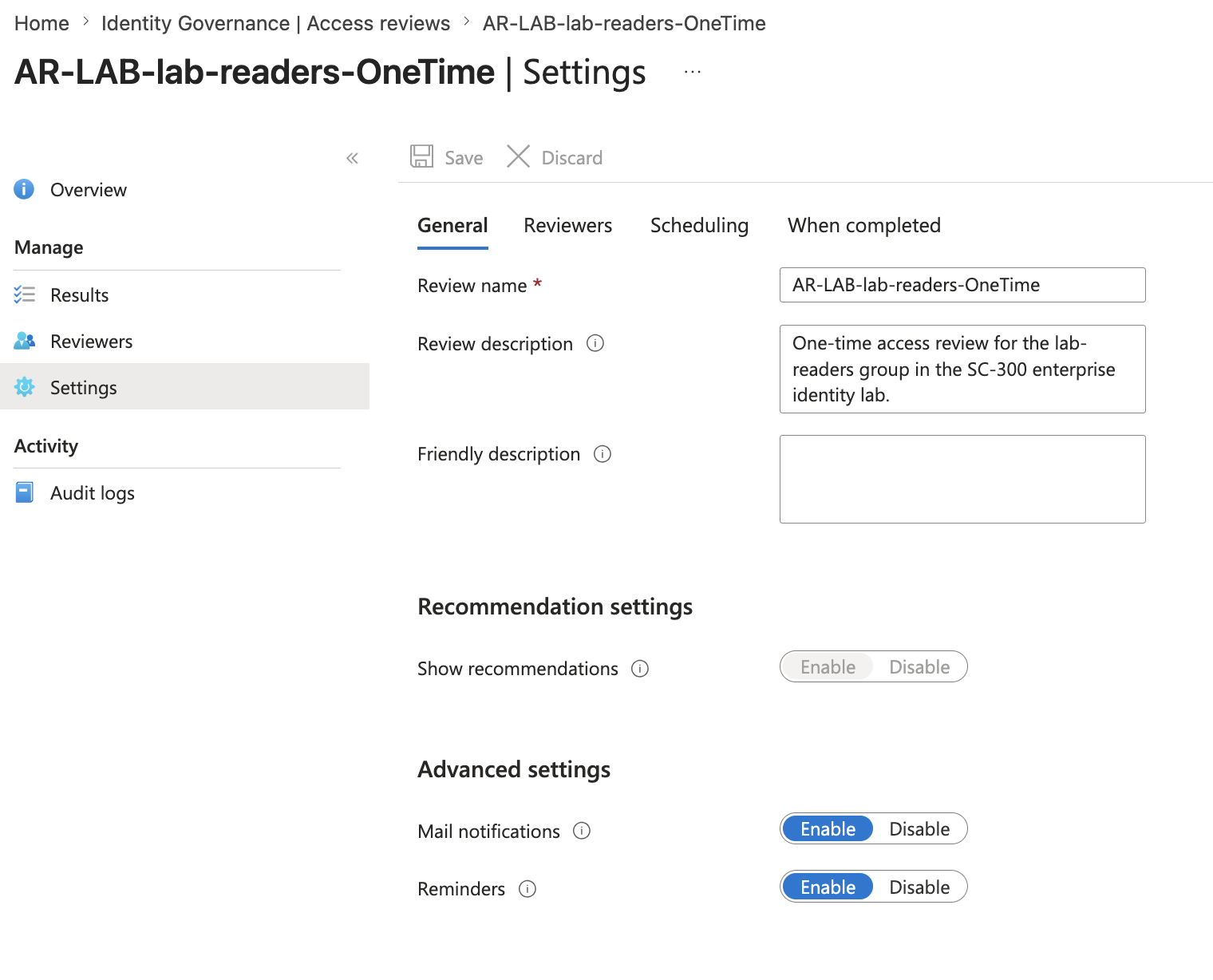
⚙️ Access Review Settings
I reviewed and configured access review settings.
Settings reviewed:
No sign-in within 30 days: Enabled
User-to-Group Affiliation: Disabled
Justification required: Enabled
Email notifications: Enabled
Reminders: Enabled
Auto-apply results to resource: Disabled
If reviewers do not respond: No change
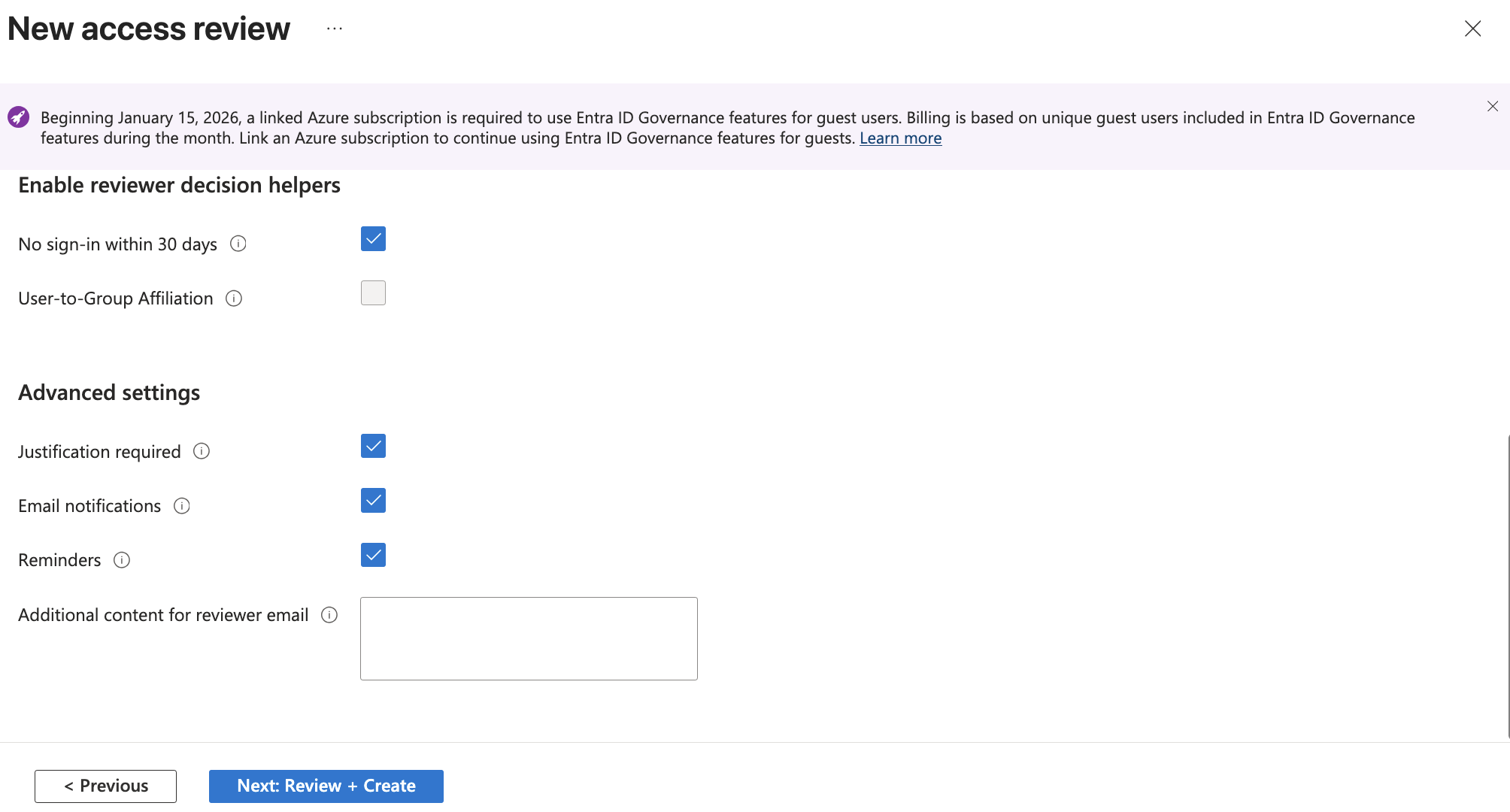
I kept auto-apply disabled for lab safety.
That means the review can produce recommendations and reviewer decisions without automatically removing users.
Production designs may enable auto-apply after the process is tested.
Lab-safe approach:
Review first.
Do not automatically remove access until the process is understood.
📊 Access Review Overview and Results
The access review was created successfully.
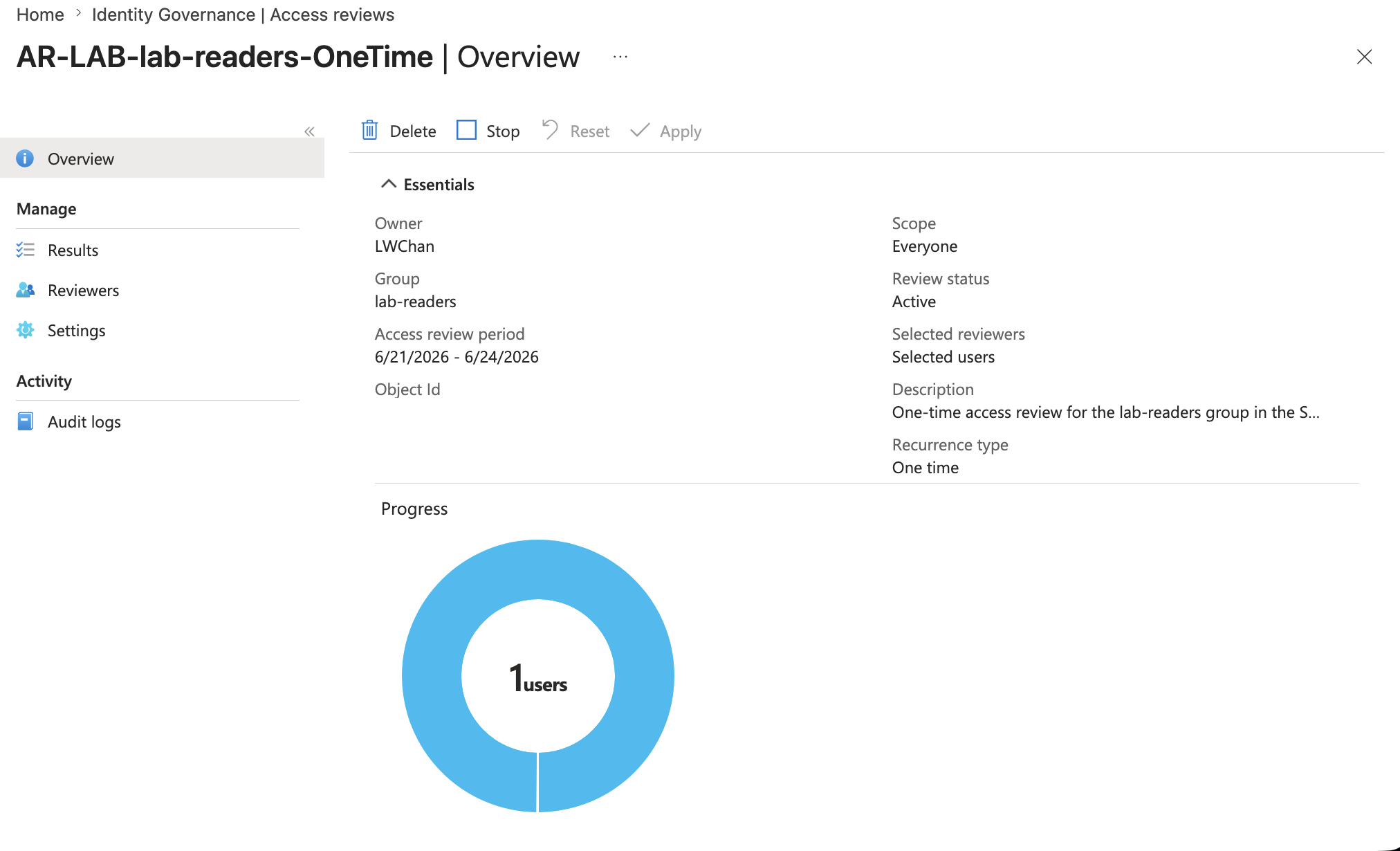
The overview showed:
Review status: Active
Group: lab-readers
Review period: 06/21/2026 - 06/24/2026
Recurrence type: One time
Scope: Everyone
Selected reviewers: Selected users
The results page showed the reviewed object and recommendation.
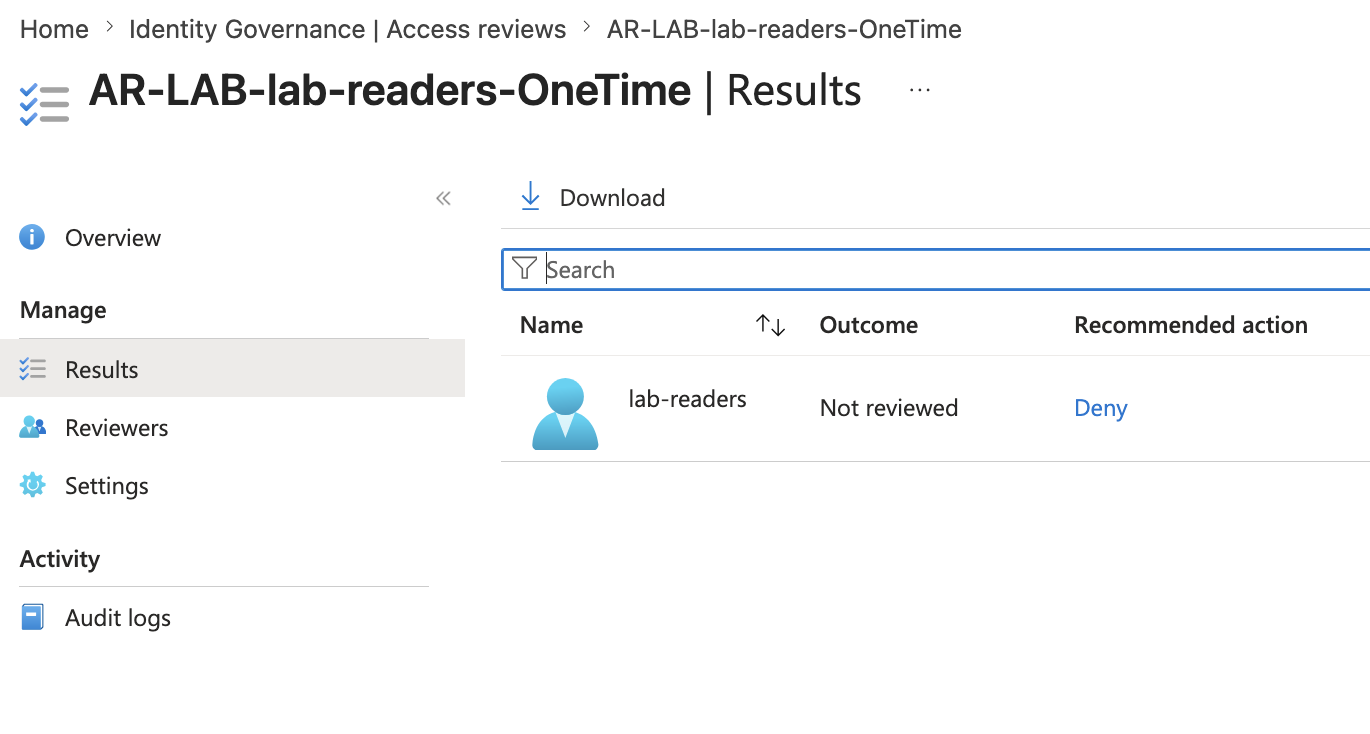
The recommendation showed Deny because the target user was considered inactive.
This is useful lab evidence because it proves that Access Reviews can provide reviewer decision helpers.
Important note:
A recommendation is not the same as a final decision.
The reviewer still decides whether to approve, deny, or mark as don't know.
🧑⚖️ My Access Reviewer Experience
I also tested the reviewer experience through My Access.
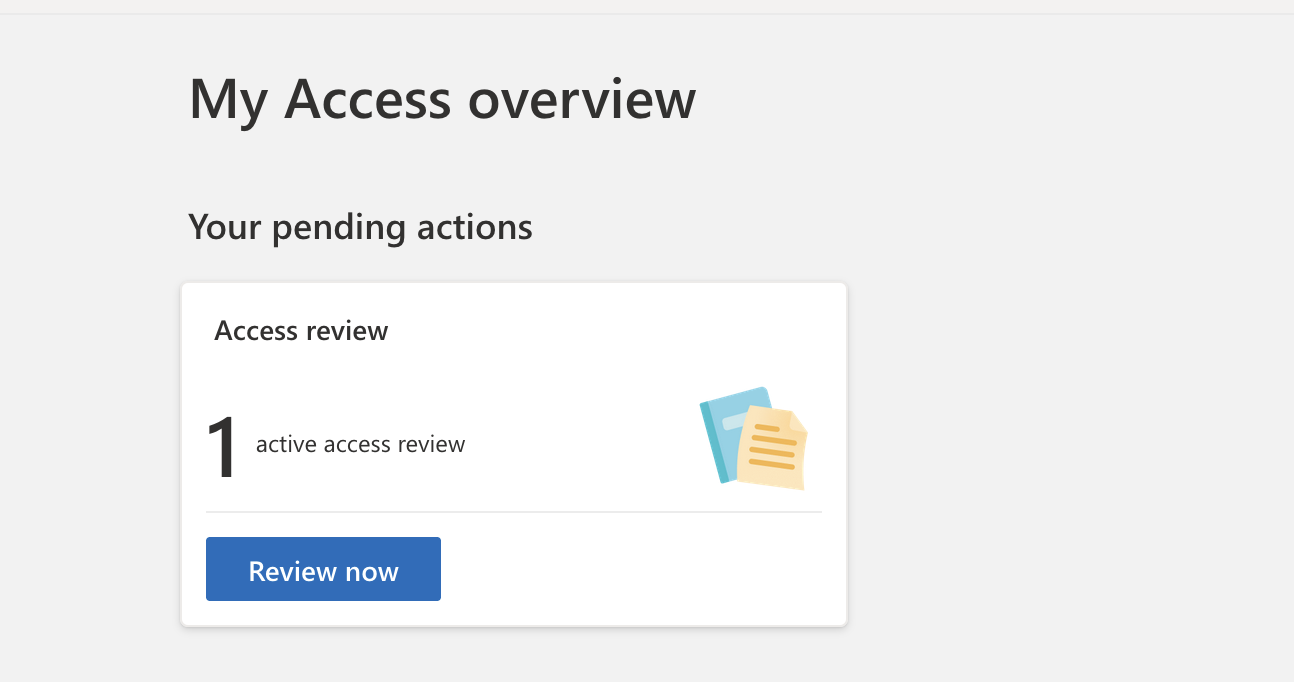
The reviewer saw one active access review action.
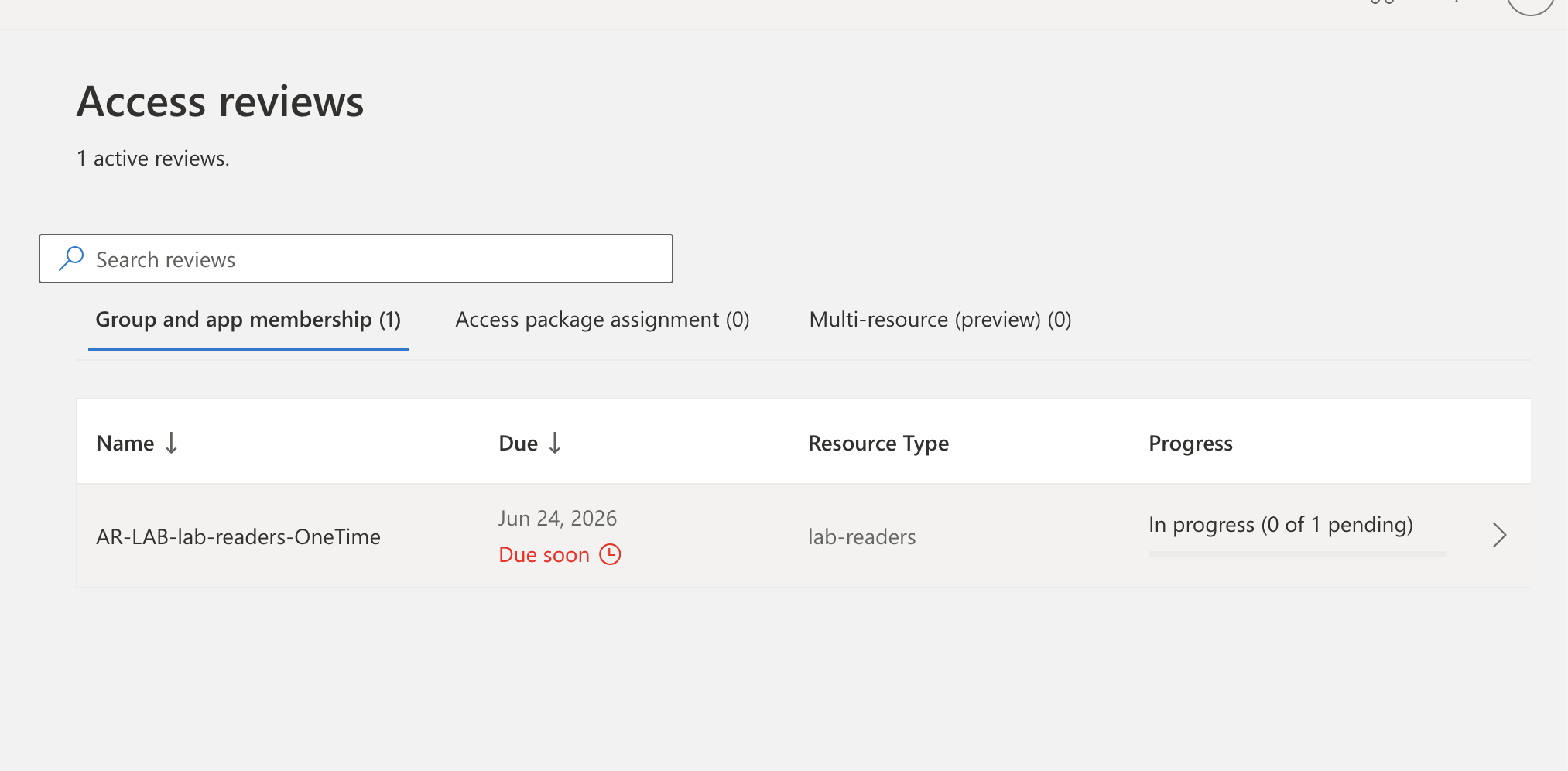
Opening the review showed the pending review item.
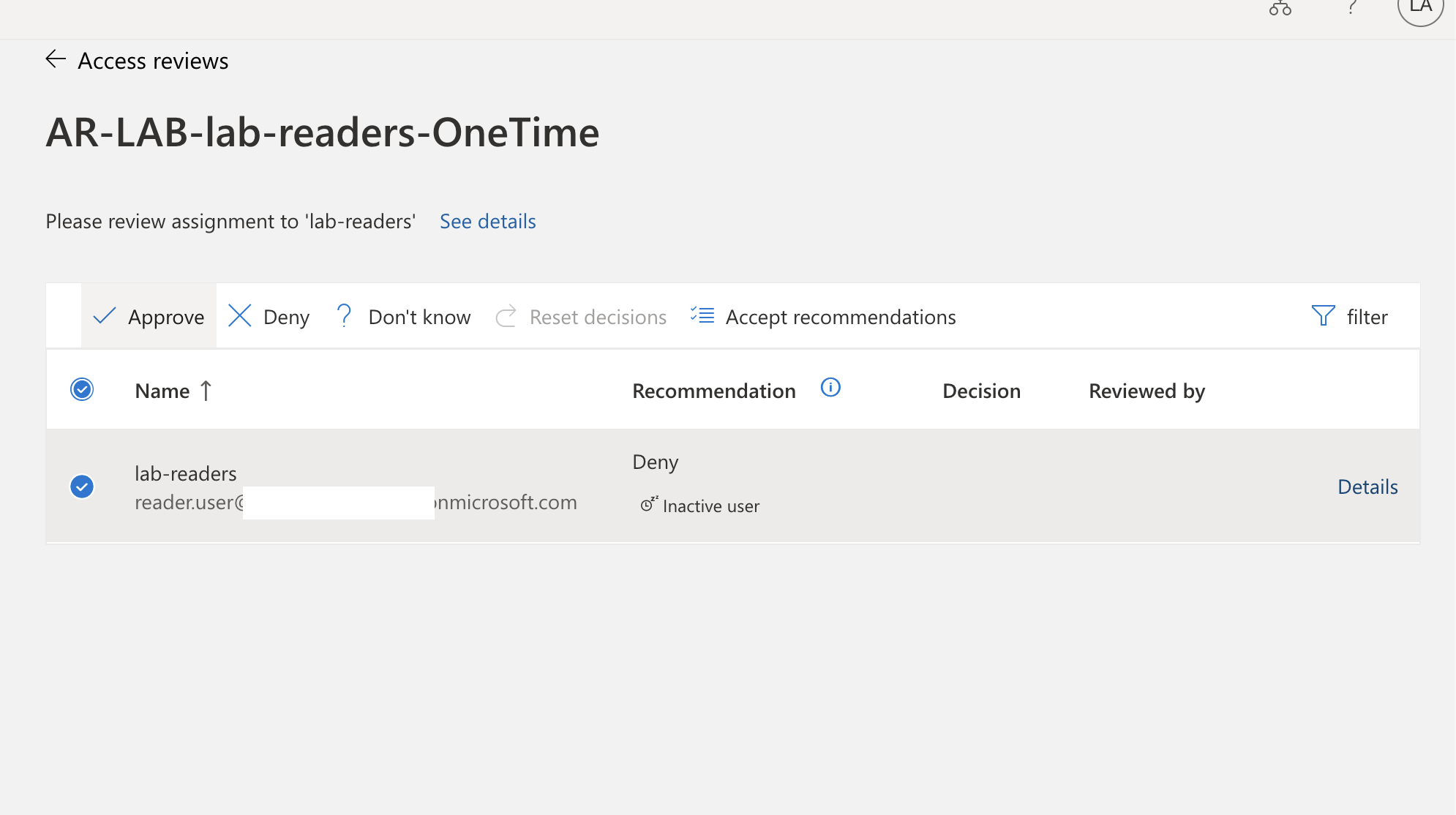
The reviewer could choose:
Approve
Deny
Don't know
Accept recommendations
The reviewed user had a recommendation of Deny due to inactivity.
For the lab test, I selected approval and provided a justification.
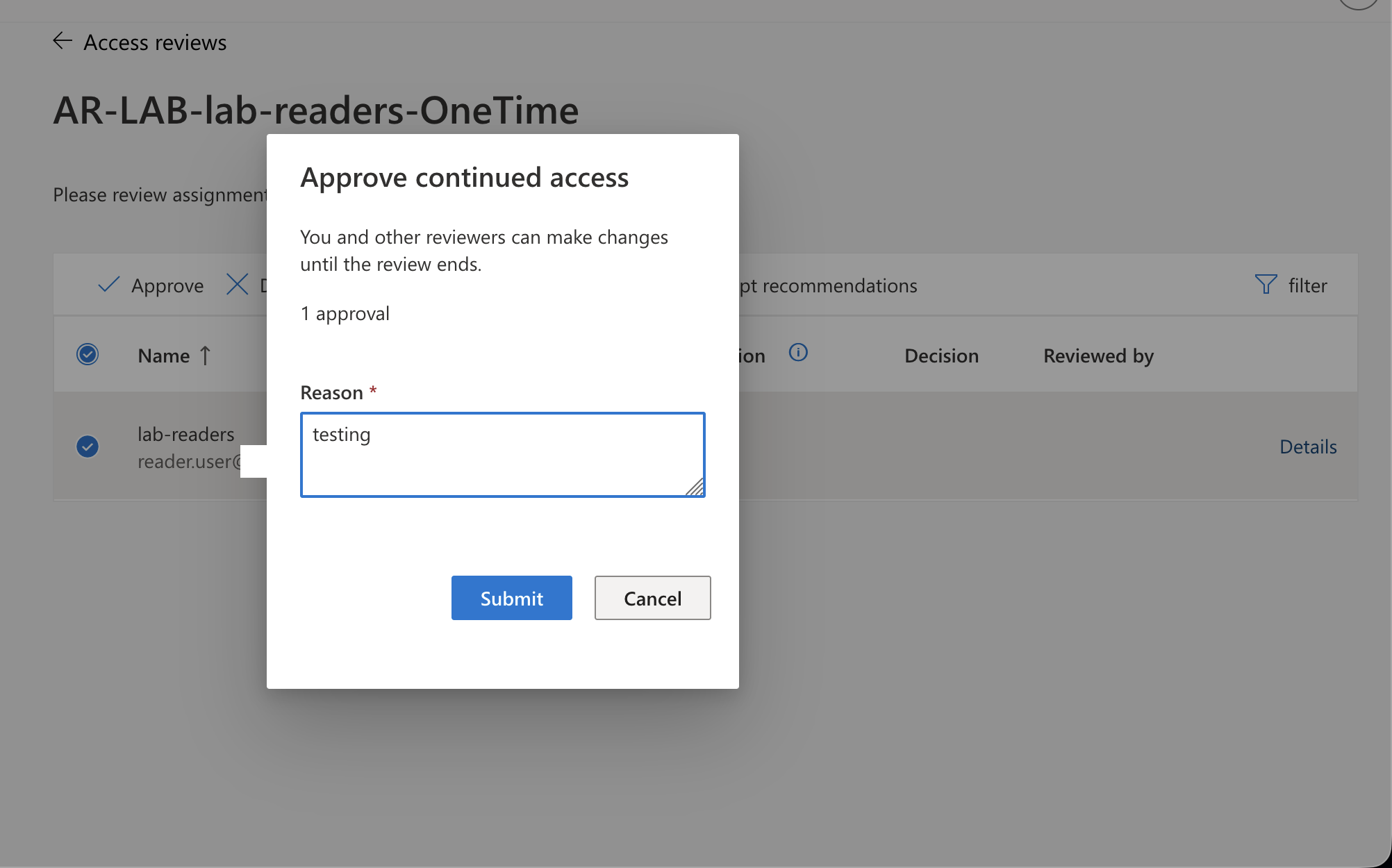
This proves the end-to-end Access Review flow:
Admin creates access review
Reviewer receives action in My Access
Reviewer makes a decision with justification
Admin can review results in Entra
🔑 Privileged Identity Management Quick Start
Next, I moved into Privileged Identity Management.
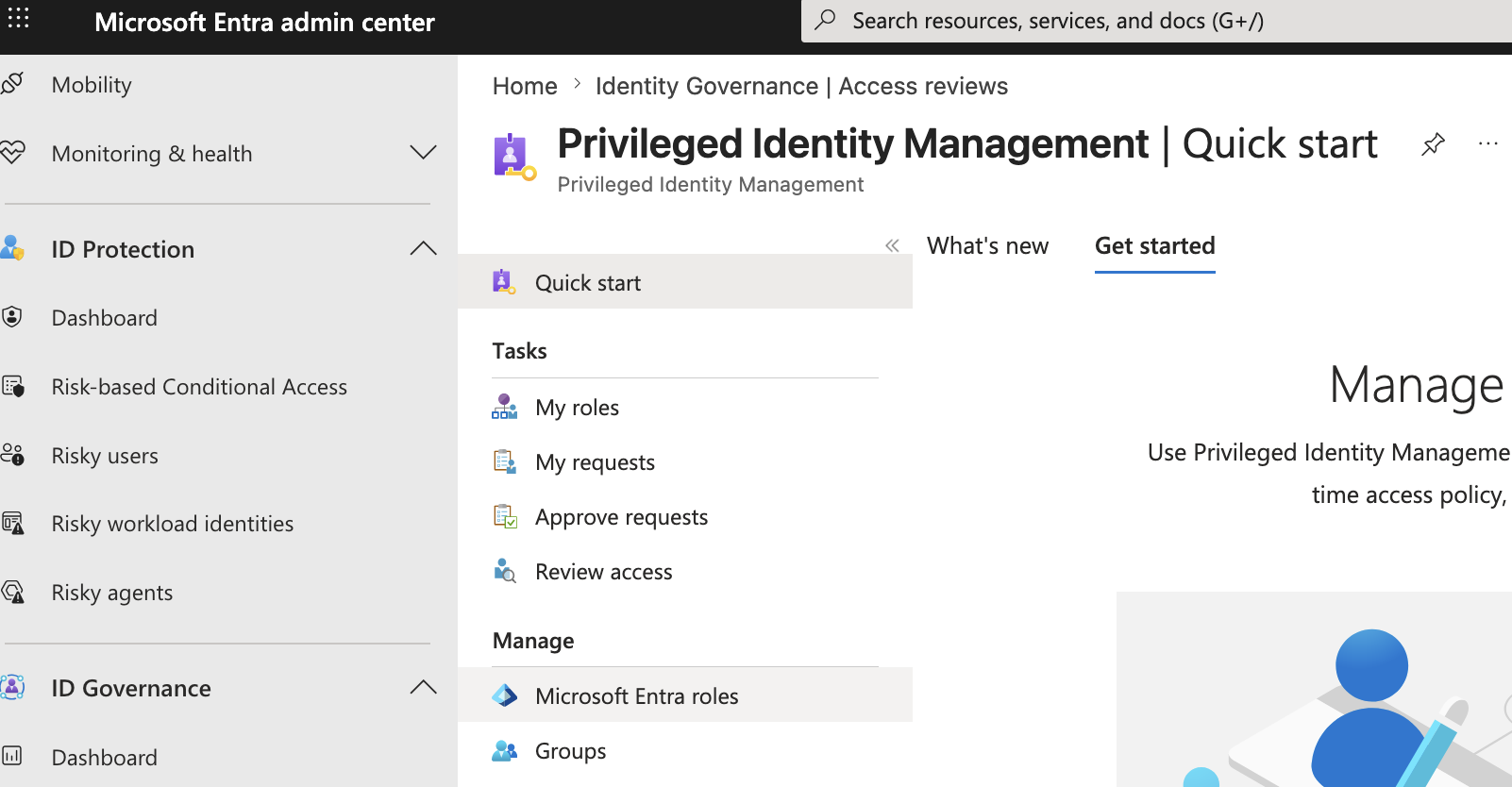
PIM is about just-in-time privileged access.
The goal is:
Users should not hold privileged roles permanently unless required.
They should be eligible and activate only when needed.
This is different from ordinary role assignment.
Permanent active role = standing privilege
Eligible PIM role     = can activate privilege when needed
For this lab, I used a low-risk role:
Role: Security Reader
Member: reader.user@<tenant>.onmicrosoft.com
Assignment type: Eligible
Membership: Direct
🧾 PIM Assignments Start State
The PIM assignments page initially had no eligible assignments.
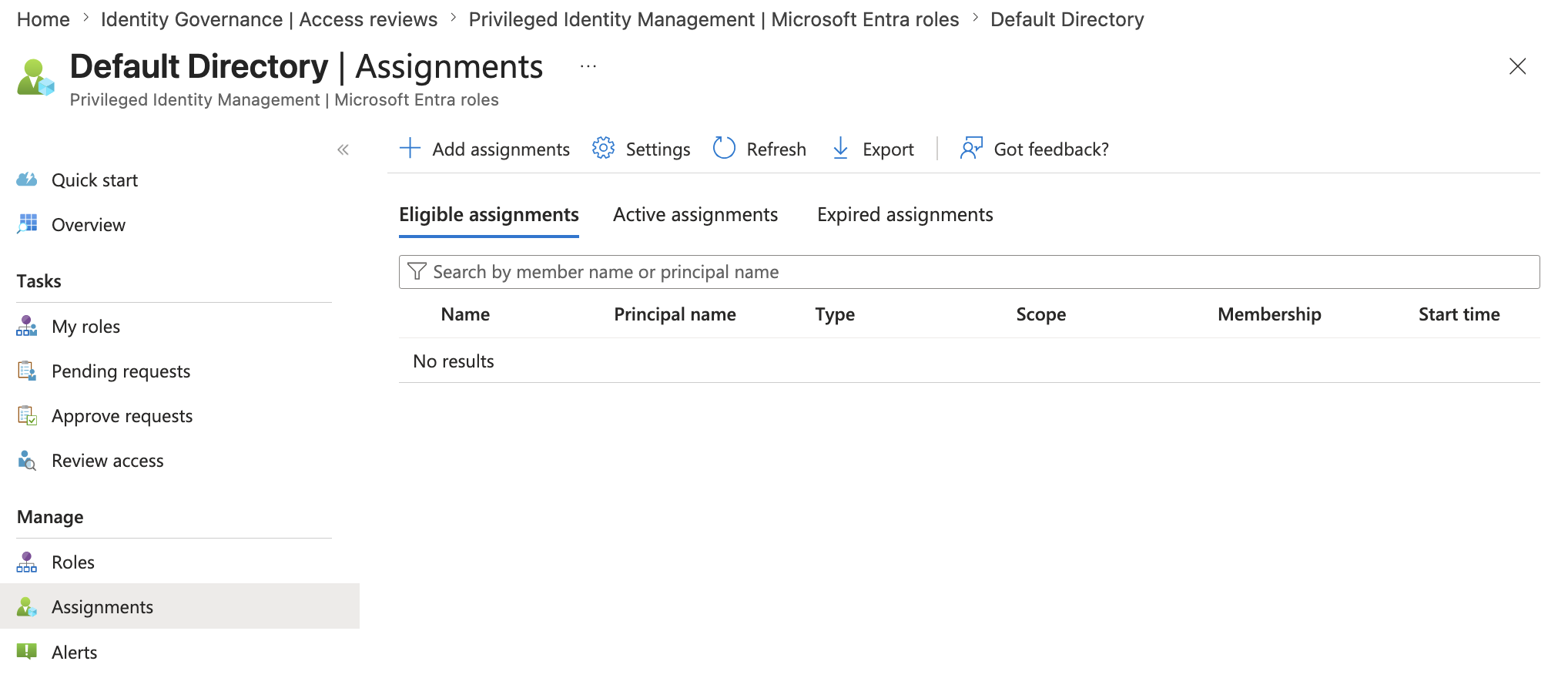
This is useful evidence because it shows the role assignment was created as part of the lab.
👤 Select PIM Member
I selected the reader.user test identity as the member.
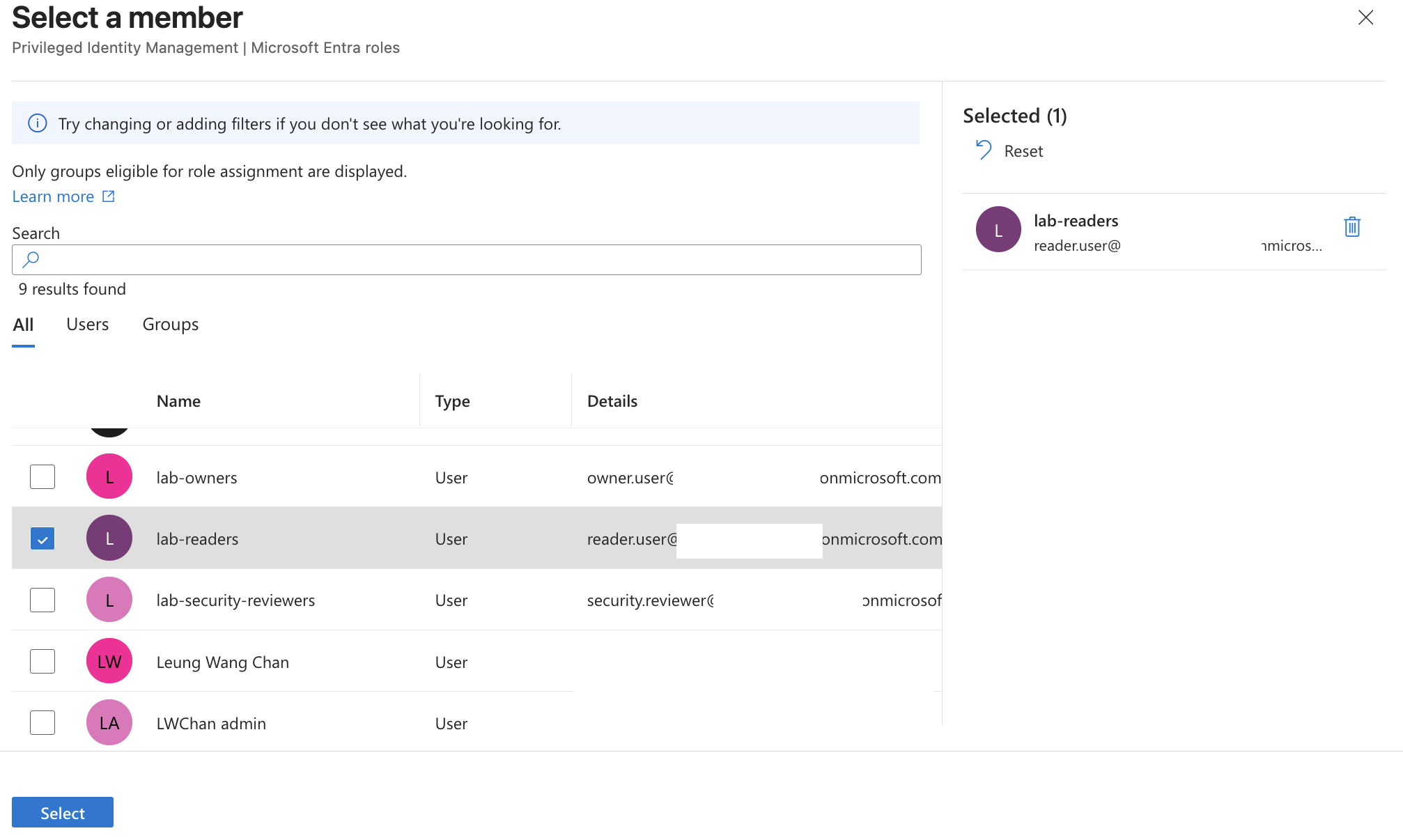
The portal notes that only identities eligible for role assignment are displayed.
This matters because Microsoft Entra roles are sensitive privileges and should be assigned deliberately.
🛡️ Add Eligible Security Reader Assignment
I selected the Security Reader role.
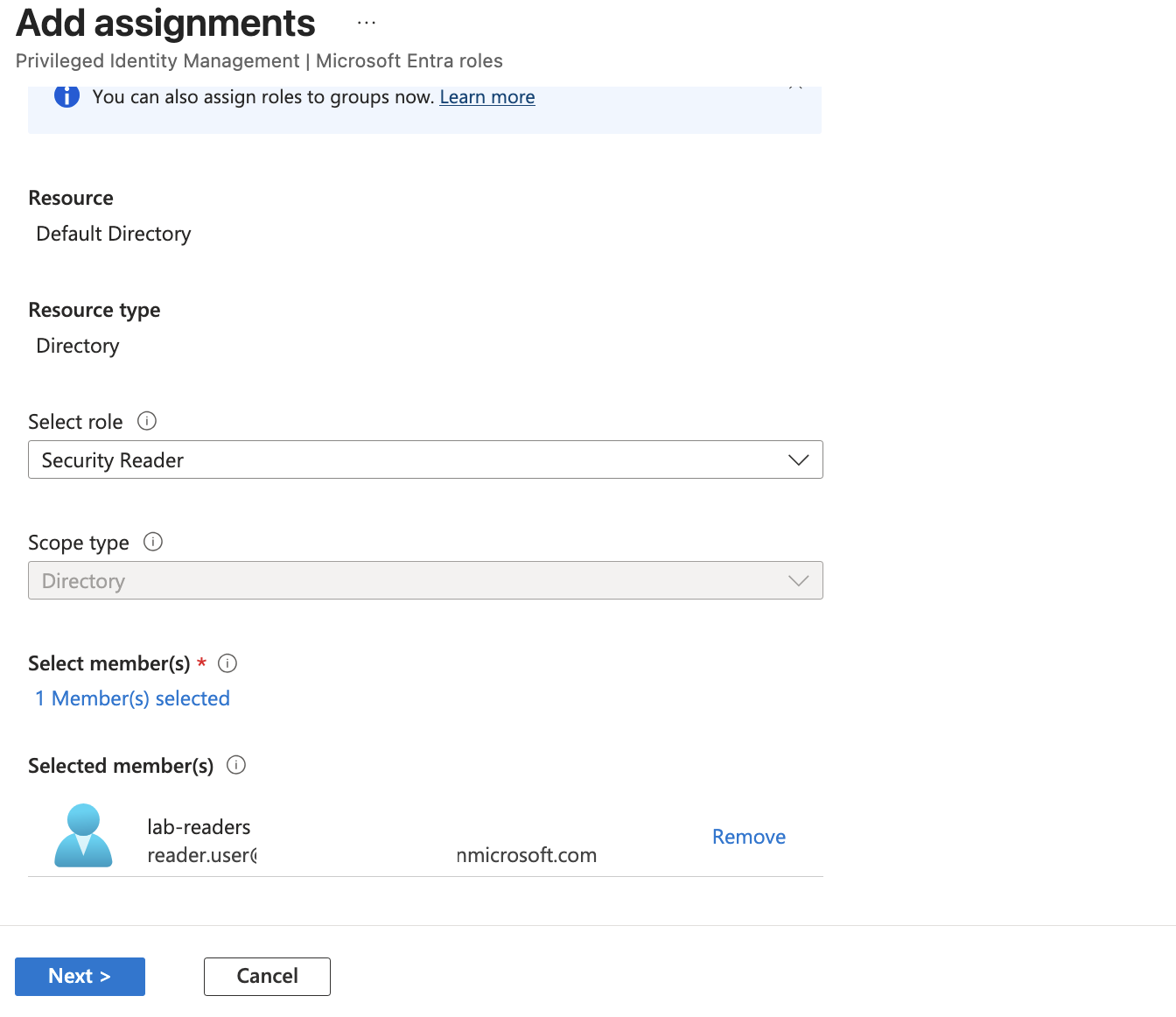
Configuration:
Resource: Default Directory
Resource type: Directory
Role: Security Reader
Scope type: Directory
Selected member: reader.user
I used Security Reader because it is safer than using Global Administrator or Privileged Role Administrator for a lab demonstration.
The point is to prove the PIM workflow, not to hand out dangerous privileges.
⏳ Eligible Assignment Settings
I configured the assignment as eligible.
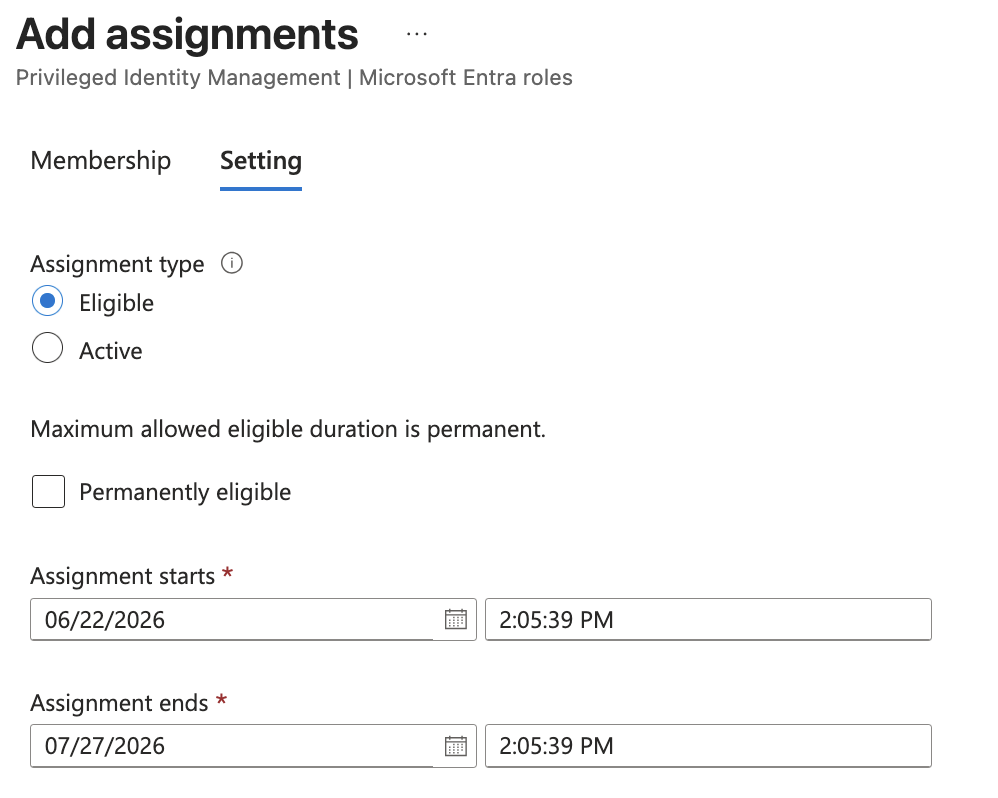
Configuration:
Assignment type: Eligible
Permanently eligible: No
Assignment starts: 06/22/2026
Assignment ends: 07/27/2026
This proves a time-bound eligible assignment.
Important distinction:
Eligible = user can activate the role
Active   = user currently has the role
Eligible role assignment is safer than permanent active role assignment because the user must activate it when needed.
✅ Eligible Assignment Created
The eligible assignment appeared in PIM.
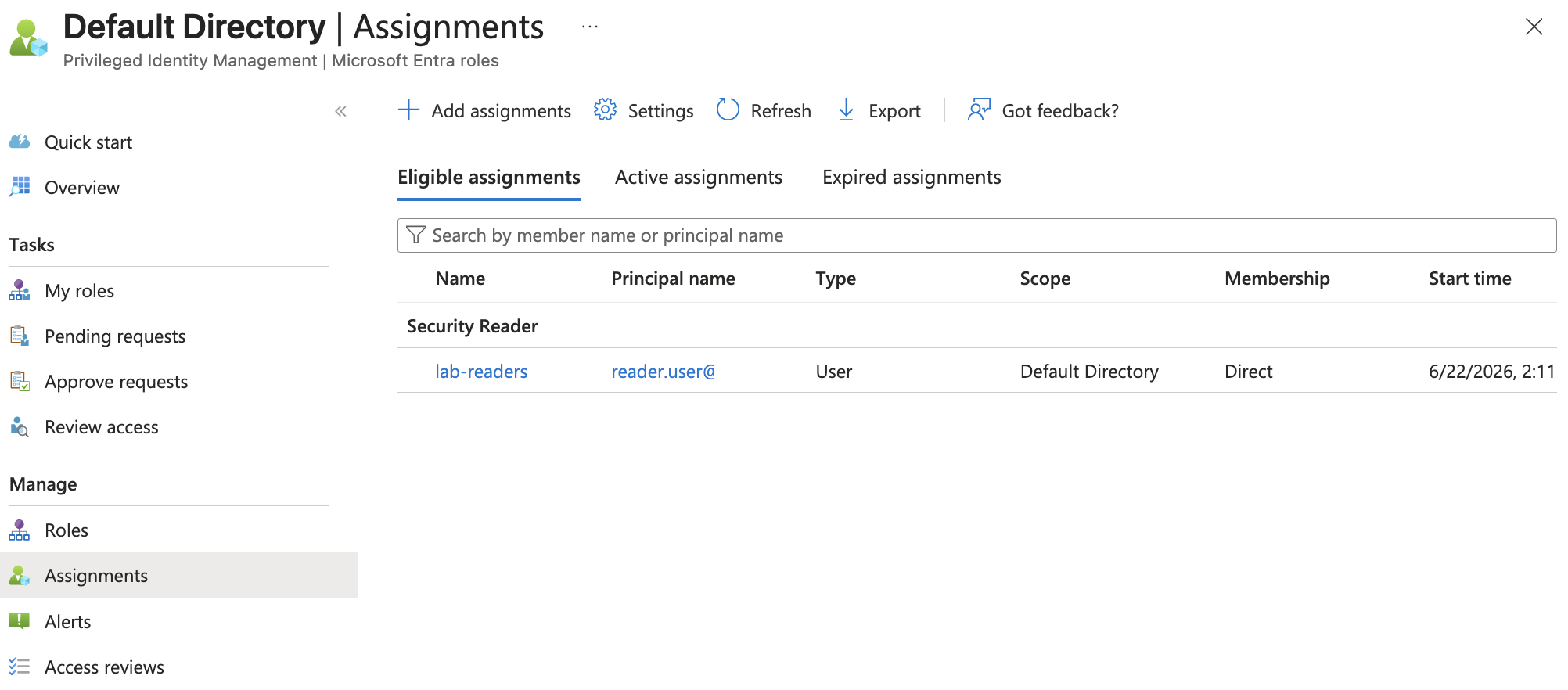
The assignment showed:
Role: Security Reader
Principal: reader.user
Type: User
Scope: Default Directory
Membership: Direct
This proves the eligible role assignment exists.
🚀 User Role Activation
I signed in as the reader user and opened PIM My Roles.

The user saw the eligible Security Reader role with an Activate option.
I then activated the role.
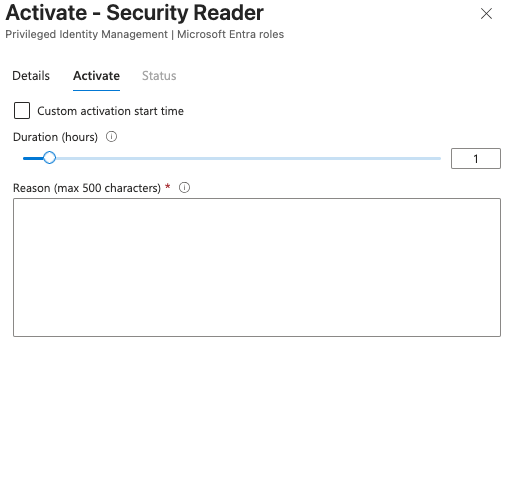
Activation configuration:
Role: Security Reader
Duration: 1 hour
Reason: Temporary activation to validate PIM workflow for the SC-300 enterprise identity lab.
The activation went through multiple validation stages.
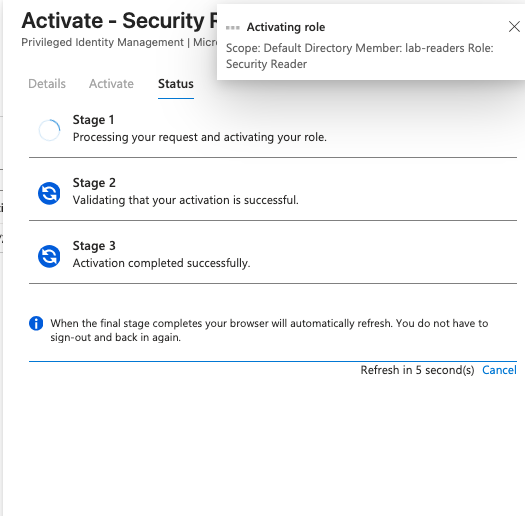
This proves the just-in-time model:
User does not hold standing privilege.
User activates privilege only when needed.
Activation is time-bound and auditable.
🟢 Active PIM Assignment
After activation, the role appeared under active assignments.
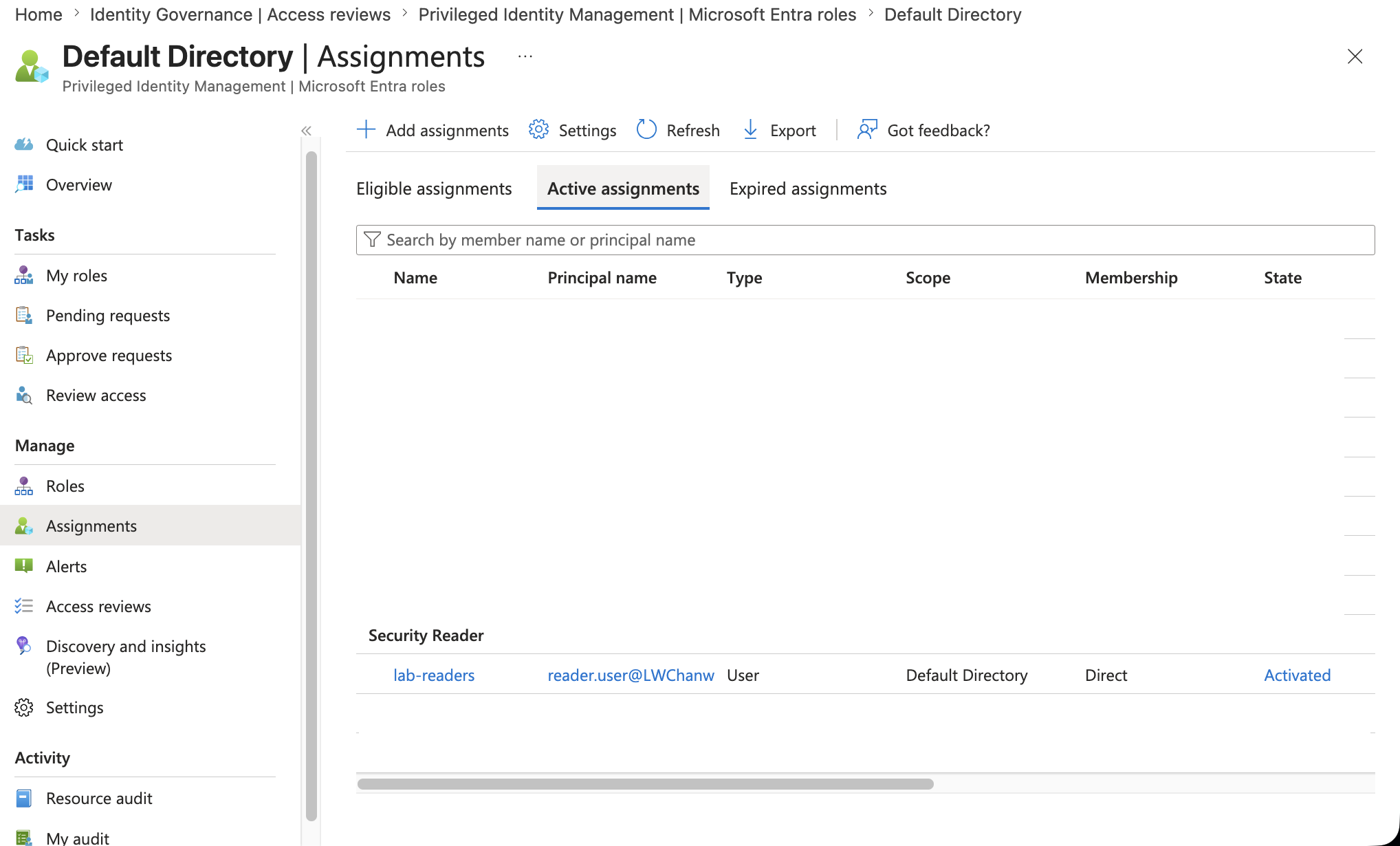
The active assignment showed:
Role: Security Reader
Principal: reader.user
Scope: Default Directory
Membership: Direct
State: Activated
This confirms that the eligible role was successfully activated.
📜 PIM Audit Evidence
I reviewed the PIM audit trail.
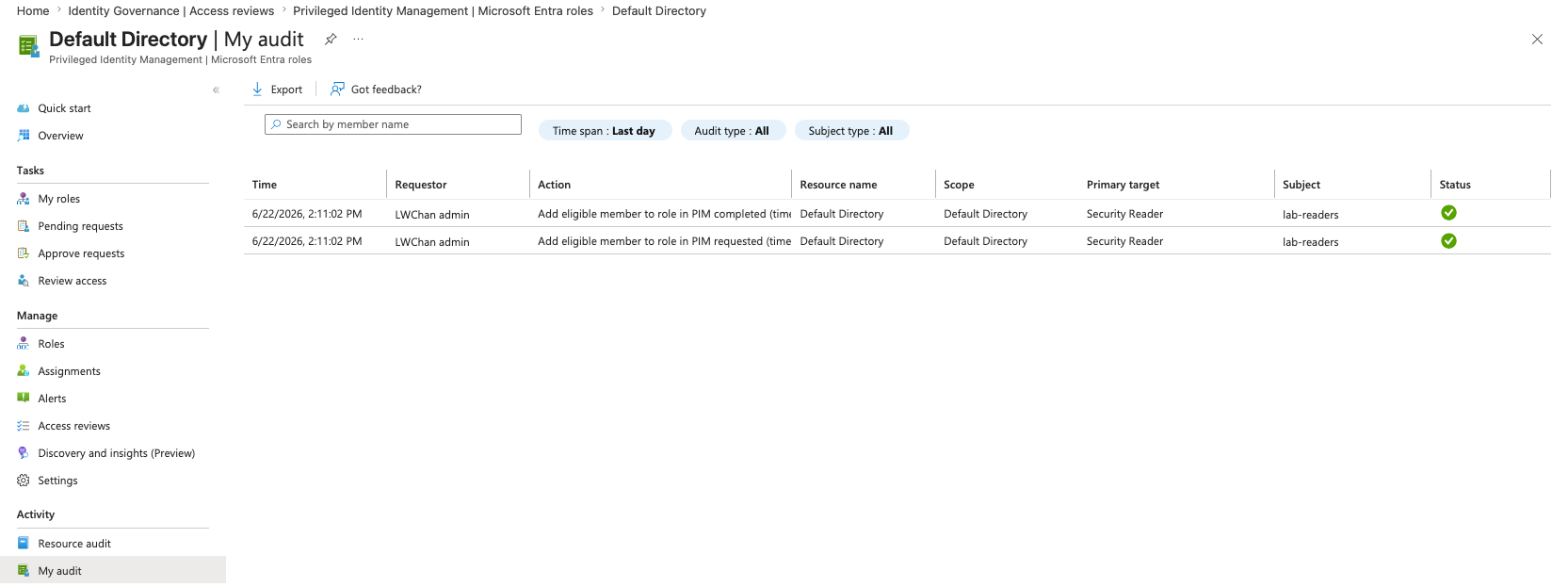
The audit log showed entries for:
Add eligible member to role in PIM requested
Add eligible member to role in PIM completed
This is a key PIM concept.
Privileged access should not only be controlled; it should also be auditable.
For a production design, sensitive roles should use stronger settings:
Require MFA
Require justification
Limit activation duration
Require approval for high-risk roles
Send alerts for privileged activation
Review privileged assignments regularly
For this lab, Security Reader was enough to prove the PIM workflow safely.
🧾 Summary
Part 3 completed the identity governance lifecycle section of the SC-300 lab.
Completed work:
- Created
Enterprise Lab Access Catalog - Added
lab-readersgroup as a catalog resource - Added
enterprise-azure-lab-appas a catalog resource - Created
Lab Reader Access Package - Added group membership and application role resource roles
- Configured approval, justification, and assignment expiration
- Created
Enterprise Lab Terms of Use - Connected Terms of Use to Conditional Access
- Tested the Terms of Use user prompt
- Created
AR-LAB-lab-readers-OneTimeaccess review - Verified reviewer workflow in My Access
- Created PIM eligible assignment for
Security Reader - Activated the eligible role for one hour
- Reviewed PIM audit evidence
The key lesson:
Identity governance is an access lifecycle, not a single setting.
Access packages answer how access is requested.
Terms of Use answer what the user must accept.
Access Reviews answer whether access should continue.
PIM answers how privileged access should be activated only when needed.
The next part moves into monitoring, KQL queries, and cleanup.